Jurisdictional View
Jurisdictional View provides a series of screens that allow users to monitor and oversee provider agencies. Users can also set up messages to be displayed on the Welcome page and view Santrax errors.

-
Type or paste your Sandata-supplied URL in the address bar of your web browser.
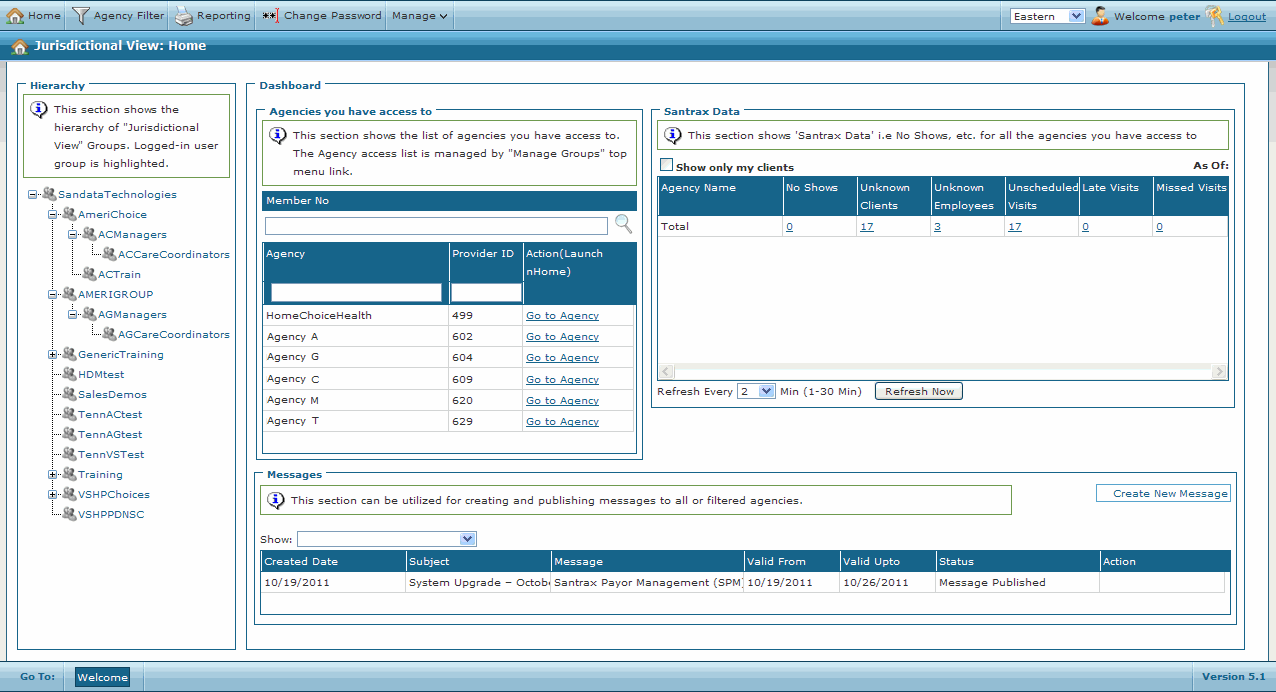
Jurisdictional View can also be accessed by clicking Jurisdictional View on the regular login screen.
-
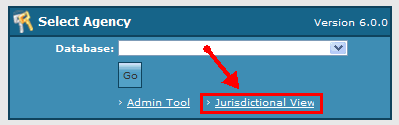
Enter your username and password and then click Login.
-
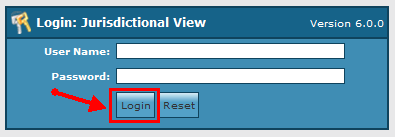
The Jurisdictional View Welcome Screen appears.
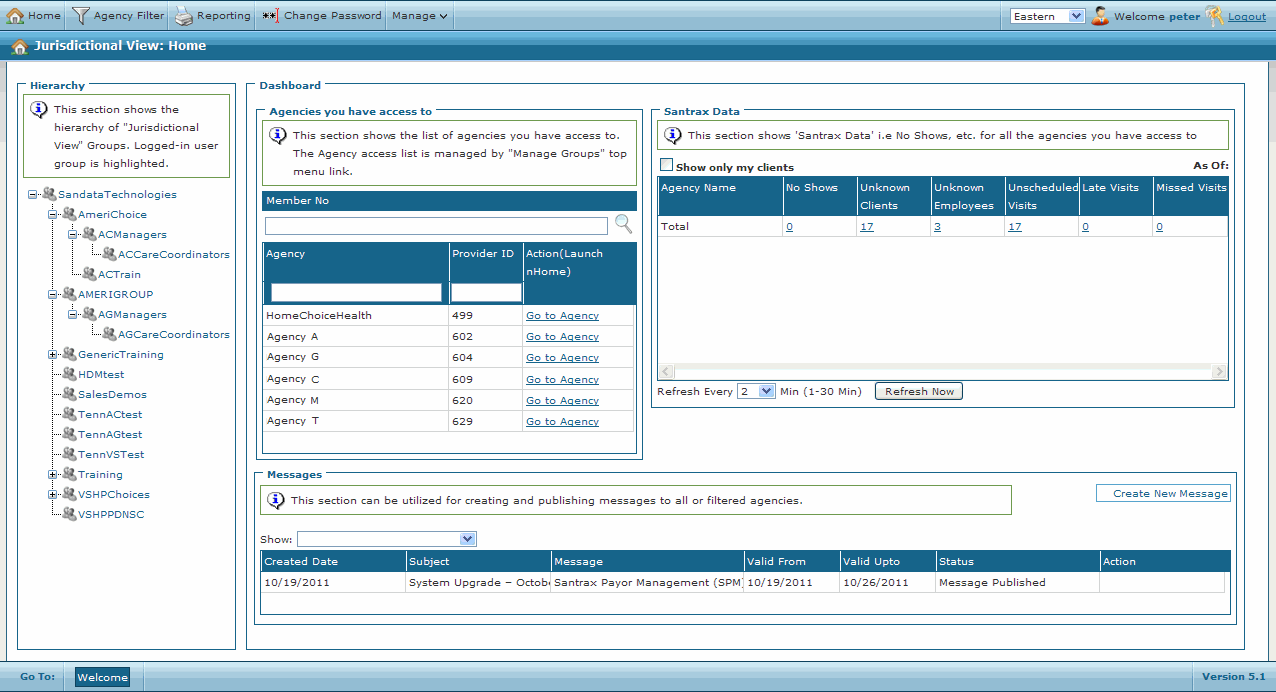
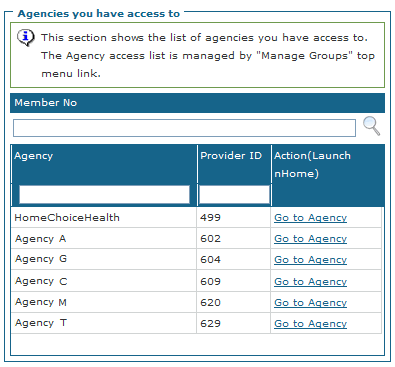
The Agencies Section displays the list of all available agencies.
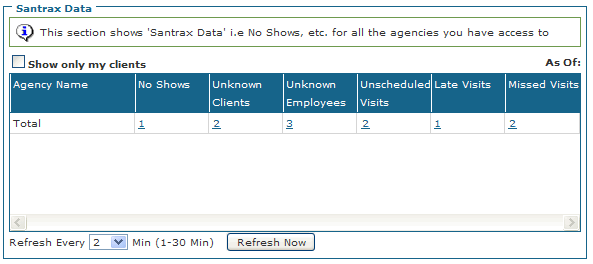
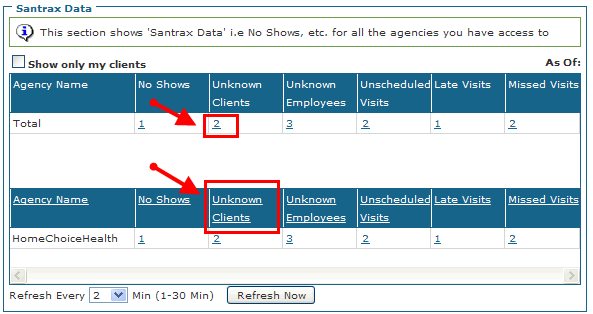
The Santrax Data section displays the number of no shows, unknown clients, unknown staff members, and unscheduled visits for all available agencies.
-
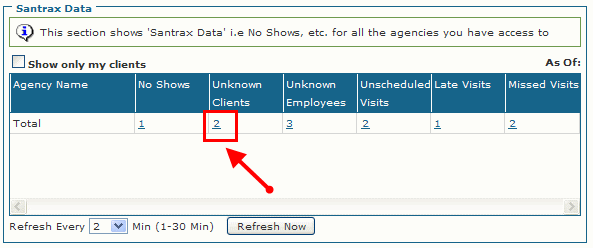
Santrax Data Overview: Use the drop-down box to control how often this section is refreshed. Click on a numbered link to see which agencies are involved.
-
Santrax Data by Agency: This section shows a breakdown of the Santrax data by agency. Click on a numbered link to get detailed information for that exception. Click on an exception name to view all agencies.
-
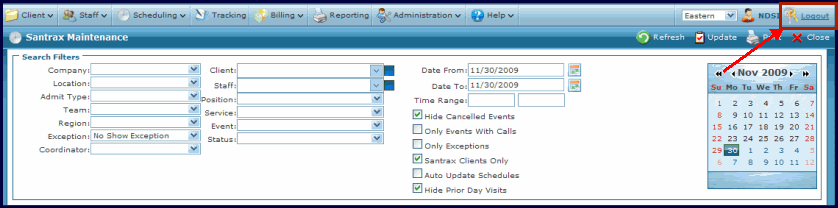
Santrax Detail Information: Click on a numbered link to open the agency’s Sandata Agency Management database and view detailed information about the exception. Click Logout to exit and return to the Jurisdictional View Dashboard.
The Messages section displays messages (both Published or Unpublished) that have been set to display on the Welcome page for all available agencies.

-
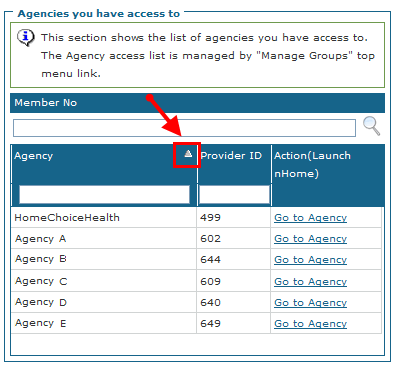
Search for Agencies. Unless changed, agencies are sorted by Provider ID. Click a section header to change the sort functions. The agency list can be sorted in ascending or descending order.
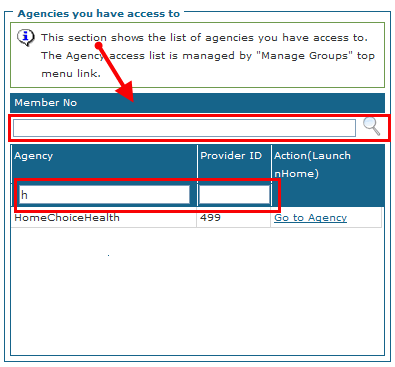
Agencies can also be searched for by entering a Member No., Agency name or Provider ID in the search bars.
-
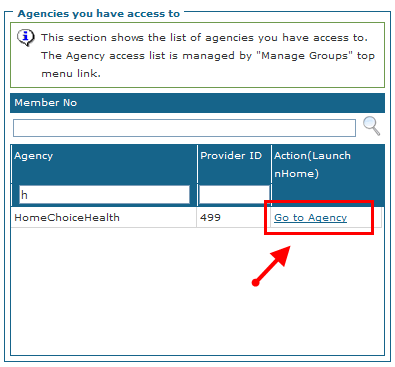
Click Go to Agency to launch the agency’s Sandata Agency Management database.
-
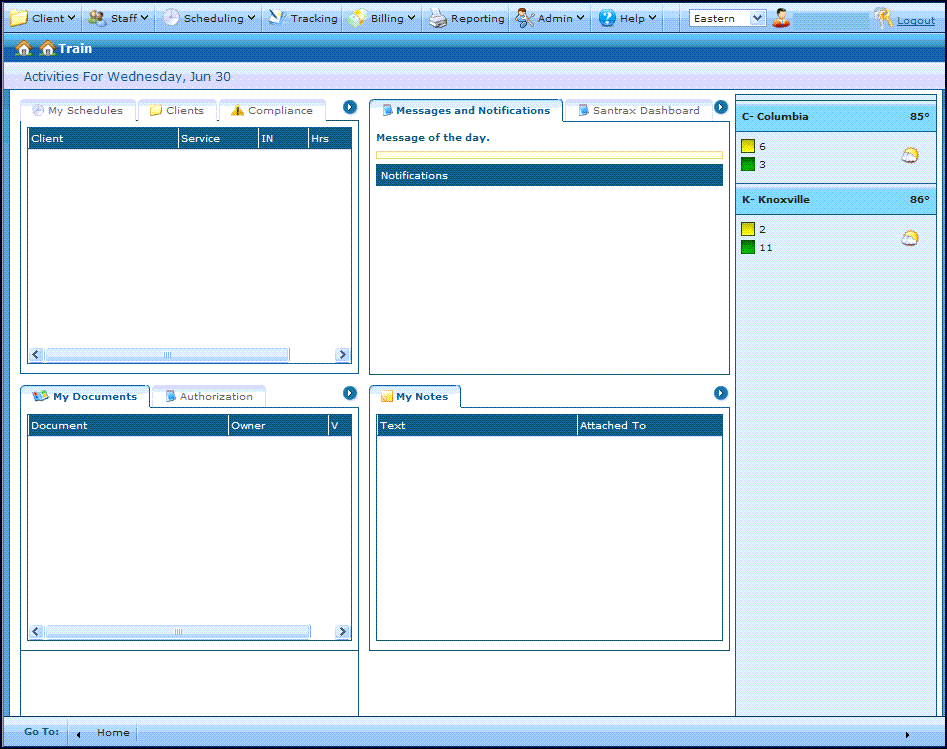
The Welcome screen opens in a new browser window or tab.
-
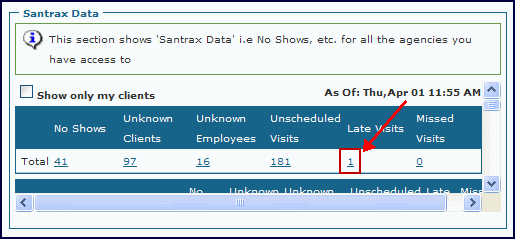
Click on the Late or Missed Visits icon.
-
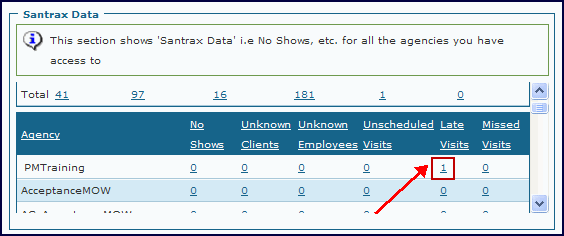
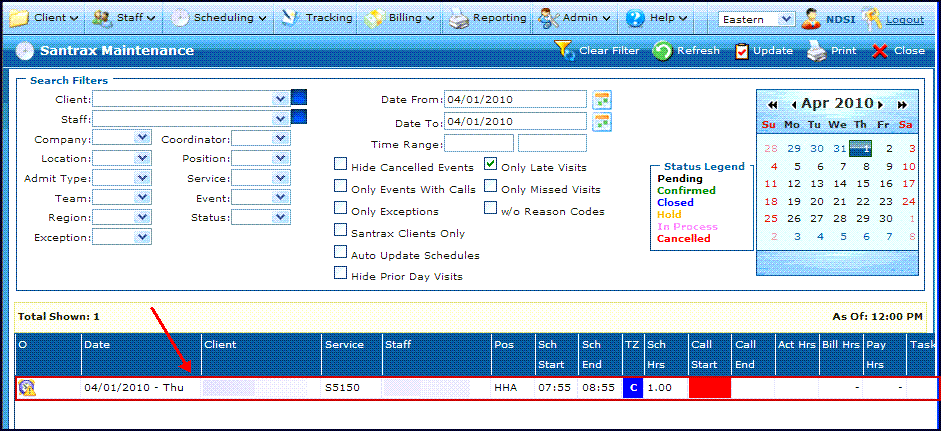
Find the late visit in the agency list.
-
Double click on the visit. The Schedule Detail screen opens.
-
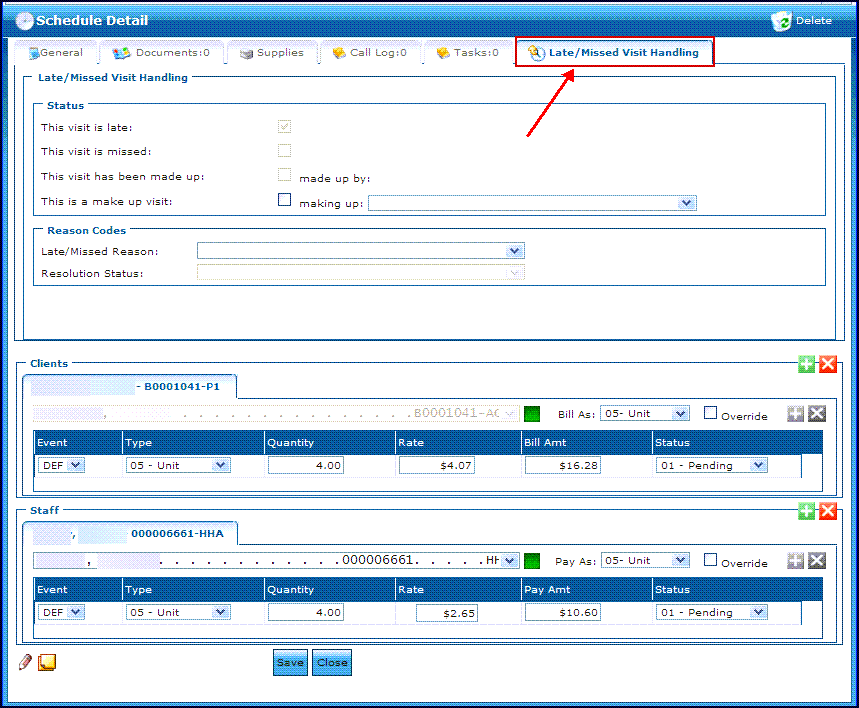
Click the Late and Missed Visit Handling tab.
-
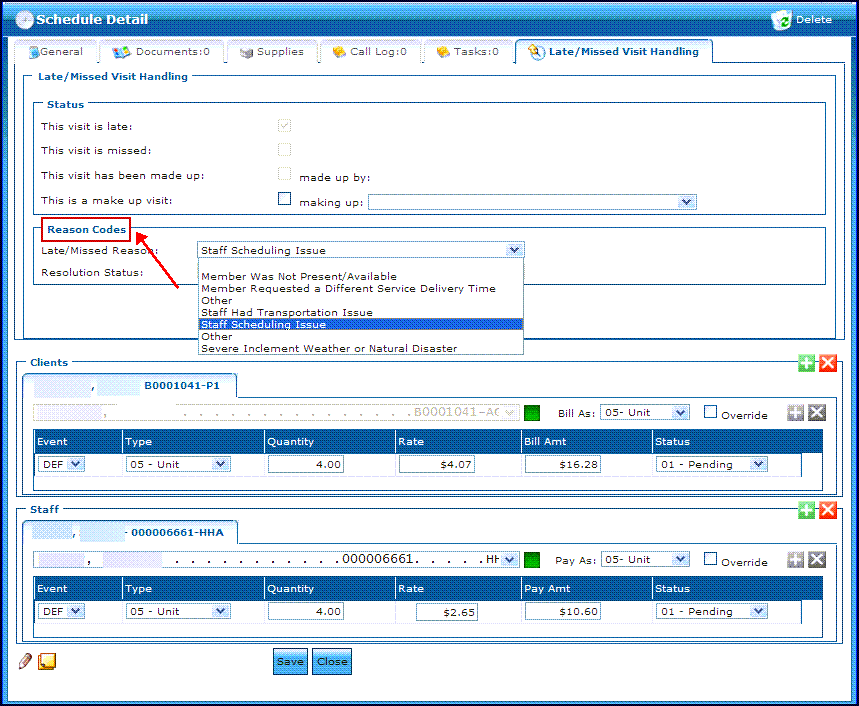
Enter the appropriate reason code for the visit. Click Save.
-
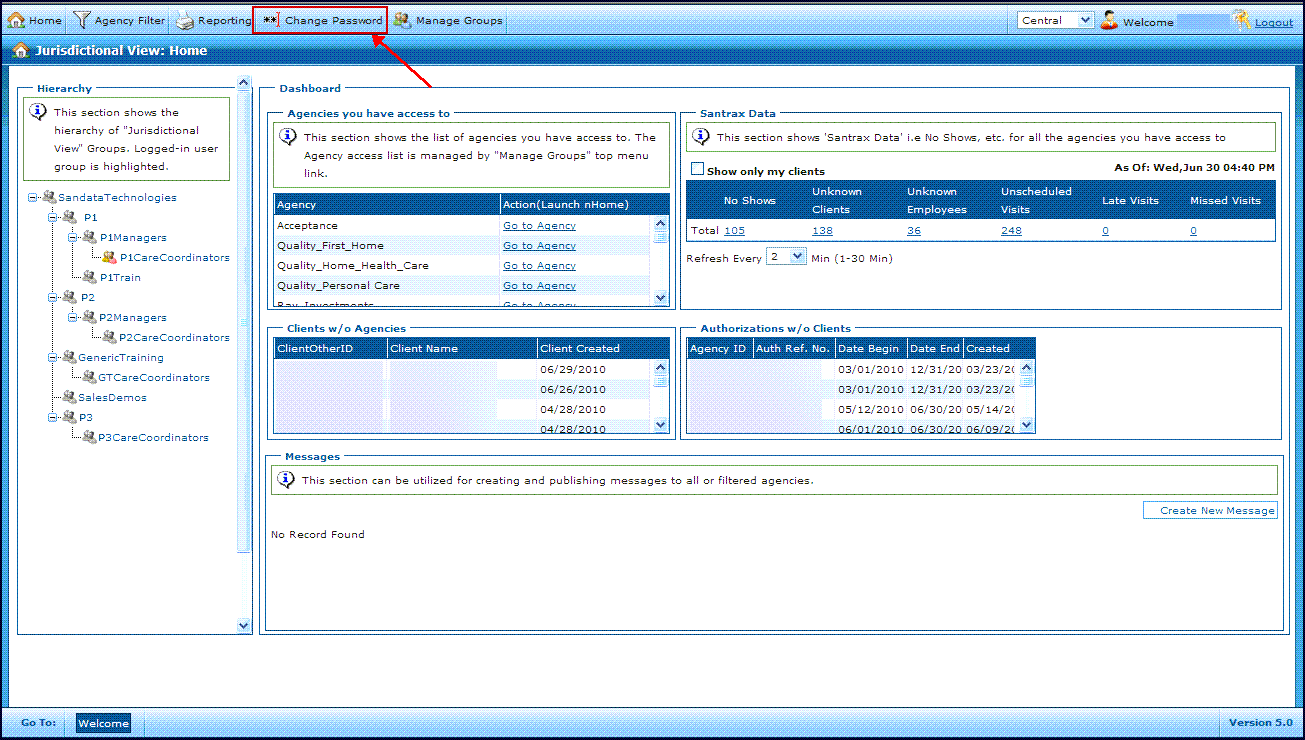
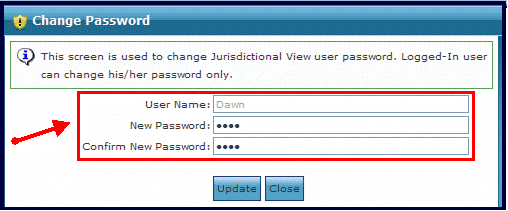
Click Change Password.
-
Enter the new password in the New Password and Confirm New Password fields.
-
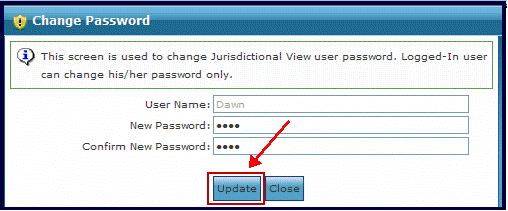
Click Update.
-
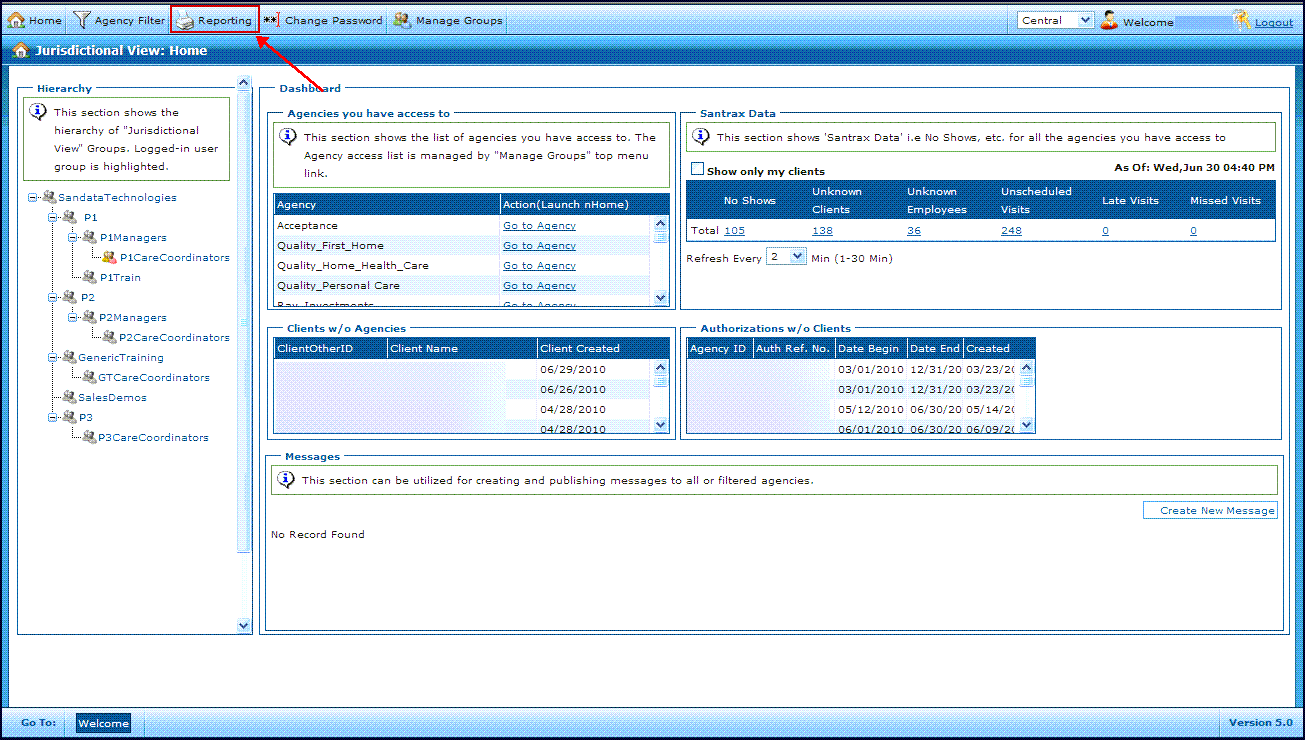
Click Reporting to view or print reports that have been created for Jurisdictional View.
-
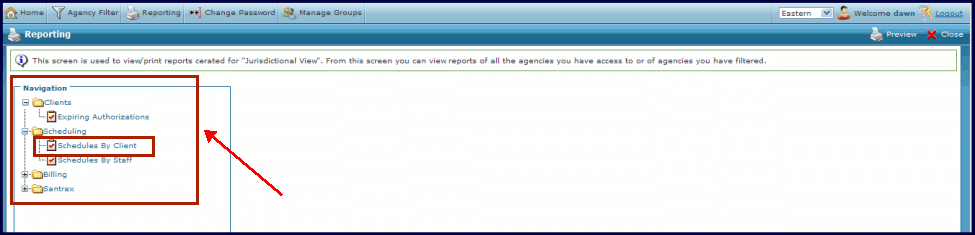
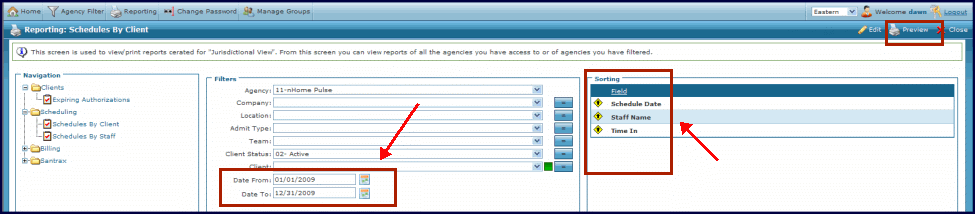
Click on a report to run it. The Navigation panel shows all available reports. The Expand / Collapse buttons to the left of the categories (Clients, Schedulling, Billing, Santrax) allow you to view their associated reports.
-
Use the filters to select the desired data. Click on a field in the sorting panel to toggle between ascending, descending or ignore data. Click Preview to run the report.
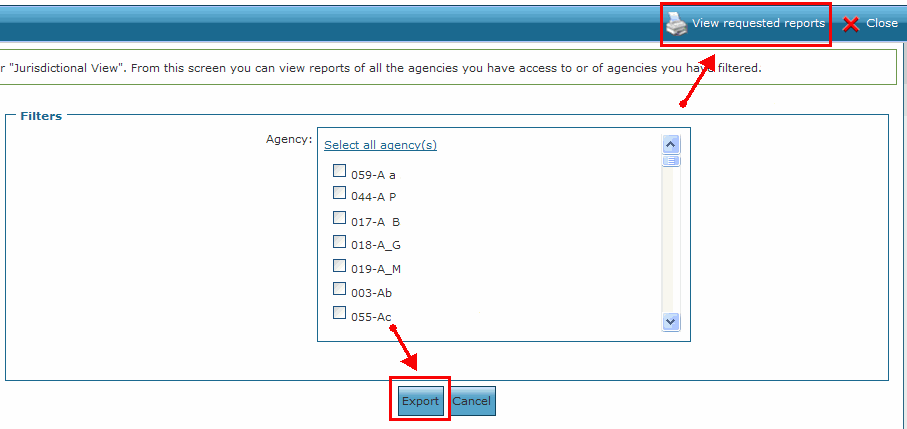
If there is no preview button, it may be a larger report that will take time to load. To view it anyway, click Export. You are prompted to enter an e-mail address to be notified when the report has finished running. Click on View Requested Reports after receiving the e-mail to open the report.
-
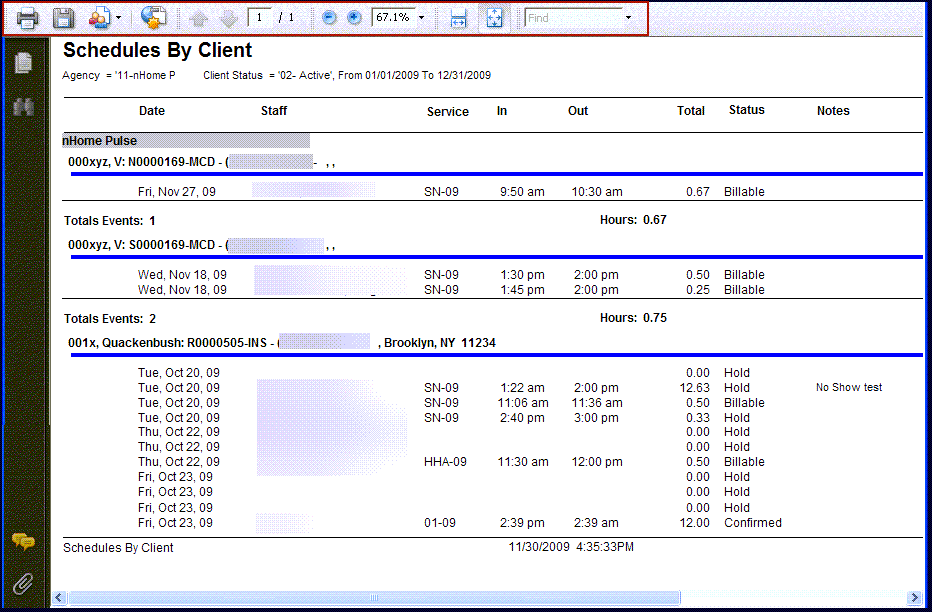
The report results are opened in a new window. Use the navigation panel to export data, print the report, search for data or adjust the view.