Group Visit Functionality
Sandata Mobile Connect uses group visit functionality to allow a caregiver to provide services for two or more individual clients. A group visit is defined as visits for two or more individual clients, linked by a shared group visit code. A group visit code is a 6-digit unique value assigned to each visit that occurred as part of the group visit and links the visits together.
Sandata Agency Management supports group visits by indicating that the clients are mutual, linking them together and scheduling them back-to-back. With a recent update, the system now accepts group visit codes, links the visits in the system and includes the group visit codes any time the visit information is exported.
To enable Group Visit Functionality, the following prerequisites must be met:
-
Group Visits must be enabled for the agency in Account Manager.
-
Group Visits must be enabled in Sandata Mobile Connect for the agency.
-
Consecutive Call Functionality cannot be turned on for the agency.
-
Update Schedule with Calling Staff must be disabled.
If the visit has a valid service for the client’s admission and the client, caregiver, group code, tasks, and time in and time out are included and there are no staff conflicts, the visit is created and auto-confirmed.

System Administrators can enable Group Visit Functionality using the following steps:
-
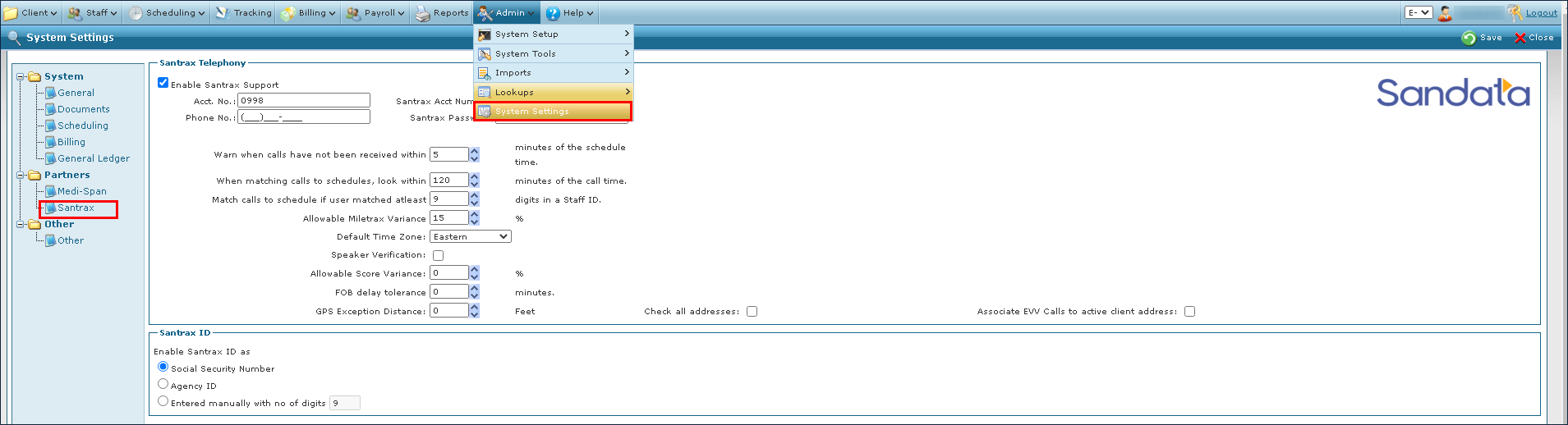
Go to Admin > System Settings.
-
Click Santrax.
-
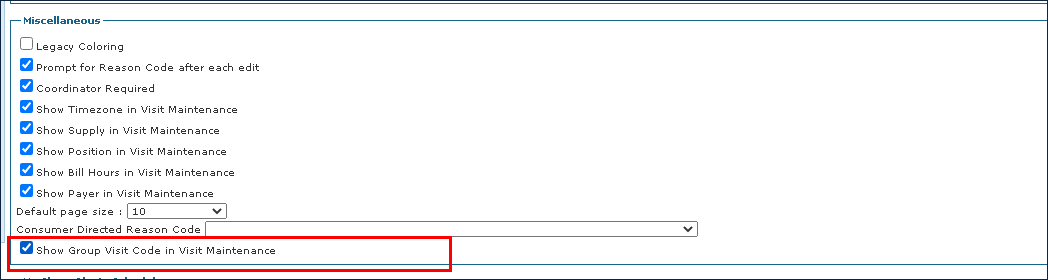
Select the Show Group Visit Code in Visit Maintenance checkbox.
-
Click Save.

-
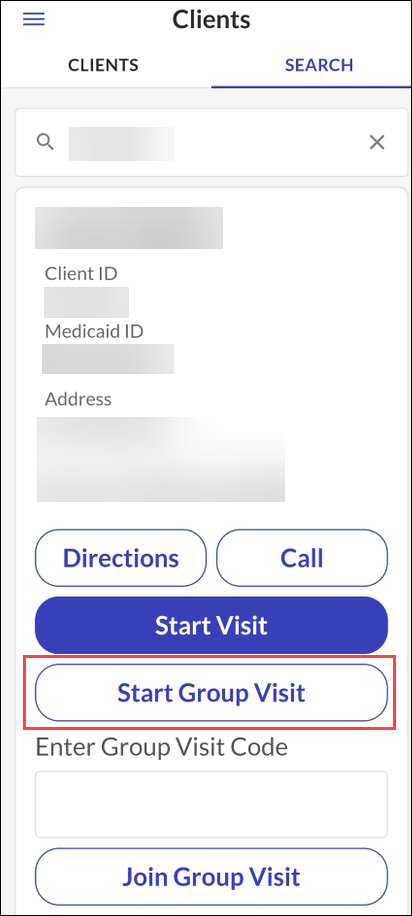
Search for a client.
-
Tap Start Group Visit.
-
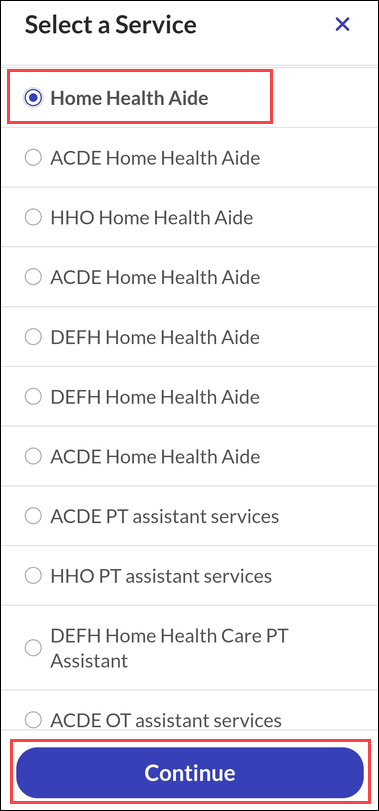
Select a service.
-
Tap Continue.
-
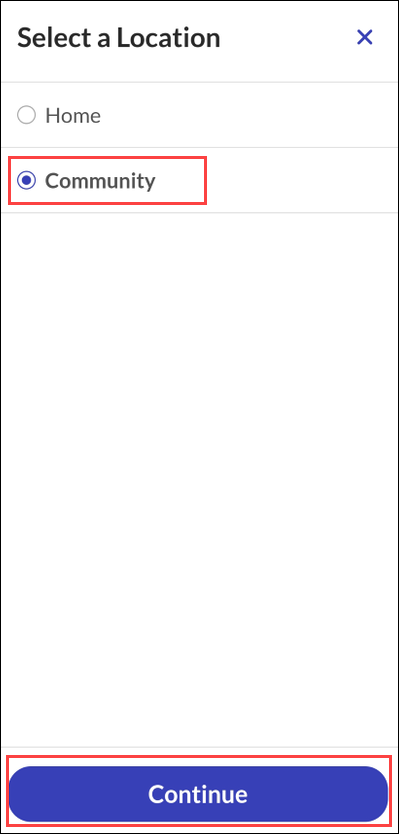
Select a Location, if applicable.
-
Tap Continue.
-
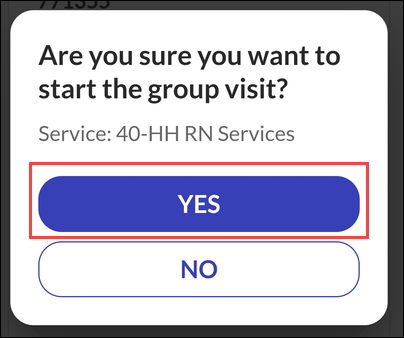
Tap Yes to start the visit.
-
The visit has started, and the Group Visit code is visible.
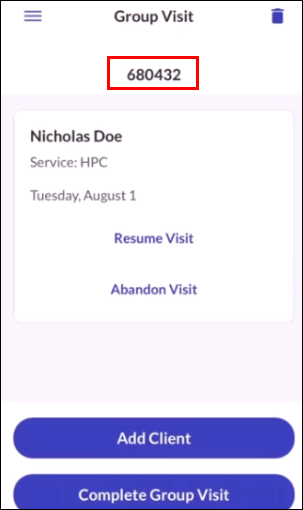
Employees can complete visits for individual clients in the group, but the group visit remains active until each employee has completed all visits for all clients associated with that group visit.
-
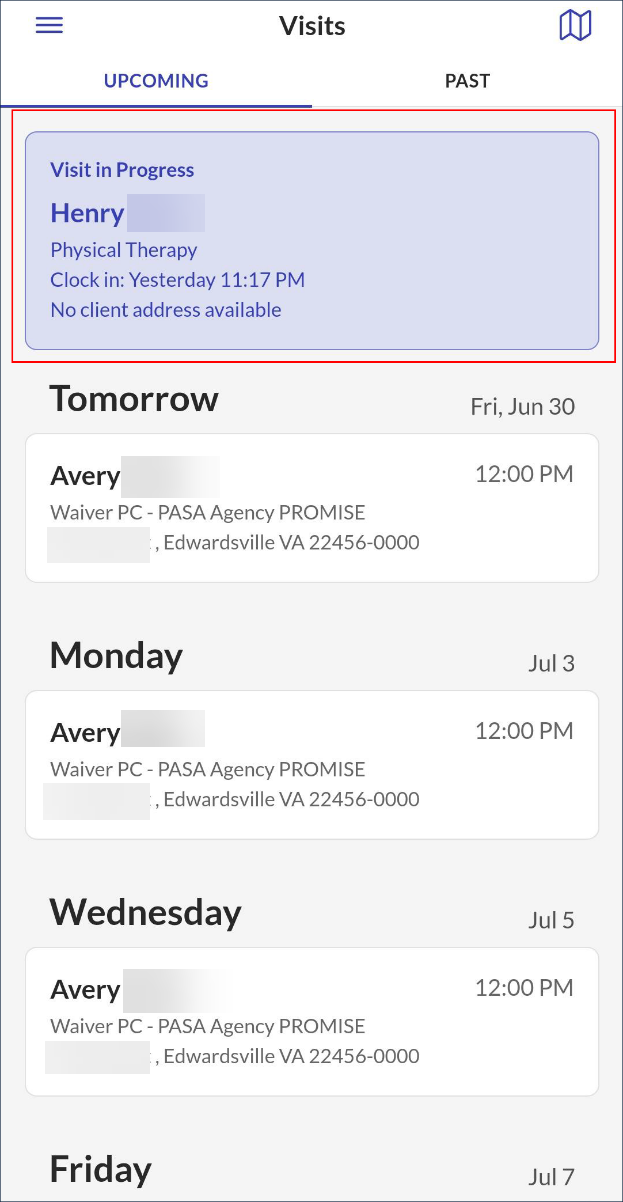
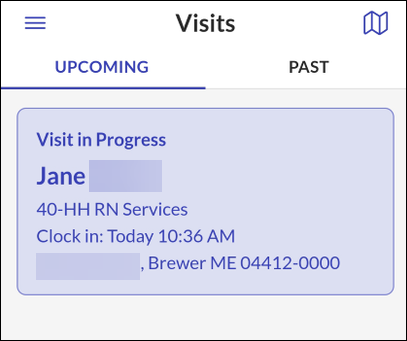
Go to the Upcoming tab on the Visits screen.
-
Tap on the Visit in Progress.
-
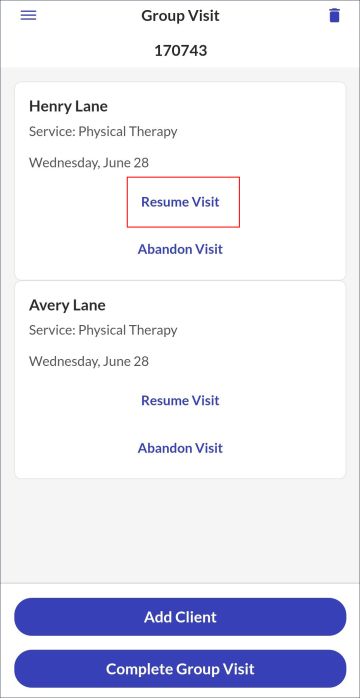
Tap Resume Visit.
-
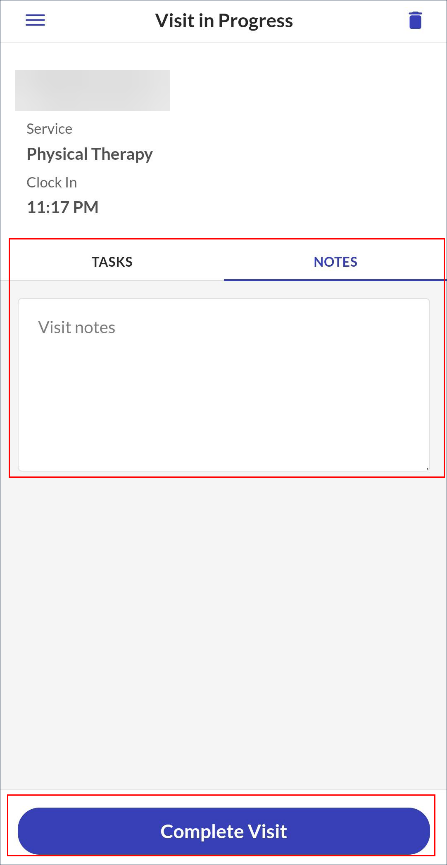
Add any additional visit information, if needed. This includes any Tasks, Observations or Visit Notes.
-
Tap Complete Visit. The group visit is completed.
-
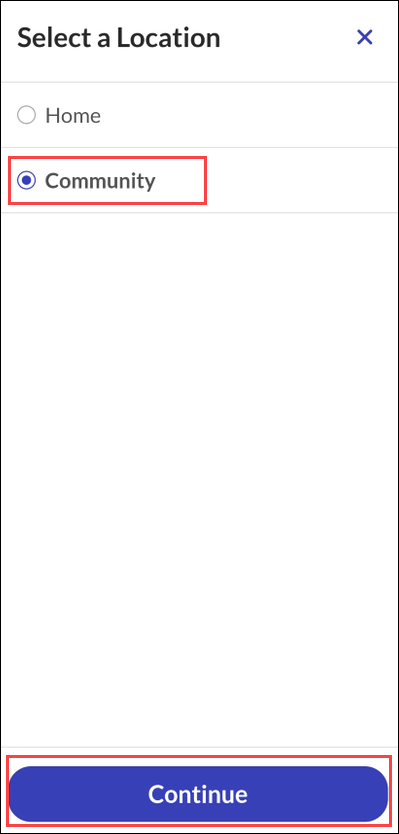
Select a Location.
-
Tap Continue.
-
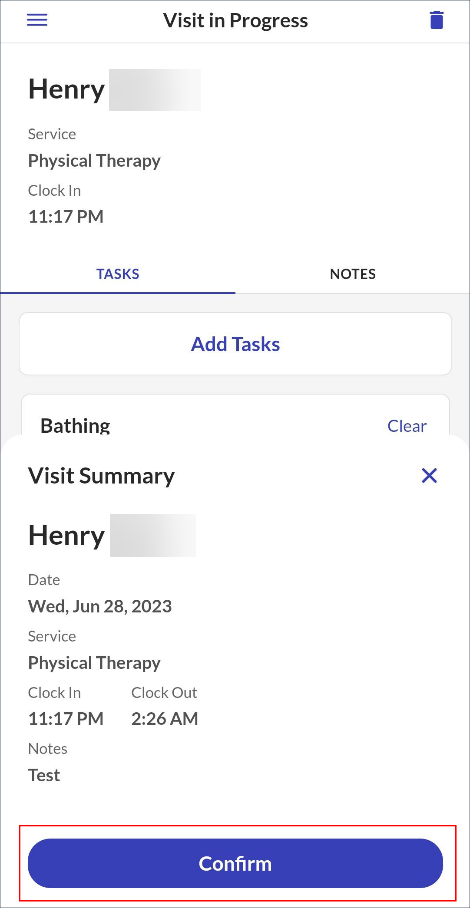
Tap Confirm.
-
Pass the device to the client to begin Client Verification, if applicable.
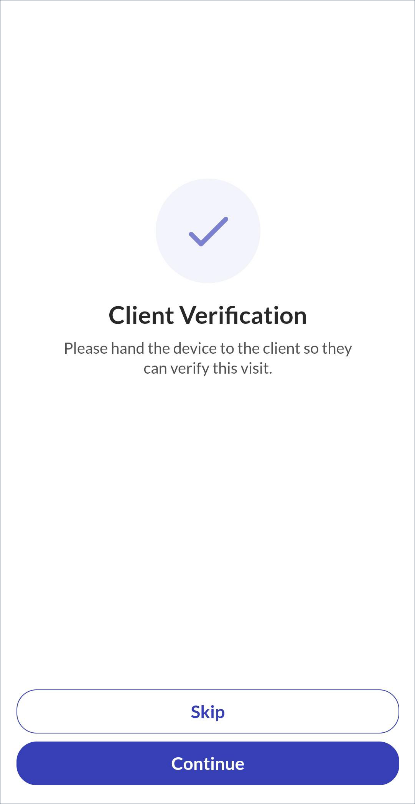
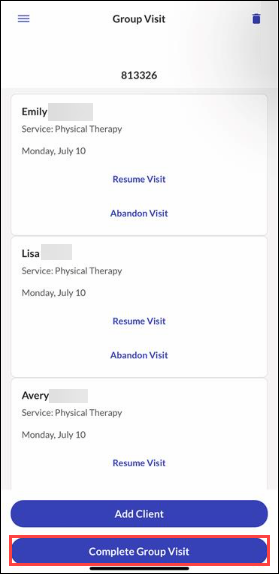
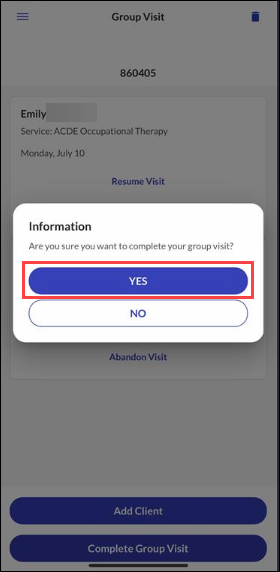
You can complete a group visit for all clients in the group at once, but the group visit will remain active until all employees have completed all visits for clients in the group. If client confirmation is enabled, you must complete the visit for each client in the group visit individually.
-
Go to the Upcoming tab on the Visits screen.
-
Tap Complete Group Visit.
-
Tap Yes. The group visit is completed.
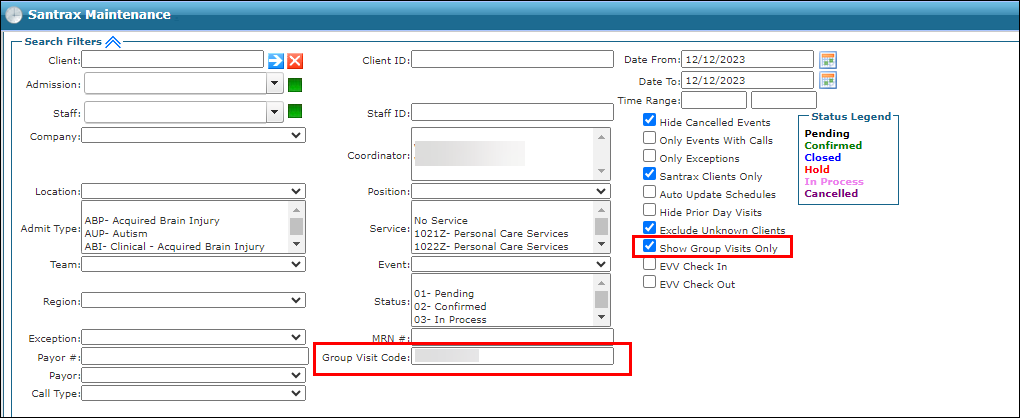
Once a group visit has been performed, it can be located and reviewed as needed via the Santrax Maintenance screen.
-
Go to Main Menu > Scheduling > Santrax Maintenance.
-
Search for group visits using the filters.
-
Search for a group visit by entering the exact group visit code in the Group Visit Code filter.
-
Search for a group visit by selecting the Show Group Visits Only checkbox.
-
-
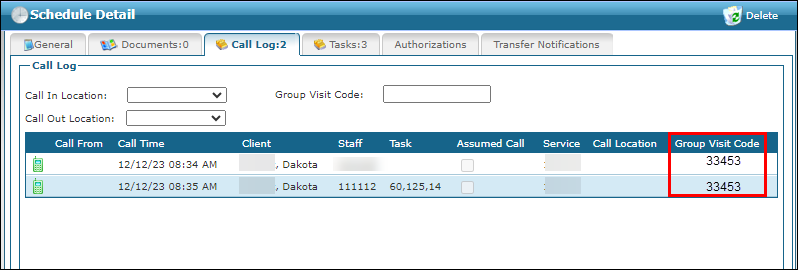
Double click on the visit to open it. The Group Visit code is also displayed on the Call Log tab of the Schedule Detail screen.