Sandata Mobile Connect Offline Mode
Sandata Mobile Connect(SMC) can operate without an internet connection if the user has previously logged in while connected to the internet. This is called Offline Mode.
In Offline Mode, SMC saves the visit data. Once reconnected to the internet and the user logs back into SMC, the saved data is automatically transferred to the California Electronic Visit Verification (CalEVV) system.
Offline Mode allows you to:
-
Complete in progress visits
-
Start an unknown visit
-
Start a scheduled visit that was previously loaded to the Upcoming tab while online.
Offline Mode does not allow you to:
-
Search for a client or use a Client ID
-
View a map
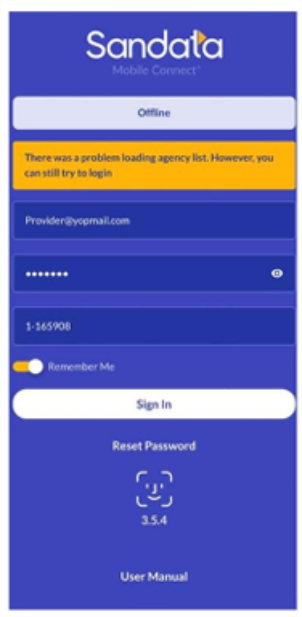
The application displays alerts when you are in Offline Mode and when a feature is unavailable. A banner will appear across the top of the SMC display to notify you the app is working in Offline Mode:

Steps to Use Offline Mode:
1. Log in to the SMC app.
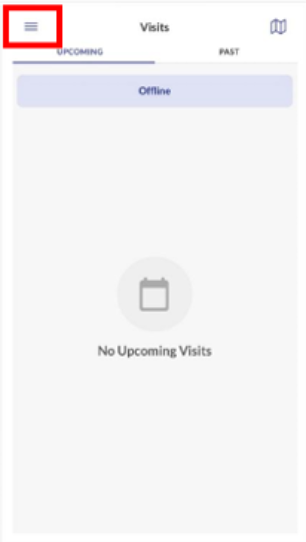
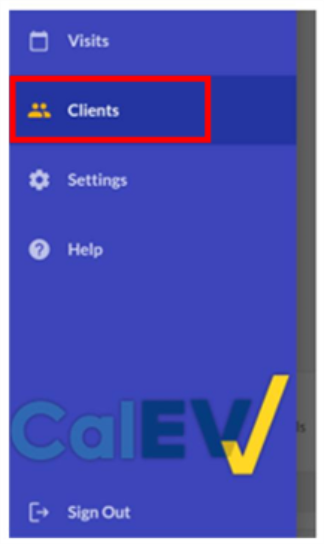
2. Tap the menu icon in the top left and select Clients.
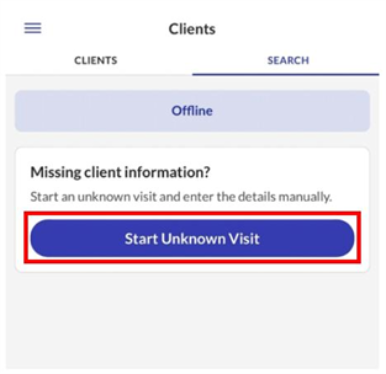
3. Select Start Unknown Visit.
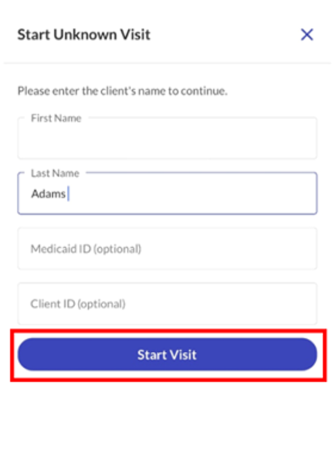
4. Enter the client's First and Last Name then select Start Visit.
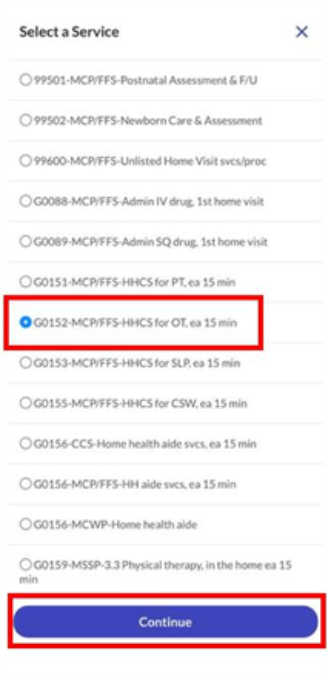
5. Tap a radio button to select a Service; tap Continue.
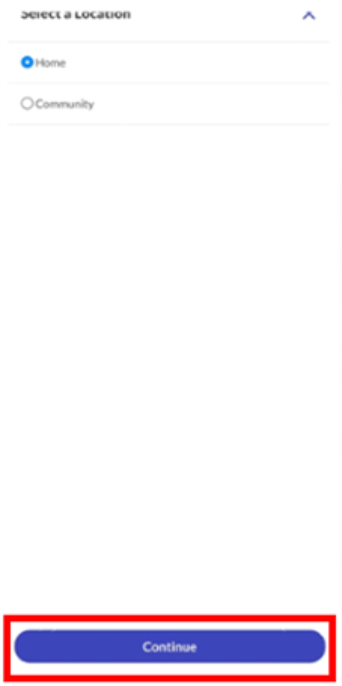
6. Select the Location; tap Continue.
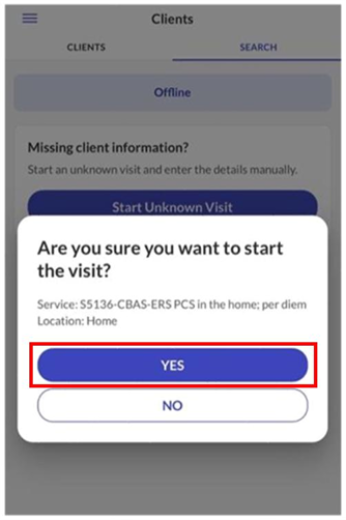
7. Tap Yes to start visit.
To end your visit in Offline Mode:
1. Log in to the SMC app.
2. Tap Visit in Progress.
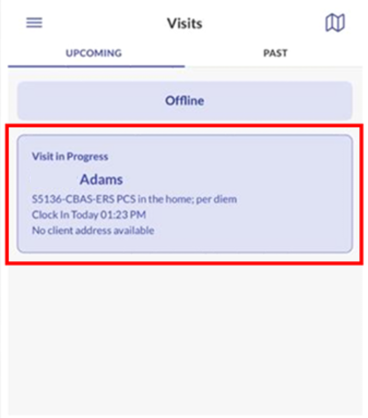
3. Tap Complete Visit.
Do not visit notes in SMC. Please defer to your Provider on where to document visit notes.
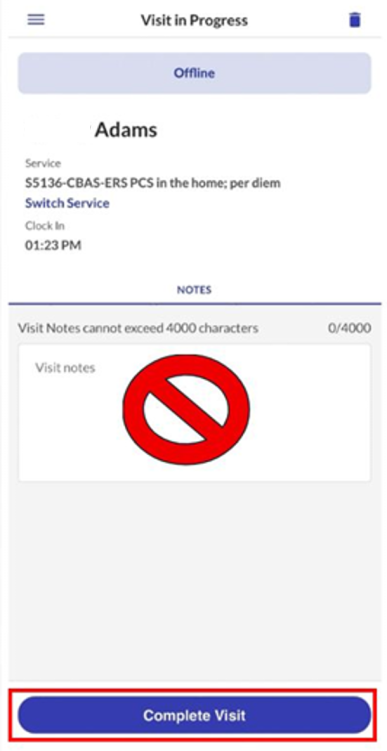
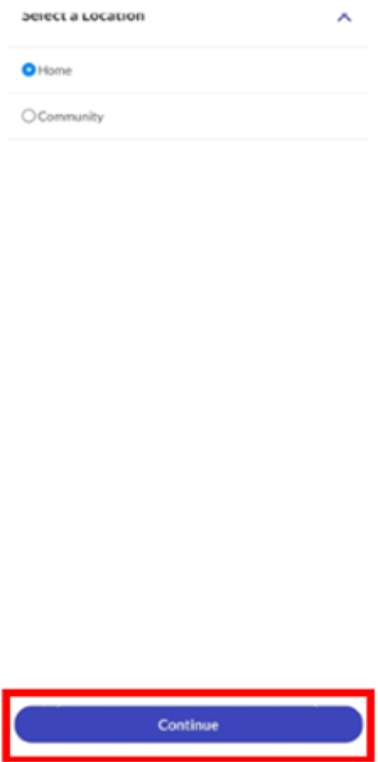
4. Select the Location; tap Continue.
5. Tap Confirm to end visit.
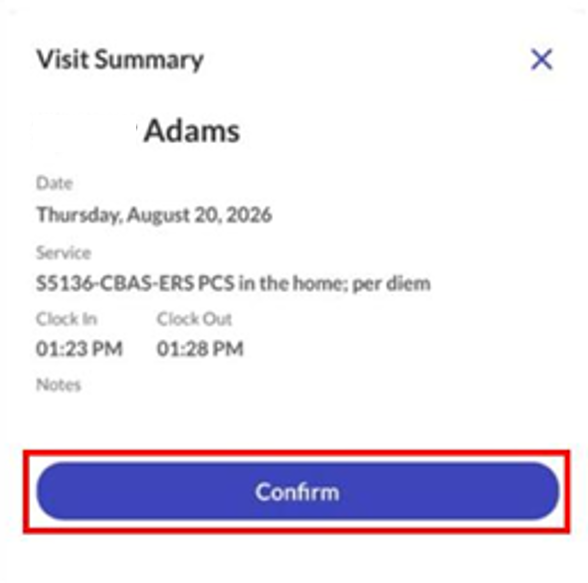
Once reconnected to the internet, log back into the SMC application. The app will automatically transmit the visit data to the CalEVV system. The visit will then appear under Past Visits and in the CalEVV Portal.