Register and Manage Devices
You can register the devices (PCs, tablets, etc.) that staff will use to access Time Tracking. When a device is registered, you can view the name of the device that the staff used to clock in and out.
You must register the device from the actual device that you want to register. In addition, your web browser must have cookies enabled to persist (that is, to not clear when exiting the browser). This is the default setting for most browsers.
If the same device has more than one user account, you will need to register the device multiple times logged in as each user. Similarly, if users access Time Tracking from more than one web browser, then you must register the device from each of the browsers as well.
To register a device:
-
Log in to your device as the user you are registering the device for.
-
Open the web browser and log in to Time Tracking with your full login.
-
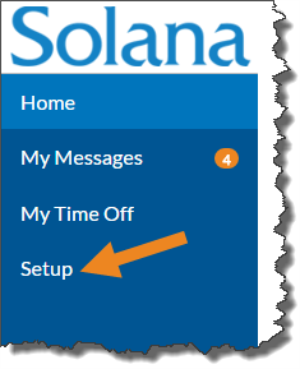
Select Setup from the menu.
-
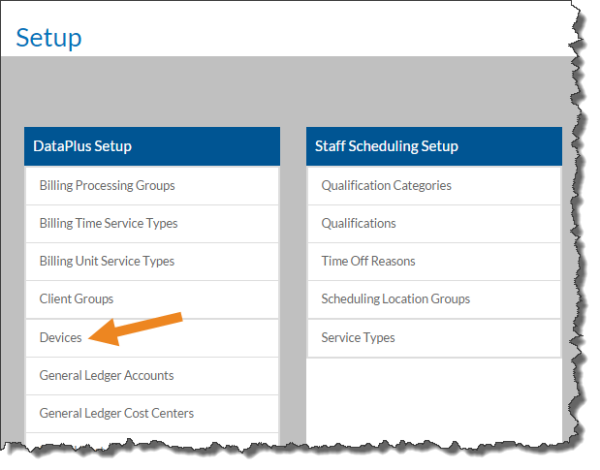
Select Devices on the DataPlus Setup card.
-
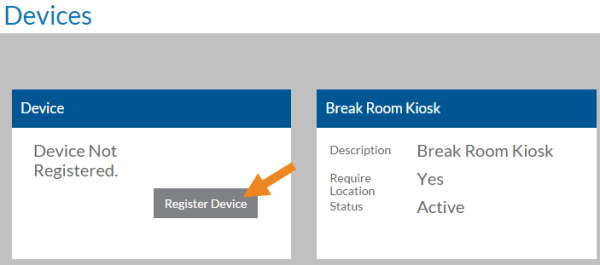
Select Register Device on the Device card.
-
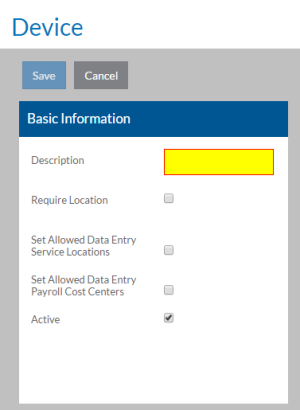
Enter a Description for the device.
-
Select the Require Location check box if you also want to record the device's physical location (latitude, longitude and accuracy). If Store Location Always is selected in Options, the physical location of the device will be stored regardless of this setting.
The device may prompt users on whether or not they want to share their location. If they do not accept, the device's physical location will not be stored.
-
Select the Set Allowed Data Entry Service Locations check box if you only want users to log transactions with this device to specified service locations (Staff Time with Clients and Mileage with Clients).
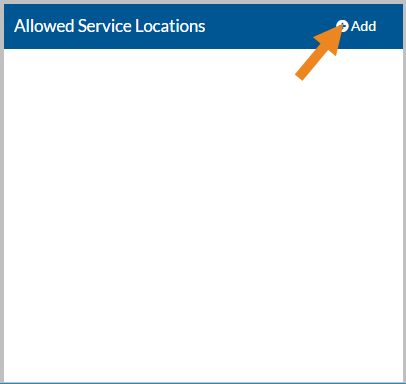
If this check box is selected, the Allowed Service Locations card appears after you save the device. You can then set up the service locations that are available when logging with this device.
-
Select the Set Allowed Data Entry Payroll Cost Centers check box if you only want users to log transactions with this device to specified payroll cost centers (Staff Time without Clients and Non-Worked Time).
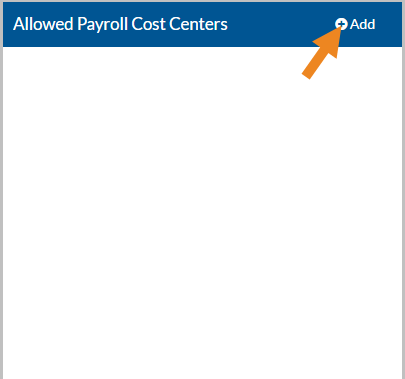
If this check box is selected, the Allowed Payroll Cost Centers card appears after you save the device. You can then set up the payroll cost centers that are available when logging with this device.
-
Select Save.
-
If licensed to use Staff Scheduling and the Scheduling Location has the Require Registered Device check box selected, click Add on the Scheduling Locations card to select which Scheduling Locations are associated with this device.
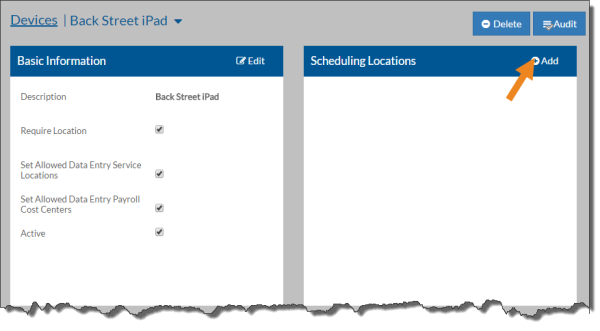
If the user is scheduled to work at a particular Scheduling Location and does not clock in using this device, the transaction will be flagged (if the flag and location tracking Options are also set up).
-
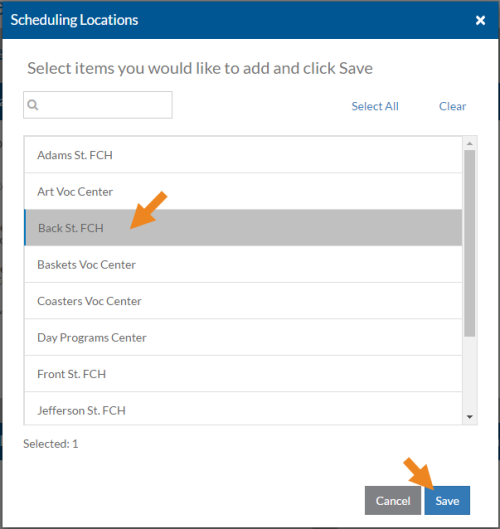
Select the applicable Scheduling Location(s) to associate with this device and then select Save.
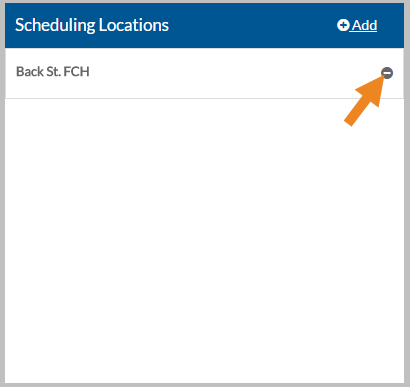
The scheduling locations now appear on the Scheduling Locations card. Select the minus sign next to a scheduling location if you need to remove it from the from the device.
-
If the Set Allowed Data Entry Service Locations check box is selected, click Add on the Allowed Service Locations card.
-
Select the applicable Service Location(s) to associate with this device and then select Save.
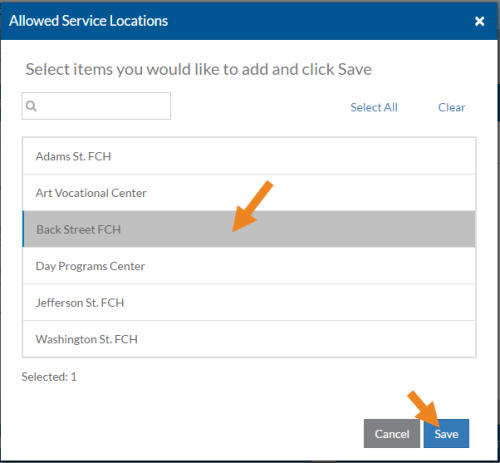
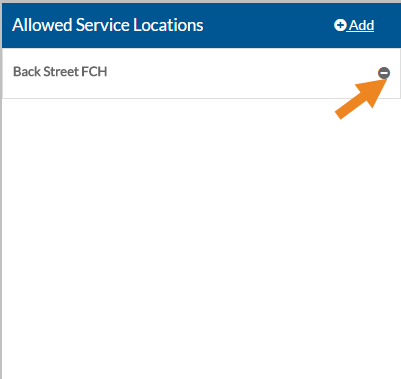
The service locations now appears on the Allowed Service Locations card. When staff log time and mileage with clients on this device only the allowed service locations are available. If the user does not have security permissions to the selected service locations, the list may appear blank.
Select the minus sign next to a service location if you need to remove it from this from the device.
-
If the Set Allowed Data Entry Payroll Cost Centers check box is selected, click Add on the Allowed Payroll Cost Centers card.
-
Select the applicable Payroll Cost Center(s) to associate with this device and then select Save.
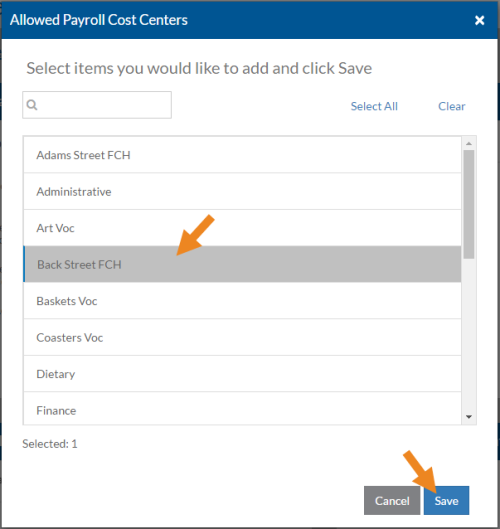
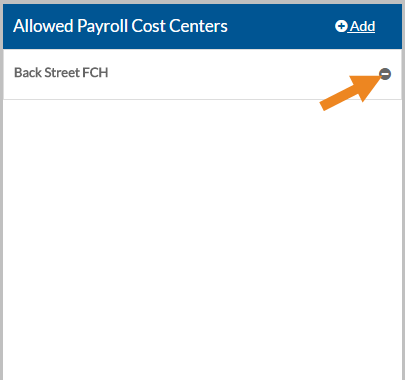
The payroll cost centers now appear on the Allowed Payroll Cost Centers card. When staff log time without clients and non-worked time on this device only the allowed payroll cost centers will be available. If the user does not have security permissions to the selected payroll cost centers, the list may appear blank.
Select the minus sign next to a payroll cost center if you need to remove it from this from the device.
-
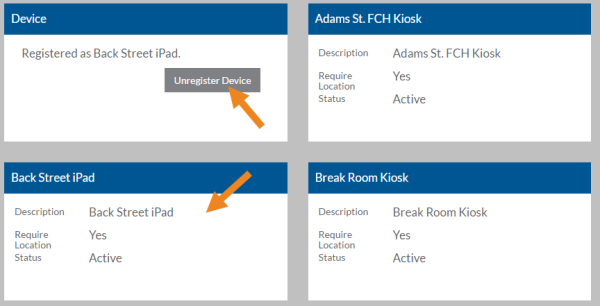
Select Devices in the breadcrumbs at the top of the page.

The list of registered devices appears. The button on the Device card changes to Unregister Device and the new device's card appears in the list.
-
Repeat steps 2-17 for each web browser that will be used on this device.
-
Repeat Steps 1-18 for each user account on this device.
-
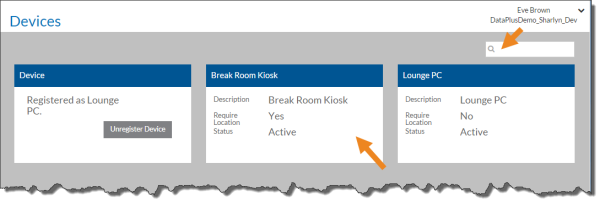
Once the device is registered, select a device card from the list or enter a device in the Search box to search for a specific device.
-
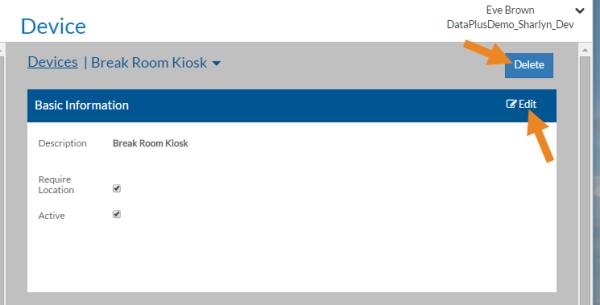
Make any modifications needed to the device settings or delete it from the list.