Manage Payroll Cost Centers
You can view information about the Payroll Cost Centers that were synced to Time Tracking from ProviderPro.
If you sync Payroll Cost Centers from ProviderPro, do not add, delete or make changes to the Payroll Cost Center settings that sync within Time Tracking. The changes will be overwritten the next time the sync runs. Make changes to the Payroll Cost Center information that syncs in ProviderPro. To make Payroll Cost Center settings read only in Time Tracking turn on the Disable Synced Properties Default setting in Options.
Staff select a Payroll Cost Center when they are documenting time worked without clients or non-worked time. The Payroll Cost Centers available to staff to select from when logging staff time worked without clients and non-worked time are set in the Data Collection Type assigned to their Staff Permission Group or in the Staff Permission Group itself.
Payroll Cost Centers are included in the export file that is later imported into ProviderPro Payroll Wage Entries.
To manage your Payroll Cost Centers:
-
Log in with your full login.
-
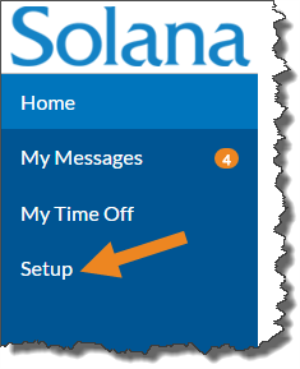
Select Setup from the menu.
-
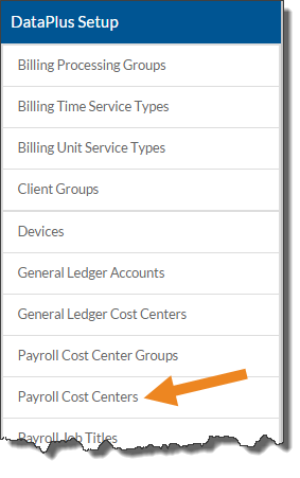
Select Payroll Cost Centers on the DataPlus card.
-
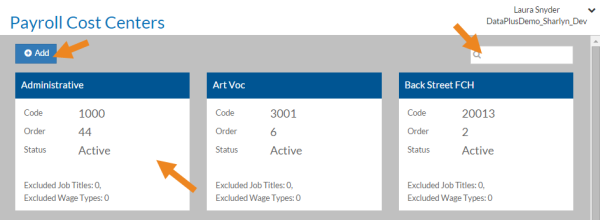
Select a Payroll Cost Center card from the list, or enter a Payroll Cost Center in the Search box to search for a specific Payroll Cost Center. If you do not sync Payroll Cost Centers from ProviderPro, select Add to create a new one.
-
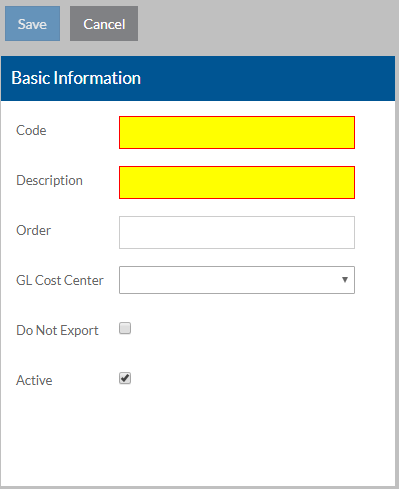
Complete the following information and select Save:
In this field:
Enter:
Code
The code of the Payroll Cost Center.
Description A description of the Payroll Cost Center. Order The order you want the Payroll Cost Center to be sorted in lists. GL Cost Center The associated General Ledger Cost Center. Do Not Export Select this option If you have some cost centers that are live and using Time Tracking and other cost centers that are in the parallel process, you may want to exclude the parallel cost centers from the export until they go live. Active The Payroll Cost Center is in use. If this is a new Payroll Cost Center, the Excluded Job Titles, Excluded Wage Types, Payroll Cost Center Groups, Viewers, Reviewers and Approvers cards appear.
-
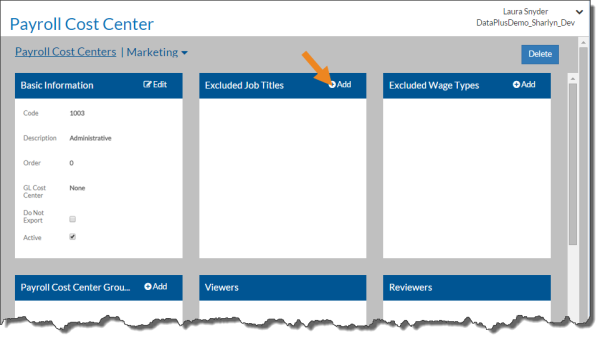
Select Add on the Excluded Job Titles card to select any job titles that would never apply to this Payroll Cost Center.
-
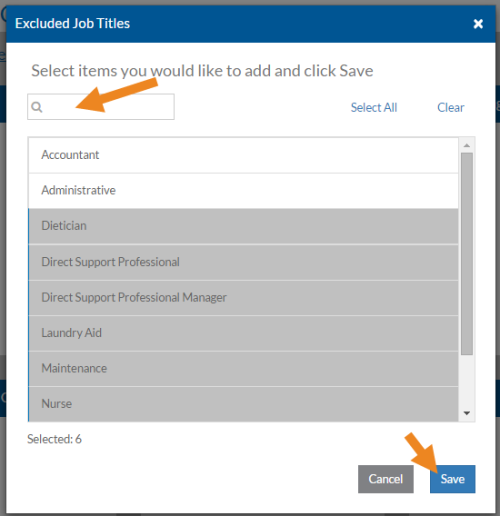
Select the job titles that would never use this Payroll Cost Center and then click Save.
-
Select the minus sign next to a job title to remove it from the this list of exclusions for this Payroll Cost Center.
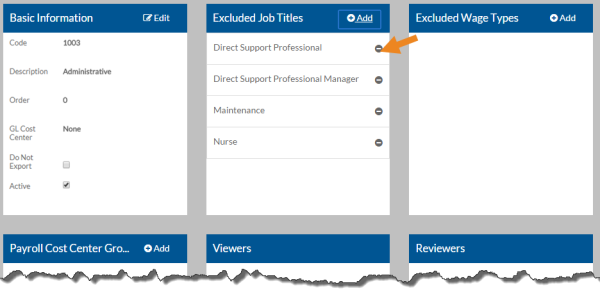
A confirmation message appears. Select Yes.
-
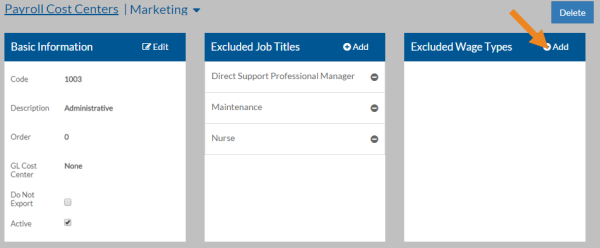
Select Add on the Excluded Wage Types card to select any wage types that would never apply to this Payroll Cost Center.
-
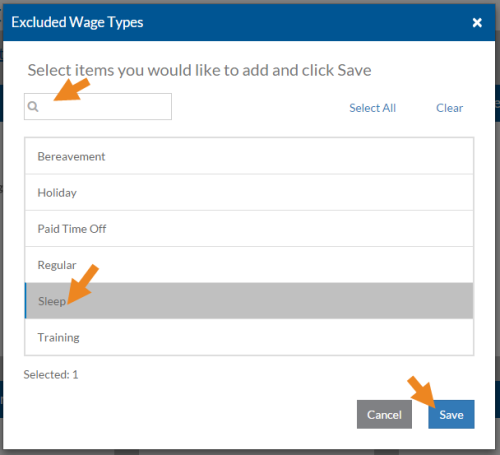
Select the wage types that would never apply to this Payroll Cost Center and then click Save.
-
Select the minus sign next to a wage type to remove it from the list of exclusions for this Payroll Cost Center.
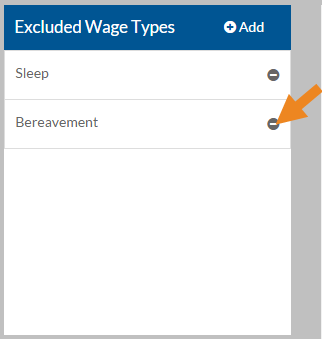
A confirmation message appears. Select Yes.
-
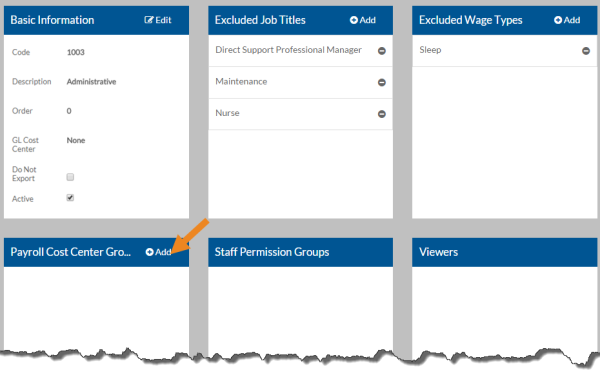
Select Add on the Payroll Cost Center Groups card to add this Payroll Cost Center to a Payroll Cost Center Group for security and Data Collection Type setup purposes.
-
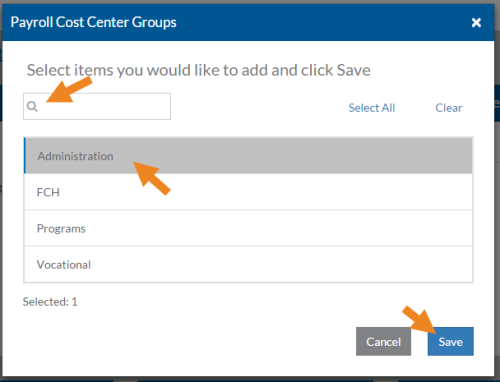
Select the Payroll Cost Center Groups you want to assign to this Payroll Cost Center and then click Save.
-
Select the minus sign next to a Payroll Cost Center Group to remove it from the list of Payroll Cost Center Groups for this Payroll Cost Center.
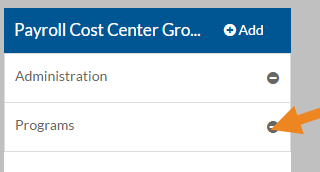
A confirmation message appears. Select Yes.
-
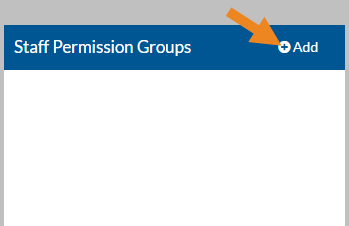
Select Add on the Staff Permission Groups card to select the staff permission groups that can log staff time without clients or non-worked time for this payroll cost center.
-
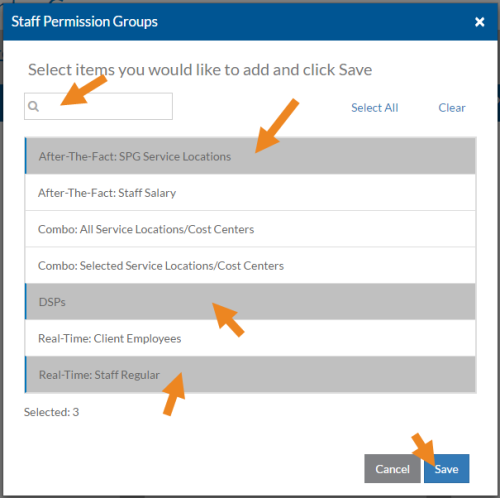
Select the staff permission groups you want to assign to this payroll cost center and then click Save.
-
Select the minus sign next to a staff permission group to remove it from this payroll cost center.
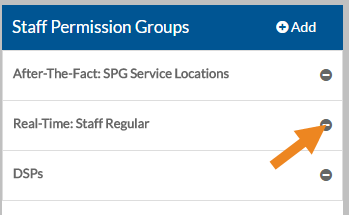
A confirmation message appears. Select Yes.
-
Select Add on the Viewers card to select the staff that can view the log entries for this Payroll Cost Center.
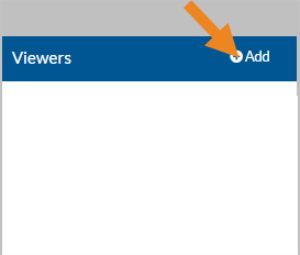
-
Select either Primary Managers or Department Managers and click Next.
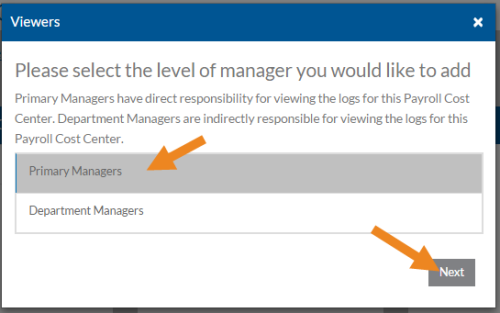
-
Primary Managers have direct responsibility for viewing the log entries for this Payroll Cost Center.
- Department Managers are indirectly responsible for viewing the log entries for this Payroll Cost Center.
-
-
Select the viewers you want to assign to the Payroll Cost Center and then click Save. Only staff that have the Logs: View Selected role will appear in the list.
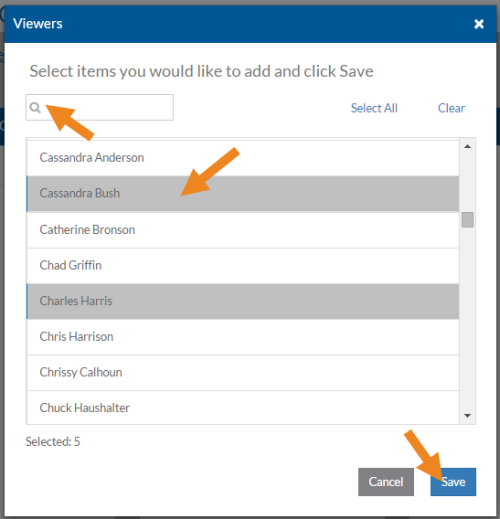
You can change the Manager Type if needed.
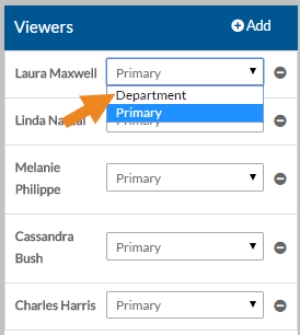
-
Select the minus sign next to a viewer to remove them from the Payroll Cost Center.
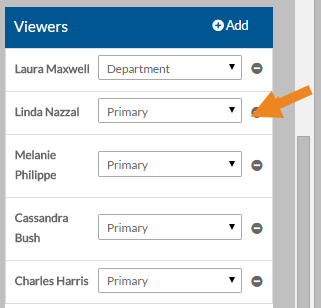
A confirmation message appears. Select Yes.
-
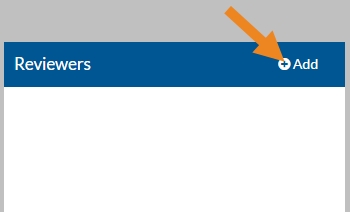
Select Add on the Reviewers card to select the staff that can review the log entries for this Payroll Cost Center.
-
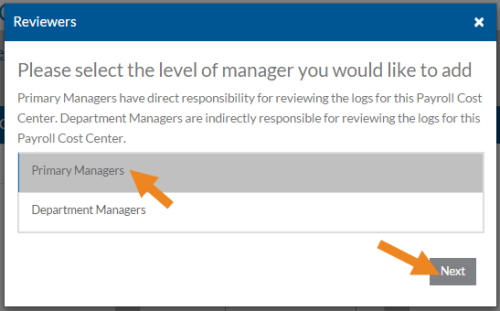
Select either Primary Managers or Department Managers and click Next.
-
Primary Managers have direct responsibility for reviewing the log entries for this Payroll Cost Center.
-
Department Managers are indirectly responsible for reviewing the log entries for this Payroll Cost Center.
-
-
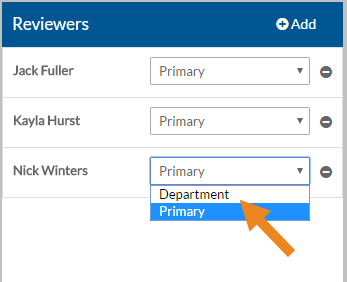
Select the reviewers you want to assign to the Payroll Cost Center and then click Save. Only staff that have the Logs: Review Selected role will appear in the list.
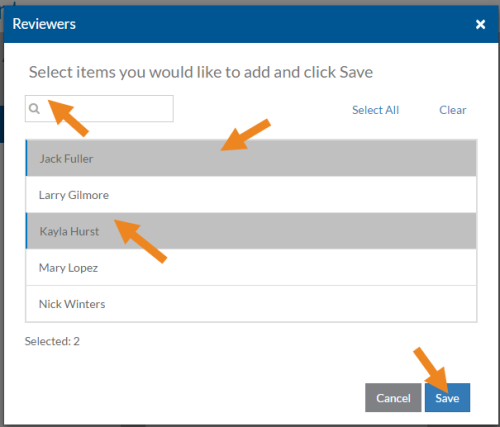
You can change the Manager Type if needed.
-
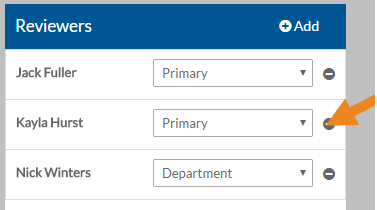
Select the minus sign next to a reviewer to remove him or her from the Payroll Cost Center.
A confirmation message appears. Select Yes.
-
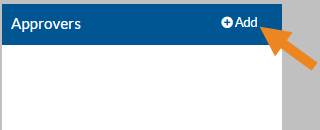
Select Add on the Approvers card to select the staff that can approve the log entries for this Payroll Cost Center.
-
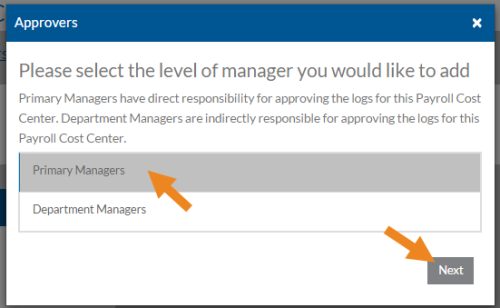
Select either Primary Managers or Department Managers and click Next.
-
Primary Managers have direct responsibility for approving the log entries for this Payroll Cost Center.
-
Department Managers are indirectly responsible for approving the log entries for this Payroll Cost Center.
-
-
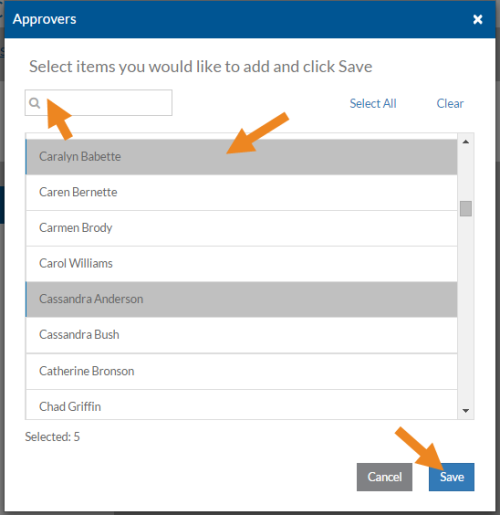
Select the approvers you want to assign to the Payroll Cost Center and then click Save. Only staff that have the Logs: Approve Selected role will appear in the list.
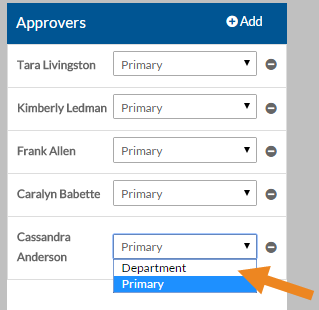
You can change the Manager Type if needed.
-
Select the minus sign next to an approver to remove him or her from the Payroll Cost Center.
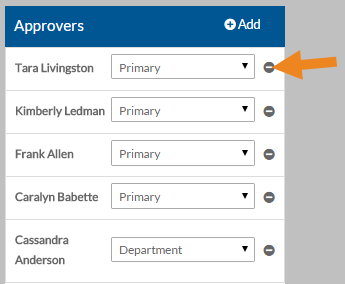
A confirmation message appears. Select Yes.