Billing Time Service Types
You can view the information about the ProviderPro Billing Time Service Types that were synced to Time Tracking.
Do not add, delete or make changes to the billing time service type settings within Time Tracking if you sync from ProviderPro. The changes will be overwritten the next time the sync runs. Make all changes to billing time service types except to select the Category in ProviderPro. To make Billing Time Service Types read only in Time Tracking, turn on the Disable Synced Properties Default setting in Options.
Staff select a time service type when they are documenting time worked directly and indirectly with clients. The billing time services types available to staff to select from when logging time worked with clients are set in the Data Collection Type assigned to their Staff Permission Group. The options set up in Billing Time Service Types are used in the export file that is later imported into ProviderPro Billing Time Entries.
To view or update a billing time service type:
-
Log in with your full login.
-
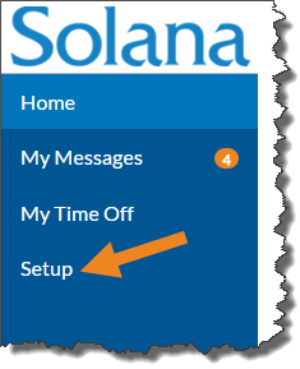
Select Setup from the menu.
-
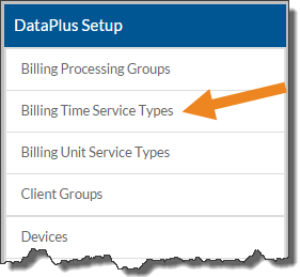
Select Billing Time Service Types on the DataPlus Setup card.
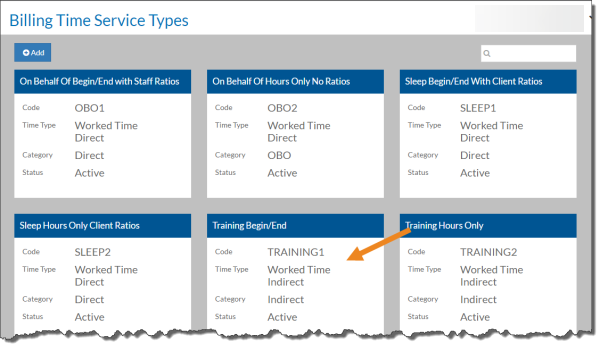
The Billing Time Service Types screen opens.
-
Select a billing time service type card from the list, or enter a billing time service type in the Search box to search for a specific billing time service type. If you do not sync billing time service types from ProviderPro, select Add to create a new one.
-
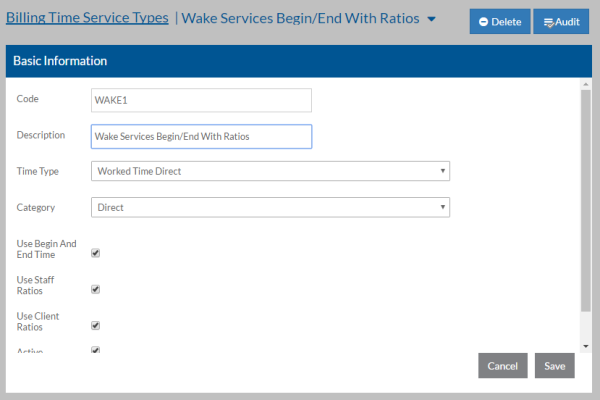
Complete or modify the information below as needed:
Field:
Description:
Code
The Code of the time service type used to import worked time with clients into ProviderPro Billing Time Entries. If you use a Data Entry Translation with this service, make sure you enter the Code of the entry Time Service Type (indirect) and not the result Time Service Type (direct or no billing).
Description Enter a description of the time service type. This is what staff will see in the list of services to select from. Time Type Select the correct type:
-
Worked Time Direct - Staff is providing this time-based service directly to one or more clients.
-
Indirect Time Worked - Staff is working, but not directly with any clients. In most cases, this option will not be used as indirect time should be logged via Staff Time Worked without Clients instead.
-
Non-Worked Time - Staff is not working but is still getting paid. In most cases, this option will not be used as indirect time should be logged via Staff Non-Worked Time instead.
Category The billing time service type category for this service type. This category groups similar service types together and is used for client overlap flag checking. Use Begin and End Times If selected, staff will enter the time the service begins and the time the service ends. Otherwise, staff will enter total hours instead. Use Staff Ratios Select to use staff ratios when entering time worked with clients for this service type. Use Client Ratios Select to use client ratios when entering time worked with clients for this service type. Active Select if the time service type is in use and should appear in the list of choices. -
-
Select Save.
-
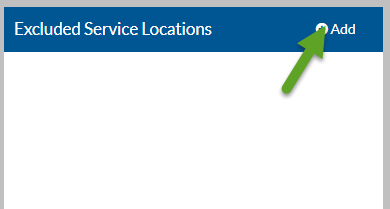
Select Add on the Excluded Service Locations card to select any service location that would never use this service type for data entry.
-
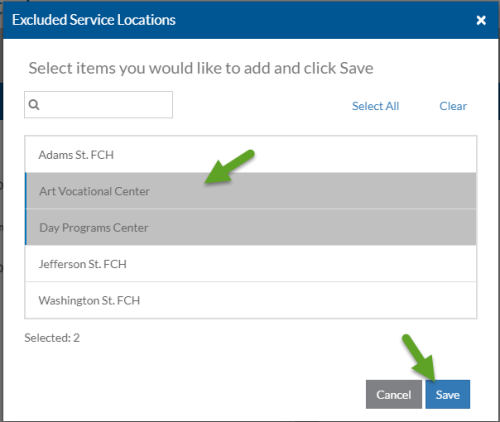
Select the service locations that would never use this service type and then click Save.
-
Select the minus sign next to a service location to remove it from the list of exclusions for this service type.
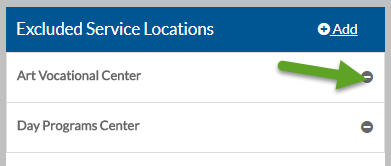
A confirmation message appears. Select Yes.
-
Select Save.
-
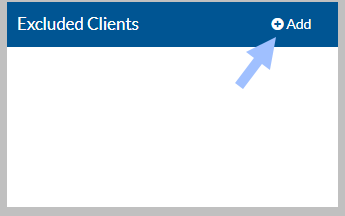
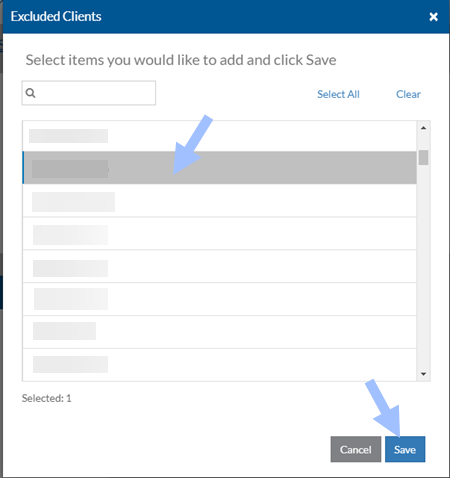
Select Add on the Excluded Clients card to select any client that would never receive this service type for data entry.
-
Select the clients that would never receive this service type and then click Save.
-
Select the minus sign next to a client to remove them from the list of exclusions for this service type.
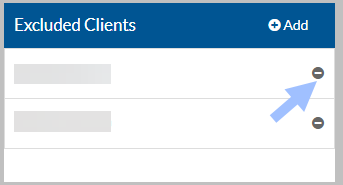
A confirmation message appears. Select Yes.