Update Staff Contact Info, Notification Settings, and Out of Office Settings
If Allow Managers to Maintain Contact Information and/or Allow Managers to Maintain Notification Settings is turned on in Options, staff managers can update the contact information and/or staff notifications for the staff they manage. In addition, staff managers can always update their staff's out of office settings if needed.
To update a staff's contact information, notification settings or out of office settings:
-
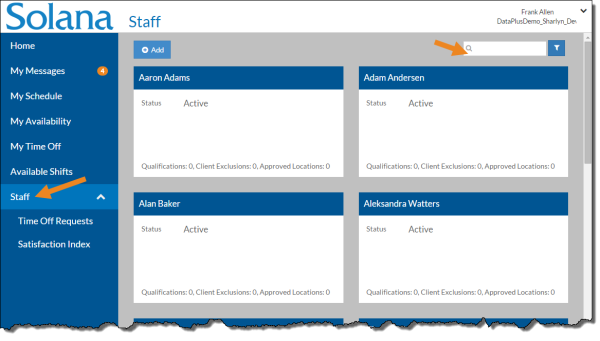
Select Staff from the menu.
By default only those staff with a Status of Active and a Staff Type of Employee appear in the card list. You can click the Filter icon and clear the Active Only check box to view both active and inactive staff and/or clear the Employee Only check box to view placeholder employees as well.
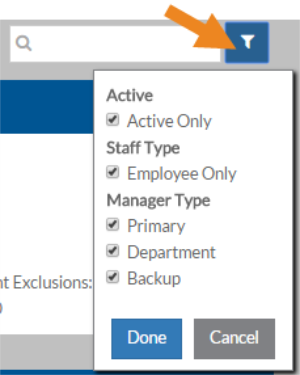
In addition, you can select to see those staff that appear because you are their Primary, Department and/or Backup manager.
-
Enter the name of the staff you want to update in the Search box.
-
Select the card of the staff you want to update.
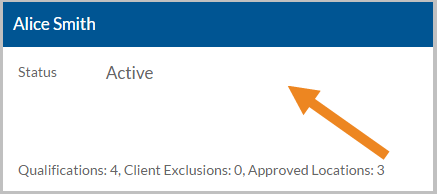
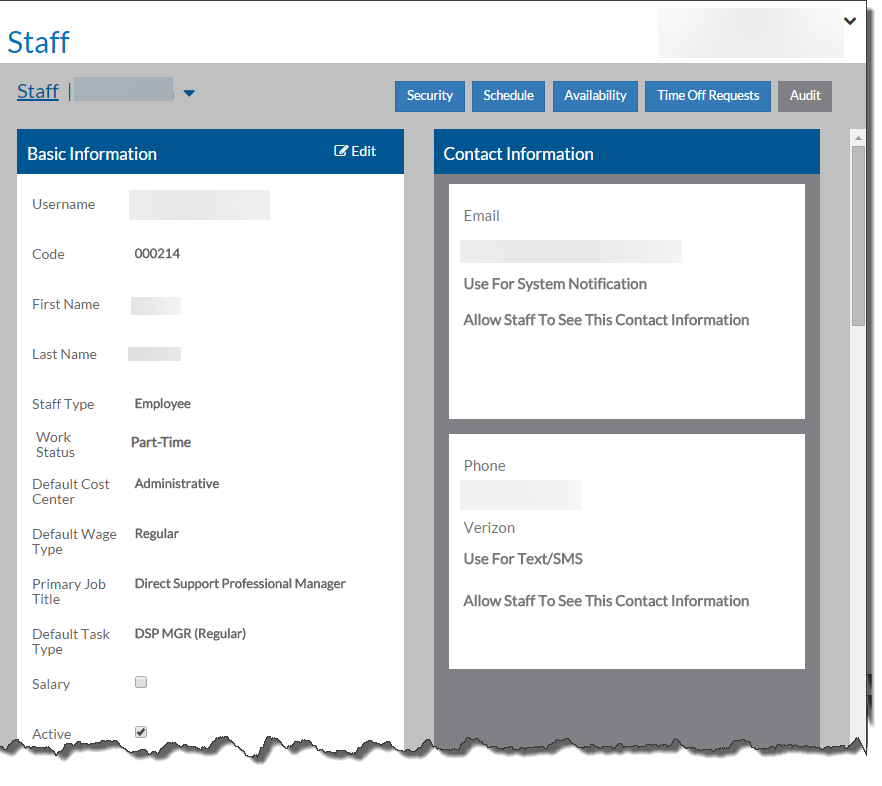
The staff's card opens.
-
On the Contact Information card, click Add to add new contact information, or select a card to edit existing contact information.
-
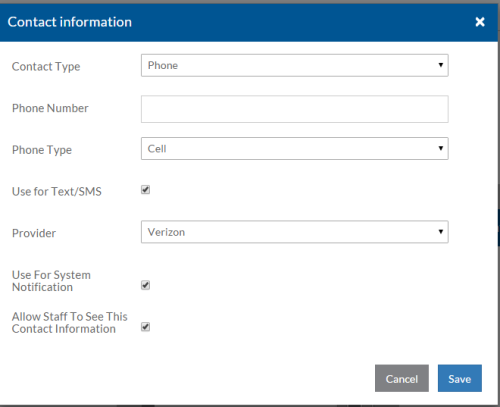
Fill out the options as follows and select Save:
In this field:
Enter/Select: Contact Type Email, Phone or Message Phone Number or Email Address Depending on the Contact Type selected, enter the corresponding Phone Number or Email Address. Phone Type If the Contact Type is Phone, select whether the phone number is Cell, Home, Work or Not Applicable. Use for Text/SMS If the Contact Type is Phone, select to receive selected notifications via a text message.
Text message are only sent if the event or flag occurs within 24 hours of the shift or within the time frame set by your agency under Options.
Provider If the Contact Type is Phone and Use for Text/SMS is selected, select the cell phone service provider from the list (AT&T, Sprint, T-Mobile, Verizon, etc.). Use for System Notification Select to receive the selected system notifications to this contact type. Allow Staff to See This Contact Information Select to allow other staff (in addition to managers) to view this contact information when they are using the Find Substitute feature of a scheduled shift. -
On the Staff Notification Settings card, select the check box beneath the method of notification for the various DataPlus and scheduling activities.
-
If staff is unexpectedly out of the office or forgot the set up their out of office settings:
-
Select the Enable check box on the Out of Office Settings card.
-
Select the options as follows and select Save
In this field:
Enter/Select: Begin Date/ Time and End Date/Time The date range and time of when the staff will be out of the office. Receive Notifications Select the check box if staff should still get selected scheduling notifications when out of the office.
-