Manage Time Off Requests
When your staff submits a time off request, you then need to approve or deny the request.
Pending Time Off Requests that are not approved or denied within 60 days automatically expire and no longer appear on the home card. Historical Time Off Requests older than 90 days in the past are not visible from the Time Off Request screen, but still appear in reports.
If you set up your contact information and staff manager notification settings under User Settings, you can be notified whenever staff requests or cancels time off.
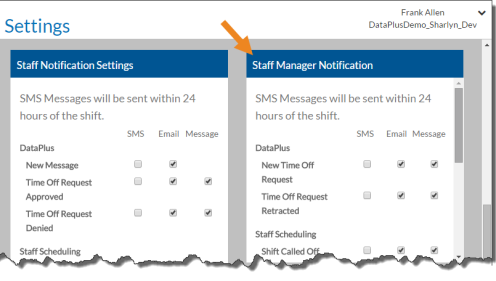

To approve time off requests:
-
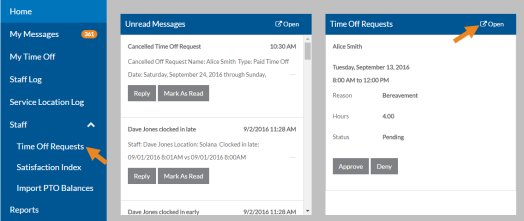
Select Time Off Requests under Staff in the menu or select the Open link on the Time Off Requests card on the Home screen.
-
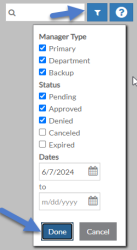
Select Filters to change the settings for which time off request cards appear based on the status and/or a date range and then select Done, or enter a name in the Search box.
-
Select Approve on the Time Off Request card for the request you want to approve.
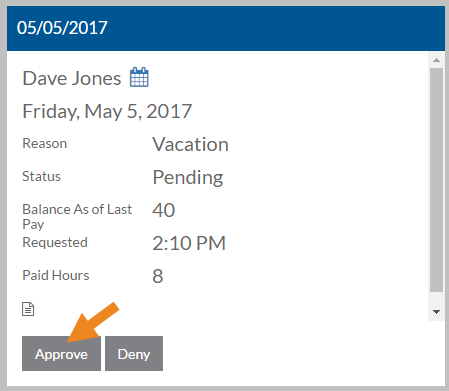
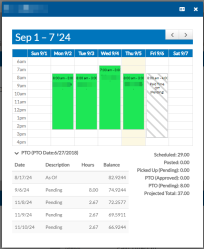
Select the calendar icon next to the staff’s name to view the time of request in the context of the staff’s schedule for that week as well as the staff’s time off activity.
-
If your agency has licensed Time Tracking and the Link Time Off Request to Time Tracking feature is turned on in Options, review and modify the following information, if needed. If not skip to step 5.
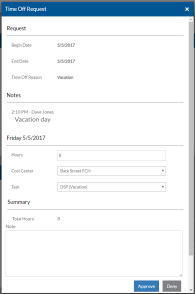
In This Field:
Enter or Select: Begin/End Date Time
Hours
Enter the Begin and End Time if staff's non-worked time is entered with begin/end times for the number of hours staff will be paid, or the total number of hours the staff will be paid during their time off for each day requested. Cost Center The Cost Center that this paid time off request is for. Task The Task this paid time off request is for. You only see the tasks for the job titles that have a wage type associated with the time off reason selected. If you need to distribute the hours up for a single day between multiple cost centers or tasks, select the + sign beneath Task and another row will appear.
-
Enter any notes you want to relay to the staff and select Approve again.
The staff is notified of the status of the request. Staff is not be scheduled during the request time off timeframe. If they were already scheduled during this time, the shift is flagged. If you are using the Link Time Off Request to Time Tracking feature, corresponding Non-Worked Time entries are created for this staff in the Staff Log. The Non-Worked Time entries will then need to be approved in the week in which they occur. You will see a link to Staff Log on the Time Off Request.
To deny time off requests:
-
Select Time Off Requests under Staff in the menu or select the Open link on the Time Off Requests card on the Home screen.
-
Select Filters to change the settings for which time off request cards appear based on the status and/or a date range and then select Done, or enter a name in the Search box.
-
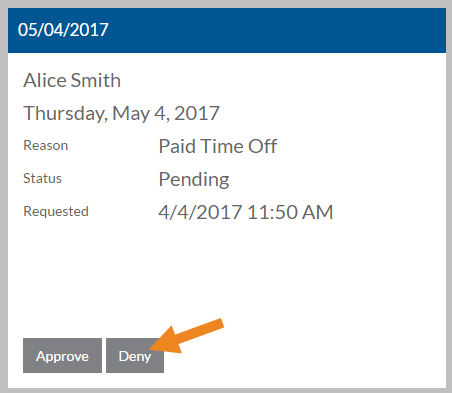
Select Deny on the Time Off Request card for the request you want to deny.
-
Enter any notes you want to relay to the staff and select Yes.
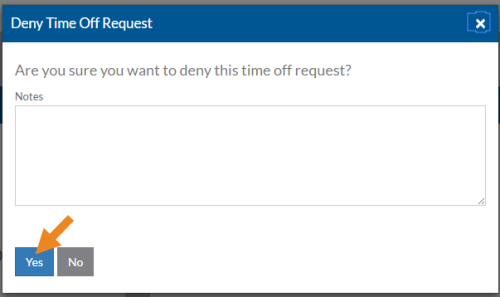
The staff is notified of the status of the request. If you are using the Link Time Off Request to Time Tracking feature and this request was previously approved, the corresponding Non-Worked Time entries will be voided.