Import Time Off Requests
You can import Time Off Requests into Staff Scheduling instead of keying them in manually.
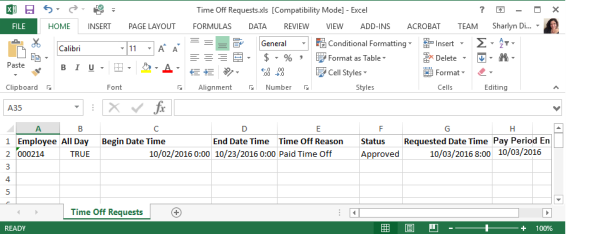
The columns in the spreadsheet should be as follows:
-
Column A: Employee (Staff) Code
-
Column B: All Day (True or False)
-
Column C: Begin Date Time
-
Column D: End Date Time
-
Column E: Time Off Reason Description
-
Column F: Status (Pending or Approved)
-
Column G: Requested Date Time
-
Column H: Pay Period End Date
Here is an example file:
To import time off requests:
-
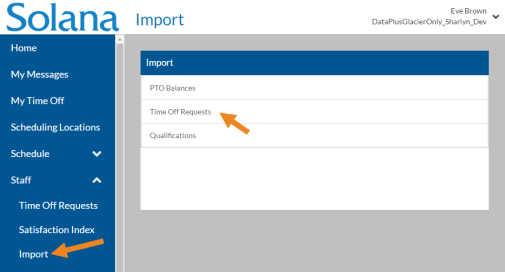
Select Import from under the Staff menu and then select Time Off Requests.
-
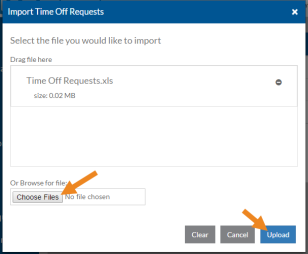
Drag the Microsoft Excel file(s) you want to import, or select Choose Files to browse for the file, and click Upload.
-
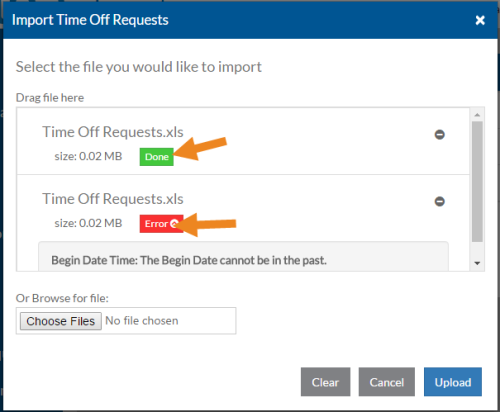
When the file has been processed successfully, Done will appear beneath it. If the file has not imported correctly, Error will appear beneath it. If you click on Error you can see what caused the import to fail (such as a Staff or Time Off Reason that doesn't exist or is inactive). Make the needed corrections to the import file and try again.