Change Staff Username
If your staff do not sync from ProviderPro employees, you can reset their username, if needed. In order to change the username, you must also have the Administrator security role or the Add Staff security role.
To update the username:
-
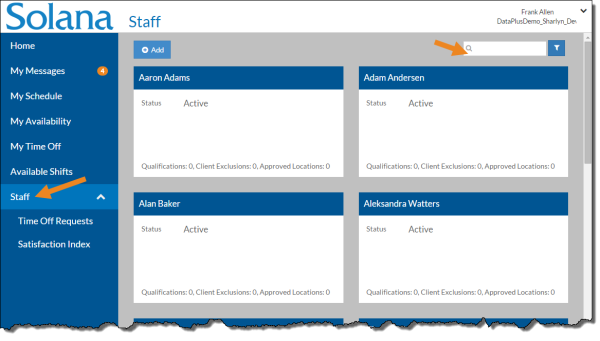
Select Staff from the menu.
By default only those staff with a Status of Active and a Staff Type of Employee appear in the card list. You can click the Filter icon and clear the Active Only check box to view both active and inactive staff and/or clear the Employee Only check box to view placeholder employees as well.
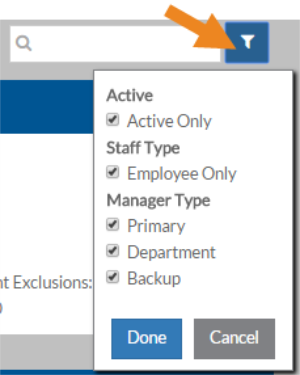
In addition, you can select to see those staff that appear because you are their Primary, Department and/or Backup manager.
-
Enter the name of the staff you want to update the username for in the Search box.
-
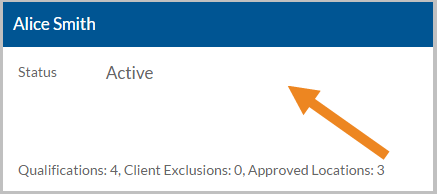
Select the card of the staff you want to update.
-
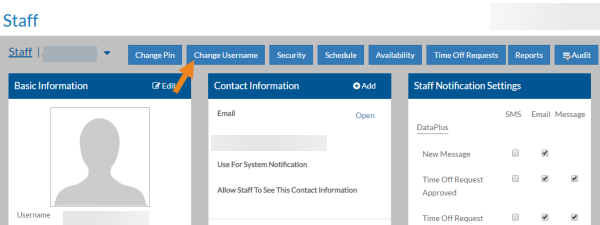
Select Change Username.
-
Enter the New Username and click Save.
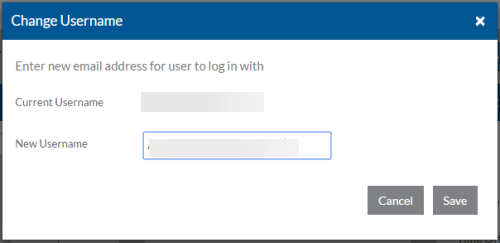
The username is updated and the user enters the new username to log in going forward.