Add Staff
If your staff does not sync from ProviderPro employees, you must add them directly to Staff Scheduling and/or Time Tracking:
-
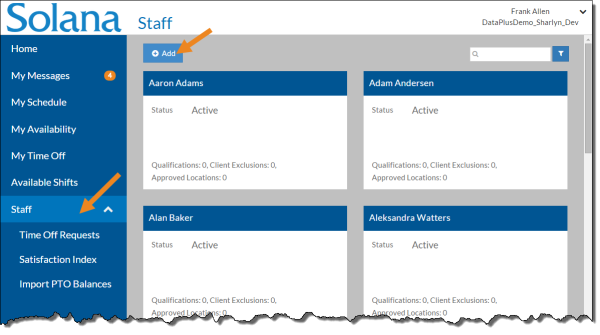
Select Staff from the menu and then select Add.
-
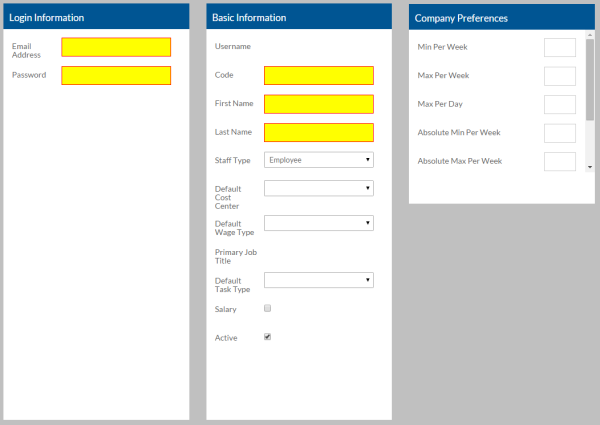
Complete the following information.
In this field:
Enter/Select: Email Address (Required) A unique, correctly formatted email address for the employee. This is the email address they will use to log in to Staff Scheduling with. Password (Required) A unique password for the employee to use for initial log in. The employee can then change the password to something else. First Name & Last Name (Required) The employee's first and last name. Code (Required) A code for the employee that consists of upper-case letters and numbers only (no special characters or spaces) up to 12 characters long. Active If the staff is currently an employee. Staff Type Employee - Regular staff
Placeholder Employee - Used for ratio purposes only
Default Cost Center If this staff uses Time Clock or Time Tracking, this is their default payroll cost center. Default Wage Type If this staff uses Time Clock or Time Tracking, this is their default payroll wage type. Default Task Type If this staff uses Time Clock, this is their default payroll task. Salary Select if this staff is salaried. Min Per Week The minimum number of hours the staff should work per week. Max Per Week The maximum number of hours the staff should work per week. Max Per Day The maximum number of hours the staff should work per day. Absolute Min Per Day If this staff uses Staff Scheduling, this is the absolute minimum number of hours the staff should work per week. Absolute Max Per Week If this staff uses Staff Scheduling, this is the absolute maximum number of hours the employee should work per week. Absolute Max Per Day If this staff uses Staff Scheduling, this is the absolute maximum number of hours the staff should work per week. Cost Per Hour If this staff uses Staff Scheduling, this is the cost per hour for this staff. Do Not Auto Schedule If this staff uses Staff Scheduling, if Do Not Auto Schedule is selected the Auto Scheduler will never assign this staff to a shift. However, the schedule manager can still manually assign this staff to a shift if they meet the criteria for the shift. -
Click Save.
The following cards appear: Contact Information (read only unless Manage Contact Info in Options is turned on), Staff Notification Settings (read only unless Manage Notification Settings in Options is turned on), Out of Office Settings, Staff Hours Preferences (Staff Scheduling only/read only), Approved Scheduling Locations (Staff Scheduling only), Job Titles, Qualifications (Staff Scheduling only), Client Exclusions (Staff Scheduling only), and Time Off Balances (read only/import via Import PTO Balances).
-
If you want to upload the staff's photo:
-
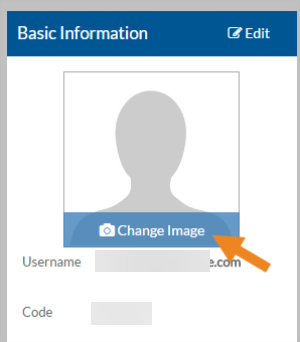
mouse over the photo icon on the Basic Info card and select Change Image.
-
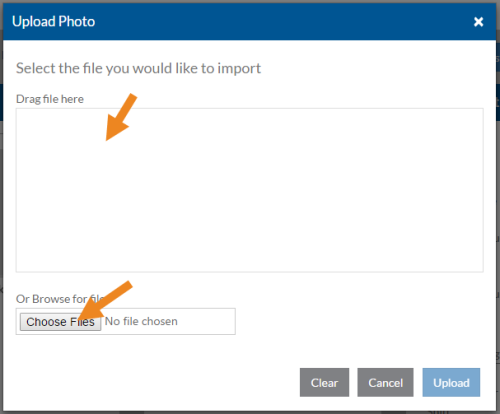
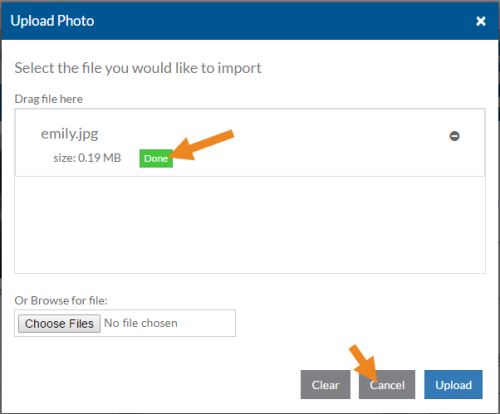
Drag the photo onto the window or click Choose File to browse for it.
-
Select Upload. When the photo has been uploaded, Done will appear beneath it.
-
Select Cancel to close the window.
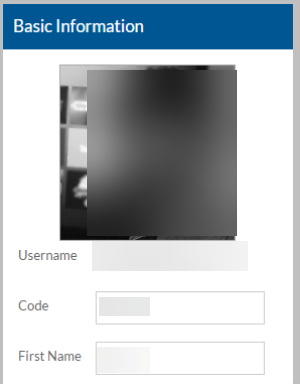
The staff's photo now appears on the Basic Info card.
-