Void or Unvoid Transactions
Staff, Review Log and Approve Log Managers can void and unvoid unapproved Log transactions. Review Log and Approve Log Managers can also void and unvoid unapproved Clock transactions.
You can void or unvoid one transaction or multiple transactions at the same time.

To void or unvoid an individual transaction:
-
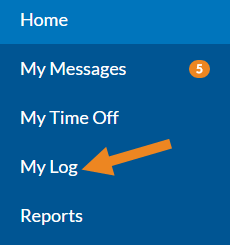
If you are voiding (or unvoiding) your own transaction, click My Log in the menu.
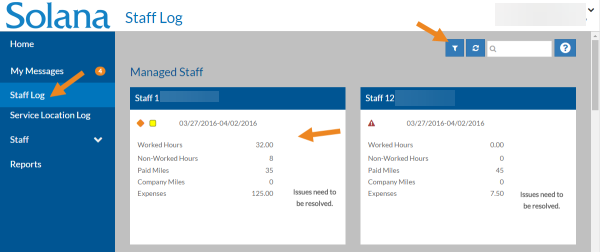
If you are a Review Log or Approve Log Manager and want to void (or unvoid) a transaction for your staff, click Staff Log in the menu, set any needed filters and then select the appropriate Staff card instead.
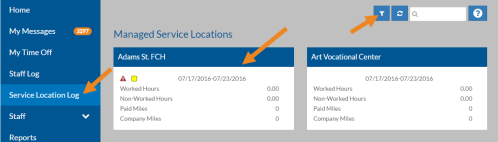
If you are a Review Log or Approve Log Manager and want to void (or unvoid) a log transaction for a particular Service Location, click Service Location Log in the menu, set any needed filters and then select the appropriate Service Location card instead.
-
Select a block on the Hours graph, select a row in one of the grids or click the Void (Unvoid) link next to the transaction in one of the grids (such as Other Hours/Amounts or Mileage).
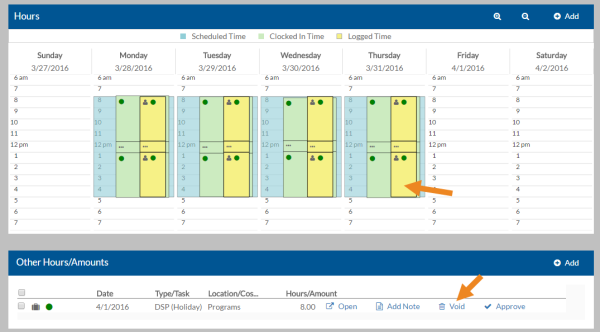
Depending on the transaction, either the transaction opens (Step 3) or the Void/Unvoid window opens (Step 4).
-
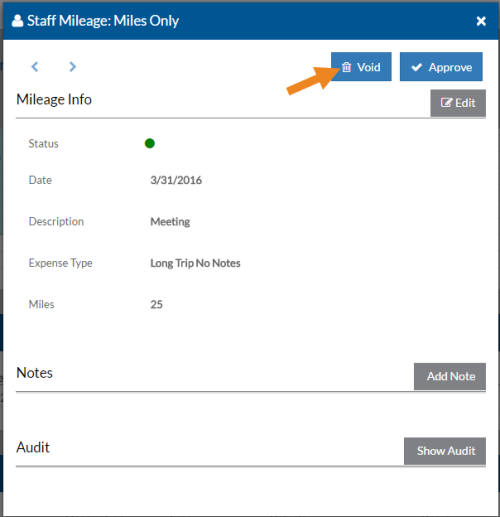
Select Void (Unvoid).
-
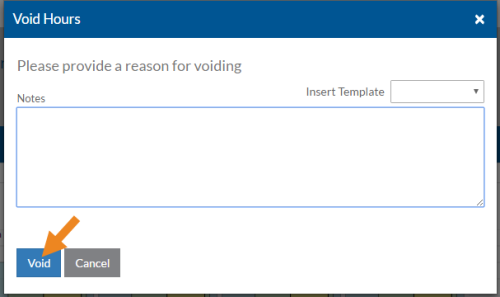
Enter any notes or select a pre-defined note from the Insert Template list if you would like to include a reason for voiding (unvoiding). Notes may or may not be required depending on your agency setup.
-
Click Void (Unvoid).
The trash can icon appears next to the transaction in the grid or on the block in the Hours graph, if you were voiding. The link/button changes to Unvoid and any notes will appear in the Notes area of the transaction. If you voided a transaction by mistake, select Unvoid to reset it.
To void or unvoid multiple transactions at the same time:
-
If you are voiding (or unvoiding) your own transactions, click My Log in the menu.
If you are a Review Log or Approve Log Manager and want to void (or unvoid) transactions for your staff, click Staff Log in the menu, set any needed filters and then select the appropriate Staff card instead.
If you are a Review Log or Approve Log Manager and want to void (or unvoid) log transactions for a particular Service Location, click Service Location Log in the menu, set any needed filters and then select the appropriate Service Location card instead.
-
Select the check boxes next to the transactions you want to void (or unvoid) in the same grid and select Void or Unvoid from the card header.

-
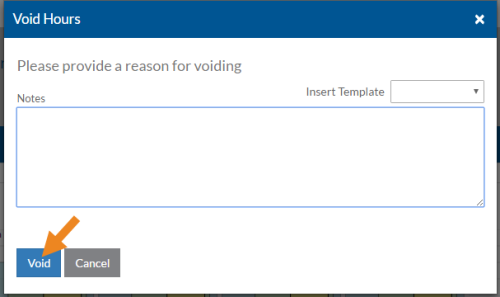
Enter any notes or select a pre-defined note from the Insert Template list if you want to include a reason for voiding (unvoiding) the transactions. Notes may or may not be required depending on your agency setup.
-
Click Void or Unvoid.
If you were voiding the transactions, the trash can icon appears next to each of the transactions in the grid, the link changes to Unvoid and any notes will appear in the Notes area of the transactions. If you voided the transactions by mistake, select Unvoid to reset them.