Request, View or Cancel Time Off Requests
Go to My Time Off to request time off and check the status of prior requests.
If you use Staff Scheduling, the auto-scheduler will not schedule you for a date/time that you have approved for time off, nor will you see Available Shifts that occur during your time off.
If you use Time Tracking, you may also be able to designate how many hours you want to be paid for the time you requested off.

To request time off:
-
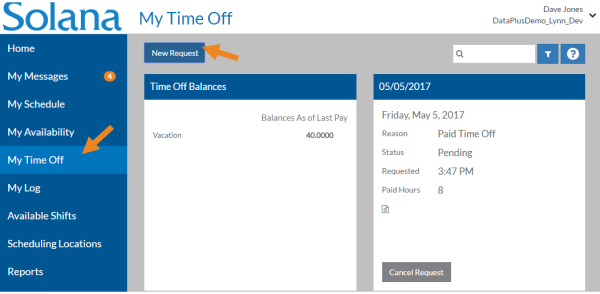
Select My Time Off in the menu and then select New Request.
-
Complete the information below.
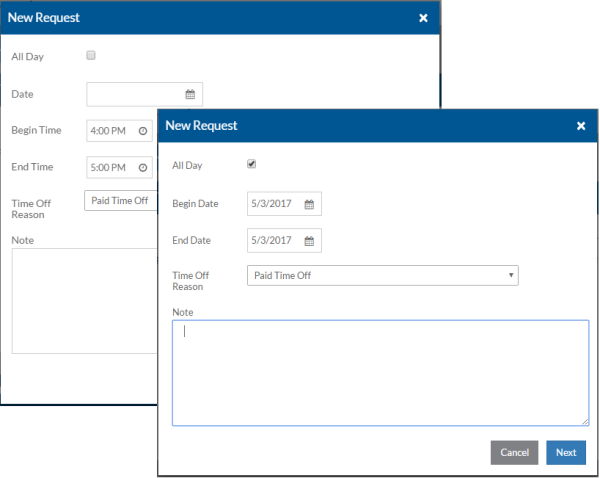
In this field:
Enter or Select: All Day
Select the All Day check box if the request is for an entire day or a date range. Otherwise, leaving it cleared if the request is for a partial day. Date If the All Day check box is not selected, enter the Date that you are requesting time off. Begin Time/End Time If the All Day check box is not selected, enter the Begin Time and End Time that you are requesting time off. Begin Date/End Date If the All Day check box is selected, enter the Begin Date and End Date for the day(s) you are requesting off. Time Off Reason Select the reason you are requesting time off from the list. Note Enter any notes you want to communicate to your manager about your time off request. -
If you use Time Tracking and the Link Time Off Request to Time Tracking feature is turned on, select Next to designate the number of hours your want to be paid for. Otherwise, select Save instead.
-
If you selected Next, complete the following information as needed and click Save.
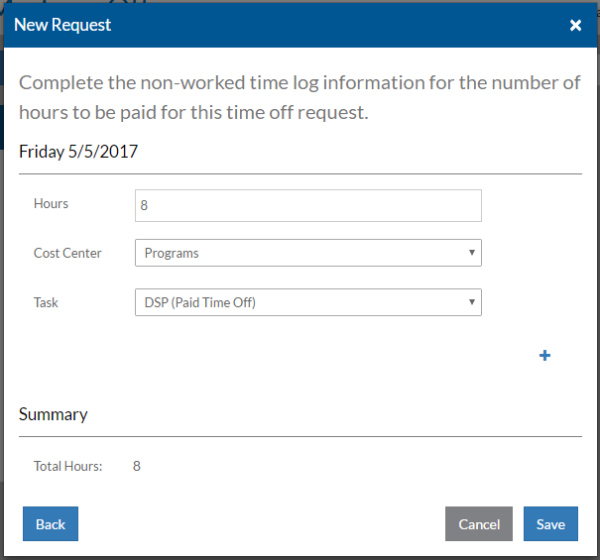
In this field:
Enter or Select: Begin/End Date Time
or
Hours
Enter the Begin and End Time if your non-worked time is entered with begin/end times for the number of hours you want to be paid for or the total number of hours you want to be paid for your time off if approved. If you requested multiple days off, you will need to set the number of hours for each day you want to be paid for. Cost Center The Cost Center that this paid time off request is for. Task The Task this paid time off request is for. You will only see the tasks for the job titles that have a wage type associated with the time off reason you selected.
If you need to break the hours up for a single day between multiple cost centers or tasks, select the + sign beneath Task to create another row.
Your staff manager is notified of your time off request. If you have turned on your Staff Notification Settings under User Settings, you receive a notification once your manager approves or denies the request. If your manager approves your request and you entered the number of hours to be paid, the Non-Worked Time Log entry is automatically created in your My Log.
To view time off information:
-
Select My Time Off in the menu.
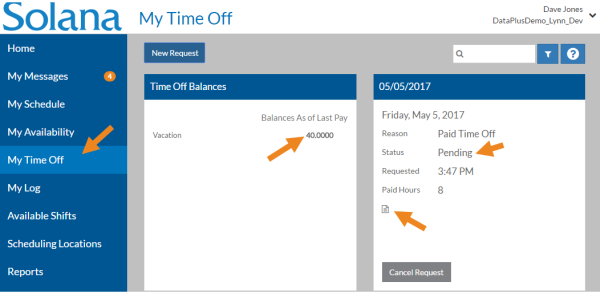
The Time Off Balances card shows your paid time off balances as of your last pay. This does not include any time off you've already requested, but haven't taken -OR- any time off you've taken during the current pay period -OR- the amount you may accrue during the current pay cycle.
The remaining cards show your current time off requests. The Status on the card can be Pending, Approved, Rejected or Canceled.
The Notes icon (
 ) appears to indicate that there are notes associated with the Time Off Request.
 -
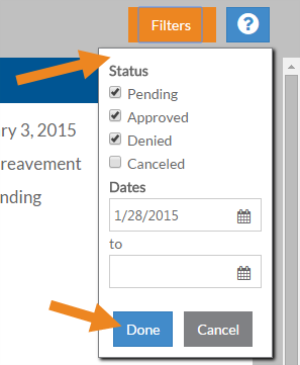
Select Filters to change the settings for which time off request cards appear based on the status and/or a date range, and then select Done.
-
Select the Time Off Request card to view additional details, such as the number of paid hours you requested if using Time Tracking, and any notes that you or your manager entered about the request. Select the X to close the window.
To cancel a time off request that you no longer need:
-
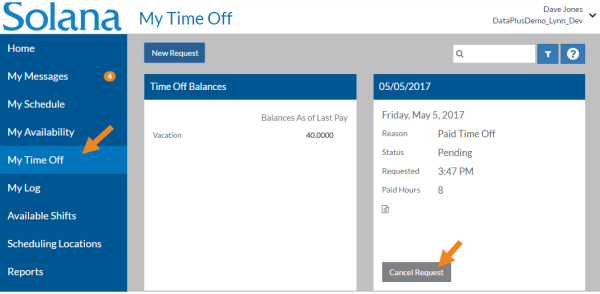
Select My Time Off from the menu and the select Cancel on the time off request card you no longer need.
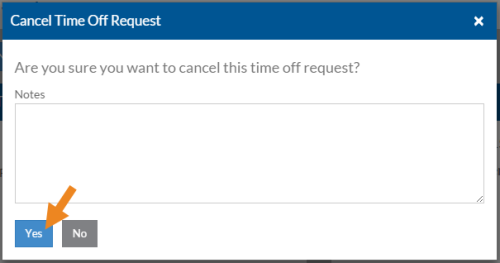
Enter any notes to your manager if desired and select Yes.
Your manager is notified that you canceled your time off request.
If you use Staff Scheduling, you can now be scheduled to work and any open/posted shifts that you are qualified for will now appear under Available Shifts for the time frame.
If you use Time Tracking and the Link Time Off Request to Time Tracking feature is enabled, and your request was already approved, then any non-worked time transactions associated with the canceled time off request will be voided as well.