Log Staff Miscellaneous Expenses
Log miscellaneous expense reimbursements from the Expenses grid.
To log miscellaneous expenses:
-
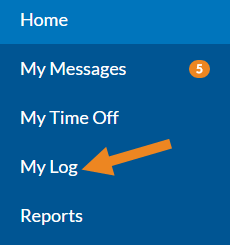
If you are logging your own expense, click My Log in the menu.
-
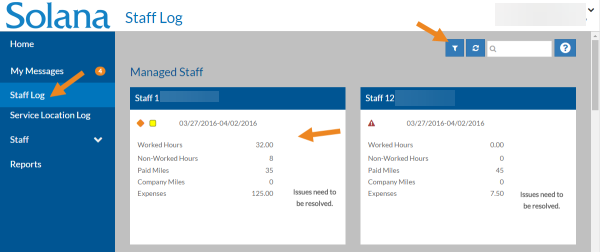
If you are a Review Log or Approve Log Manager and want to create an expense log transaction for your staff, click Staff Log in the menu, set any needed filters and then select the appropriate Staff card instead.
-
Select Add on the Expenses grid.

-
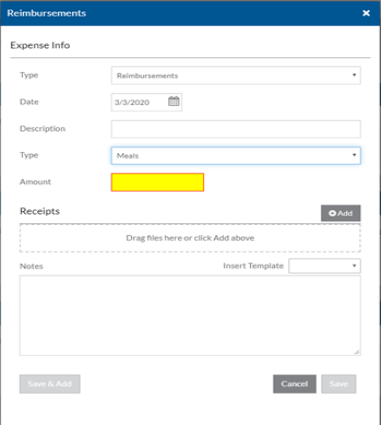
Complete the following information and click Save.
In this field:
Enter:
Type
The appropriate Expense log transaction type.
The names that appear will vary depending on your agency's setup.
Date The date this expense occurred.
Depending on your agency's settings, you may be restricted from entering a date a specified number of days in the past or future. If so, you will see an error message when you try to save.
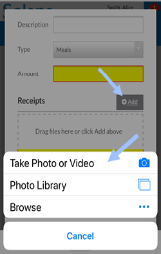
Description A description for this expense. (Expense) Type The type for this expense. This determines whether notes are required, the GL Account/Cost Center to use in the export and whether or not a receipt needs to be submitted to your manager. Amount The amount of the expense to be reimbursed. Receipts Select the Add button to add one or more receipts. If you are using a camera-enabled device, you can also take a photo of the receipt to attach to the reimbursement.
Notes Any notes related to this expense. The Expense Log transaction appears on the Expense grid.

The expense may or may not require you to submit the receipt to your manager, depending your agency's setup. If receipts are required, an orange rhombus icon (warning flag) appears on the Expense Log transaction that your manager will acknowledge after receiving the receipt.