Set Up Service Delivery Limits

Clients are authorized by their funding source (payer) for the services an agency provides them. The number of units of time authorized determines the amount and type of care the individual receives, the number of staff an agency may need, and serves as a guide when scheduling staff for the week.
If the agency has Billing they can set up the number of allowed units either in the Contract Code’s Global Limits (if the limit applies to all clients with that contract code) in the Funding Source’s Service Type via ProviderPro or in the Client Contract Detail Limits (if the limit is unique to the individual clients) via ProviderPro or DataPlus. The service limit information in Billing can then sync over to Time Tracking Service Limits.
If the agency is not using Billing, they can set up the limits directly in Time Tracking.
If the client’s authorization is not based on time (i.e., a daily per diem rate), then the service delivery limits (which are based on hours) will need to be manually entered in Time Tracking. This is because non-time contracts/authorizations, do not indicate how many hours can be served.
Time Tracking tracks how many hours have been served and how many hours are remaining and calculates a status (Trending Under, Trending Over, On Track, etc.) based on agency configured options. As staff log time with the client, the agency can see how many hours the client has left. If the log entry would put the client over the limit, the agency can either warn the staff and flag the entry or prevent both staff (and managers) from logging the time completely.
To use Service Delivery Limits, you need to complete these setup items:
-
Sandata needs to mark the Use Service Delivery Limits check box found on the Time Tracking Settings card in DataPlus Options (Work with the IDD Pod to it turn on. It requires a script to turn on).
-
Sandata needs to set the sync options for Contract Detail Limits to Service Delivery Limits on the Service Limit Settings card in DataPlus Options. These settings are read only (Work with the IDD Pod to setup the sync settings. It requires a script to turn on along with two new package definitions. In addition, the agency must have a combined ProviderPro/Time Tracking database).
-
Set the thresholds for under and over utilization trends on the Service Limit Options card in DataPlus Options.
-
Update any Staff Permission Groups for the staff that the agency wants to restrict from logging time with clients if a client is over their authorized hours.
-
Set up the Funding Source Billing Service Type Contract Code Time and Unit Service Types in ProviderPro (if syncing).
-
Turn on the Service Delivery Limit Flag if not restricting log entry when the client is over the limit.
-
Set up the Service Delivery Limits (in Time Tracking if not syncing) or in the Contract Detail Limits or Funding Source Service Type Contract Code Global Limits (in Billing if syncing).
The administrator, service location approver or service location reviewer can add or edit service limits as well as import them.
If service limits are syncing from contract detail limits then service limits will be read only and an external ID will appear in the service limit that indicates the corresponding ID of the contract detail limit or global limit in ProviderPro. See Options for more information on syncing.
To add or update a service limit in Time Tracking:
-
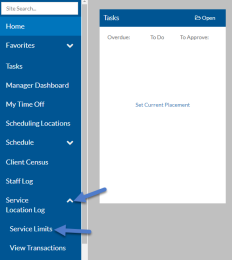
Select the arrow next to Service Location Log in the menu panel and select Service Limits.
-
Select the + to add a new or select a row to open an existing service limit.
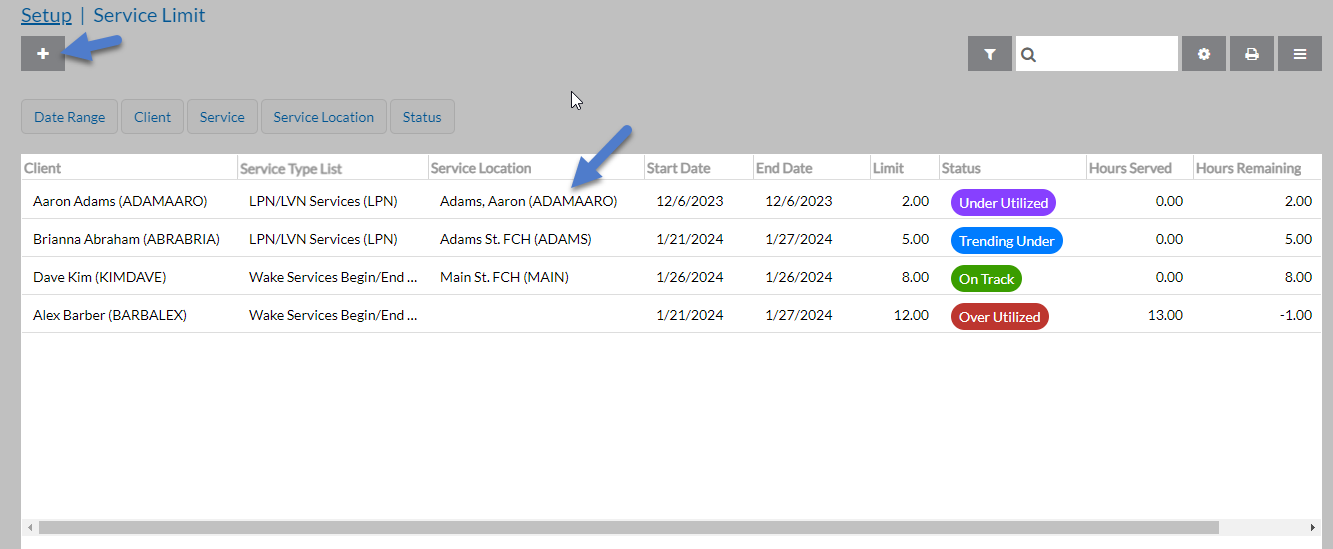
The Service Limits window opens.
-
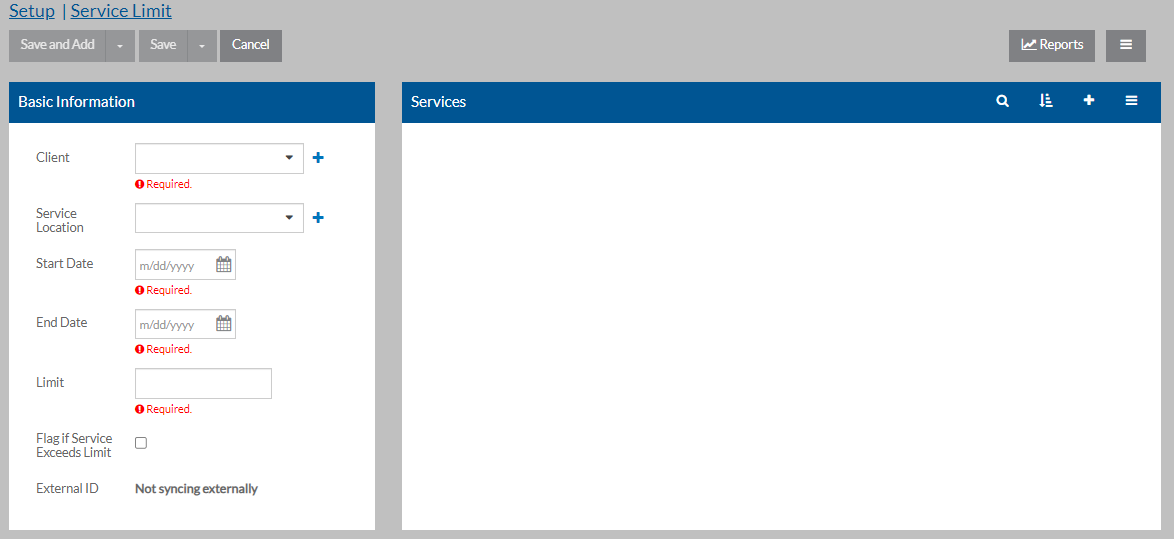
Complete the following information:
Field
Description
Client
The name of the client the limit is for.
Service The service that has the limit. Service Location If the service is only limited for a particular service location, select the service location. Otherwise, leave this field blank. Start Date The first date this limit begins. End Date The last date this limit is in effect. Limit The number of hours this client is authorized to receive of the selected service for the date range entered. Flag if Service Exceeds Limit If the Staff Permission Group is not set up to restrict staff from logging time for the client if they are over hours for this service, you can select this option to flag any log entries for this client/service/(service location, if entered) that are over the limit. External ID If the service limit was created from a contract detail limit, this read-only field will show the ID of the contract detail limit or global limit in ProviderPro. Otherwise, it will say Not syncing externally. -
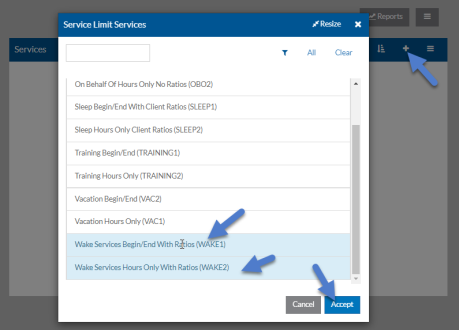
Select the + on the Services card, select the Services that apply to this limit and select Accept.
-
Select Save when finished.
-
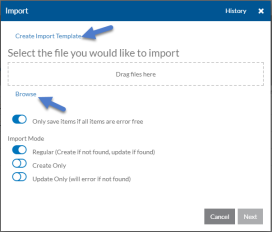
To import service limits, select the options menu and then select Import.
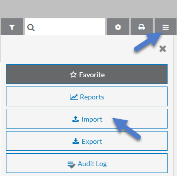
From here you can Create an Import Template (an Excel file), which you can then complete in MS Excel and then import into Service Delivery Limits.