Filter Service Location Log
View Log, Review Log and Approve Log Managers can navigate to the Service Location Log Summary screen to view, review and approve the log entries for the Service Locations that they manage based on their security settings and filter option selections.
You can filter the Service Location screen to access the Service Location Log cards that either need to be approved or have flags that need to be reviewed (To Do), the Service Location Log cards for all active service locations for the current week (Current Week) or historical Service Location Log cards for a specified week or service location. Additionally, you can filter the Service Location Log cards based on whether you are the Primary or Department Manager for the service location or if you are a Backup Manager covering another manager's workload.
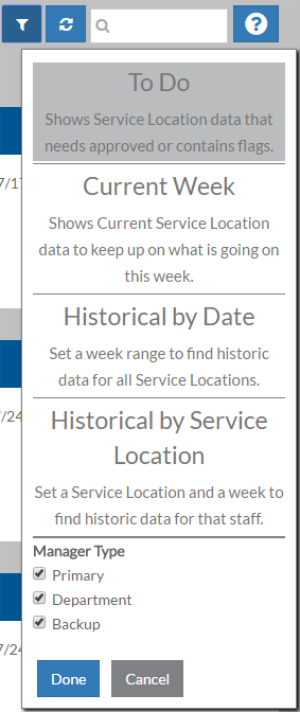
To find the Service Location Log card you want to open:
-
Click Service Location Log in the menu.
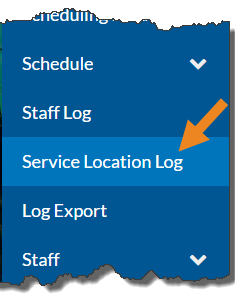
-
Select the filter icon.
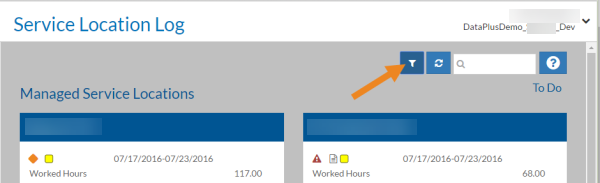
-
Select the appropriate filters and click Done.
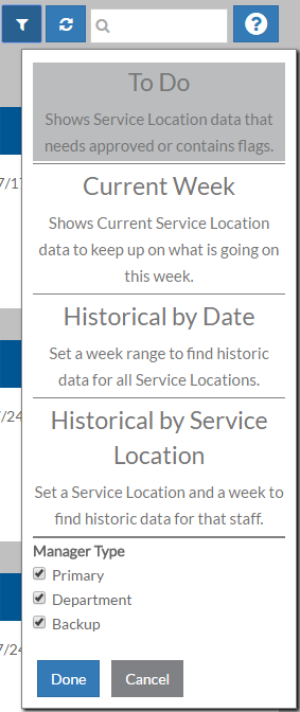
-
Enter a service location in the search, if desired.
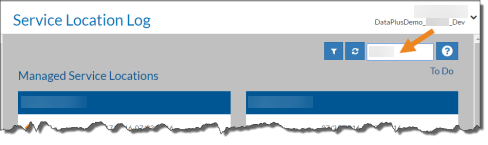
-
Select the Service Location Log for the appropriate service location and week.
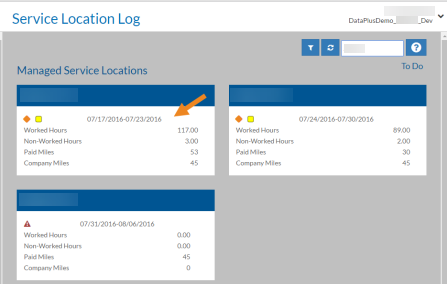
-
Select By Client to switch the view to clients instead of staff in the Summary card and Hours graph. Select By Staff to change back to the Staff view.
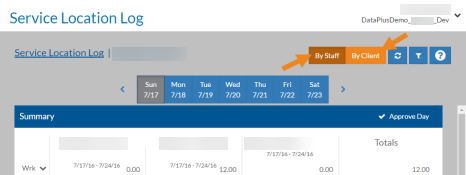
-
Select the date to move from day-to-day within a week.
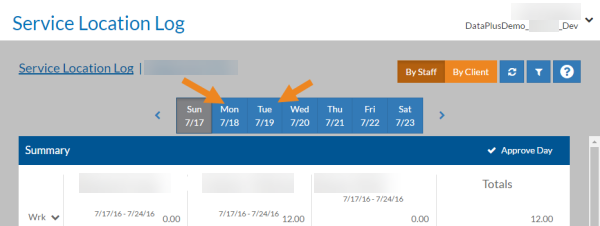
-
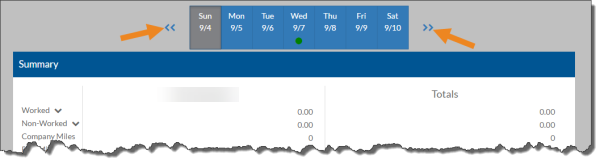
Select the left and right double arrows at either end of the date boxes to navigate week-to-week, if you are not in To Do mode.
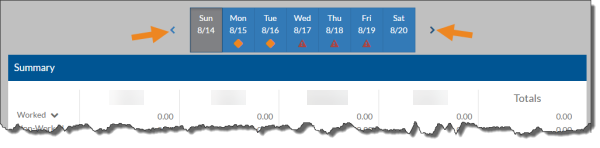
If you are in To Do mode, select the arrows at either end of the date boxes to go to the next or previous Service Location Log in your To-Do list instead.
-
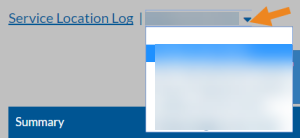
If you are not in To Do mode, select the down arrow next to the service location's name in the breadcrumbs to switch to another service location for the same week you are on.
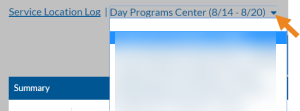
If you are in To Do mode, select the down arrow next to the service location's name (week) in the breadcrumbs to switch to another log in your to-do list.
-
Select a Staff's name in the Summary card or the Hours graph to jump to their Staff Log for the selected week.
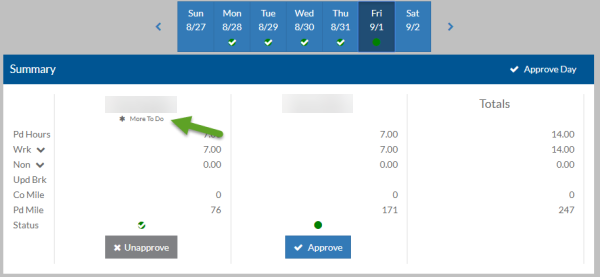
If staff has time without clients, non-worked time, staff mileage of miscellaneous expenses in the selected week that have not been approved, the message More To Do will appear beneath their name in the Summary card.