Approve Service Location Logs
Approve Log managers can approve transactions from either the Staff Log or the Service Location Log. The Service Location Log allows managers to approve the log transactions for a particular service location instead of for a particular staff.
If a transaction has the green circle icon  on it in the Hours graph or next to it in the Other Hours/Amounts or Mileage grid, then the transaction is ready to be approved. Transactions must be approved before they can be exported. Only Approve Log Managers can approve or unapprove transactions.
You can approve or unapprove one transaction, multiple transactions at the same time or all the transactions for a staff member or for all the transactions for a service location for the day.

To approve an individual transaction:
-
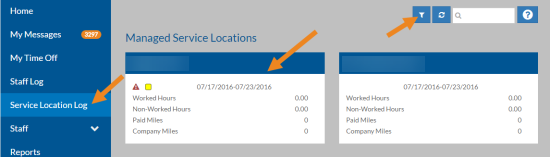
Click Service Location Log in the menu, set any needed filters, and then select the appropriate Service Location Log card.
-
Make sure you are in the By Staff view. You cannot approve transactions from the By Client view.

-
Select or tap a block on the Hours graph or click the Approve (Unapprove) icon or link next to the transaction or open a transaction in the Other Hours/Amounts or Mileage grid.
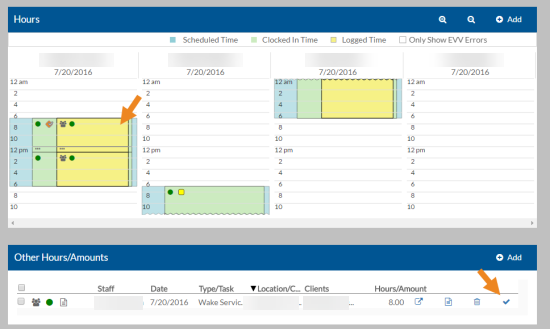
If you opened the transaction, it will open in a pop-up. Otherwise, the status of the transaction changes to Approved
 and the link changes to Unapprove. If you made a mistake you can select Unapprove to reset the status, if the transaction has not been exported.
 -
Select Approve (Unapprove).
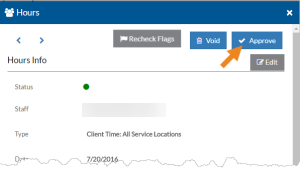
The status of the transaction changes to Approved
and the button changes to Unapprove. If you made a mistake, you can select Unapprove to reset the status, if the transaction has not been exported.
To approve (or unapprove) multiple transactions at the same time:
-
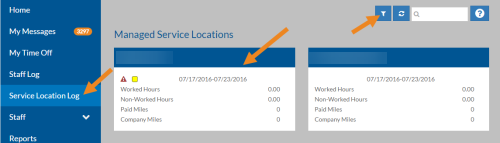
Click Service Location Log in the menu, set any needed filters and then select the appropriate Service Location Log card.
-
Make sure you are in the By Staff view. You cannot approve transactions from the By Client view.

-
Select the check boxes next to the transactions you want to approve in the Other Hours/Amounts or Mileage grid and click Approve in the card header.

The status of the transaction changes to Approved
and the links change to Unapprove. If you made a mistake, you can select Unapprove to reset the status, if the transaction has not been exported.
To approve all transactions (ready to be approved) for one staff or an entire day:
-
Click Service Location Log in the menu, set any needed filters and then select the appropriate Service Location Log card.
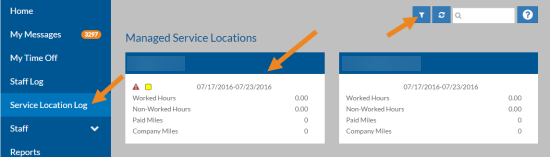
-
Make sure you are in the By Staff view. You cannot approve transactions from the By Client view.

-
Select Approve under the staff or Approve Day in the banner of the Summary card.
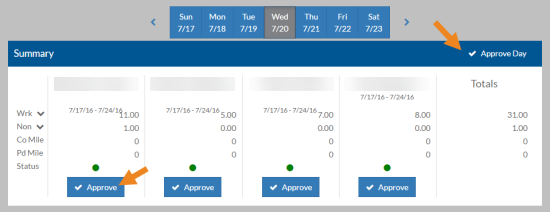
If you do not see the Approve button on a staff or the Approve Day link, either there are no transactions ready to be approved or you do not have security permissions to approve.
The status of the transactions that can be approved (the ones that have no unacknowledged warning or error flags) change to Approved
and the links change to Unapprove. If you made a mistake you can select Unapprove to reset the status, if the transactions have not been exported.