Create a Time Tracking Export File
If you have the Export Approved Time Tracking role, you can export approved log transactions as well as roll back an export file and archive an export file. You can then import the export file into ProviderPro Payroll Wage Entries, Payroll Reimbursement Entries, Billing Time Entries and/or Billing Unit Entries.
You can export approved data as of a certain date that you can then import into ProviderPro Payroll Wage Entries, Payroll Reimbursement Entries, Billing Time Entries and/or Billing Unit Entries depending on the type of log transactions exported.
Once the log transactions are approved, to create an export file:
-
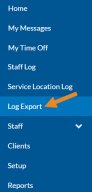
Select Log Export from the menu.
-
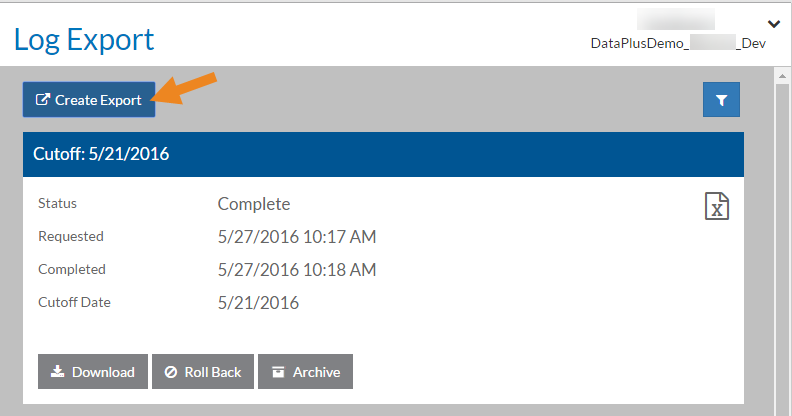
Select Create Export.
-
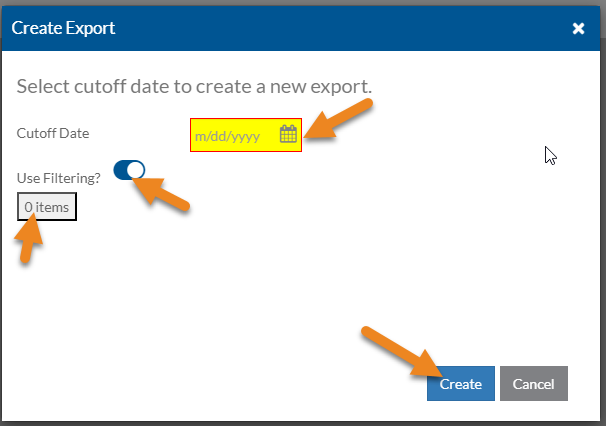
Enter the Cutoff Date and select Create. If you would like to create an export for specific employees only, turn on Use Filtering? and select the 0 items button to select the employees you want to include. This is the date up through and including the date you want to export. Only approved entries that have not been exported previously are included.
 \
\ -
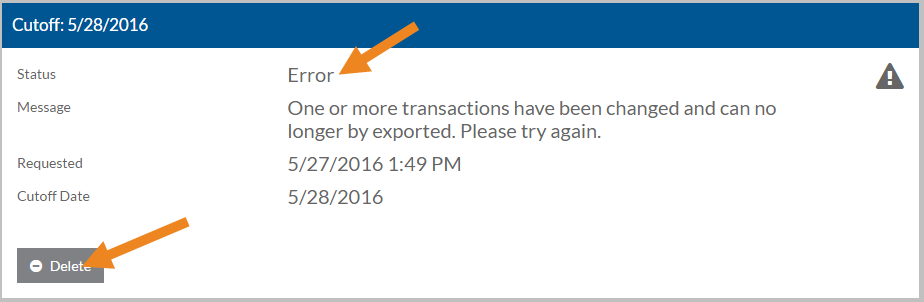
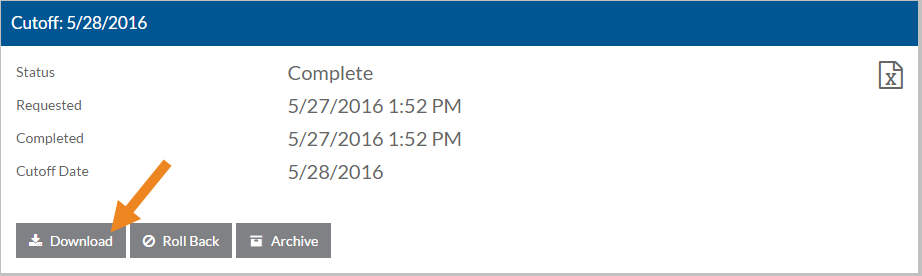
A new export card with the selected cutoff date will appear with a Status of New. If the export finishes successfully, the status will change to Complete. If any of the log transactions change during the creating of the export file, the status will change to Error and the file will not be created. You can then click Delete to remove the Export card with the error.
-
Once the export has a status of Complete, click Download.
-
Enter a file name, select the folder you want to save the file in and click Save.
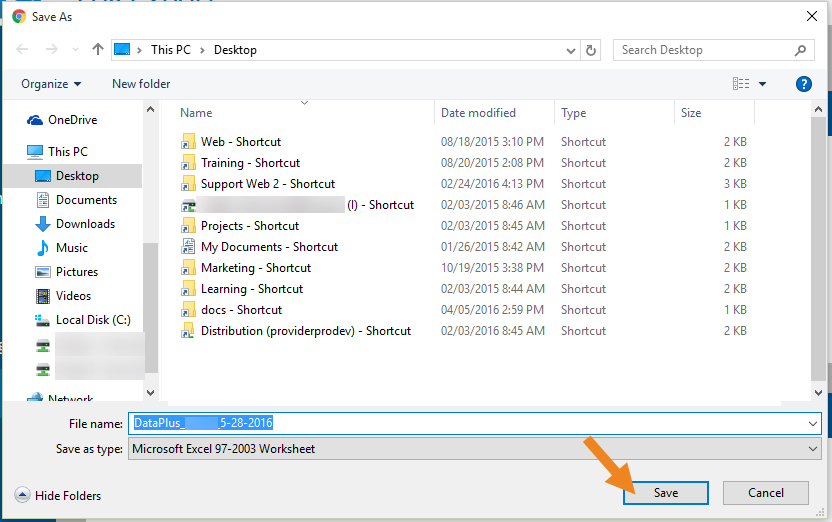
This downloads the Microsoft Excel export file to your workstation and is ready for you to import into ProviderPro. The transactions included in the export file will now have a status of Exported.