Manage Client Groups
Client Groups are collections of clients that can be used to set security permissions so that managers can only access or manage specific clients.
Do not add, delete or make changes to the payroll cost center group settings within Time Tracking if you sync from ProviderPro. The changes will be overwritten the next time the sync runs. Make all changes in ProviderPro. To make payroll cost center group settings read-only in Time Tracking, turn on the Disable Synced Properties Default setting in Options.
To manage Client Groups:
-
Log in with your full login.
-
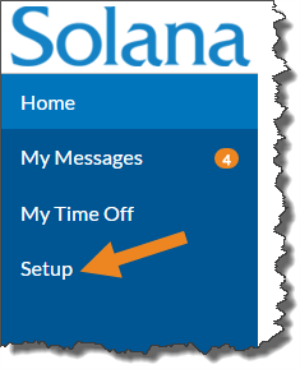
Select Setup from the menu.
-
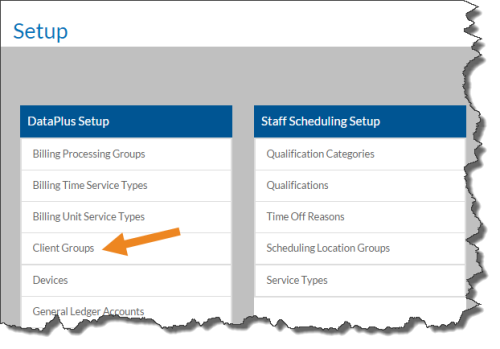
Select Client Groups on theDataPlus Setup card.
-
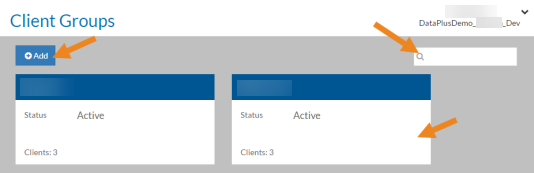
Select a client group card from the list, or enter a client group in the Search box to search for a specific client group.
If you do not sync client groups from ProviderPro, select Add to create a new one.
-
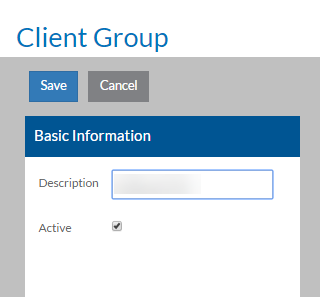
Complete the following information and select Save:
-
Description: A description of the Client Group.
-
Active: Checking this box makes the Client Group in use.
-
-
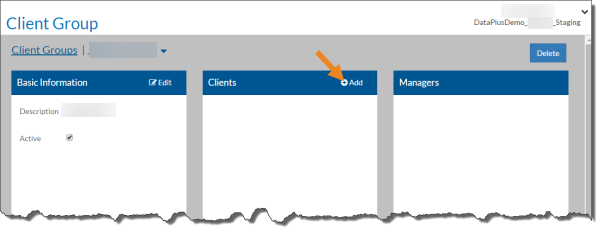
Select Add on the Clients card.
-
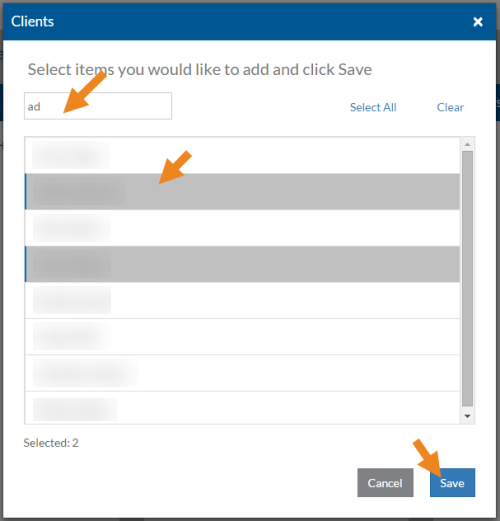
Select the clients you want to assign to the client group and then click Save.
-
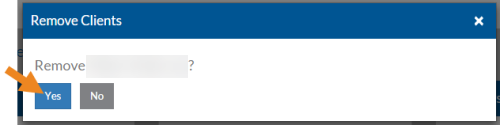
Select the minus sign next to a client to remove them from the client group.
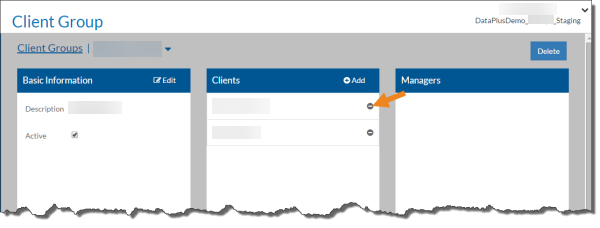
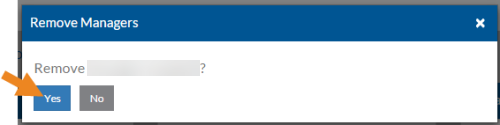
Select Yes in the confirmation pop-up to remove the client.
-
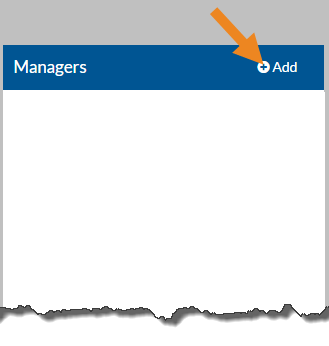
Select Add on the Managers card to select the staff that manage the clients in this client group.
-
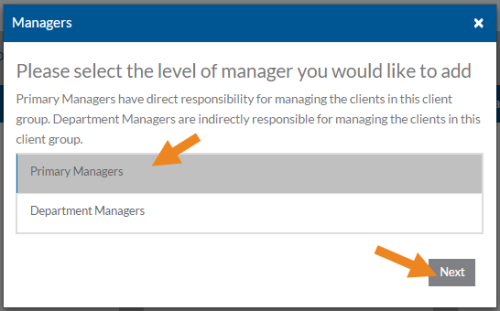
Select either Primary Managers or Department Managers and click Next.
-
Primary Managers have direct responsibility for managing the staff/staff groups selected in the next screen.
-
Department Managers are indirectly responsible for managing the staff/staff groups selected in the next screen.
-
-
Select the managers you want to assign to the client group and then click Save. Only staff that have the Clients: Manage Selected role will appear in the list.
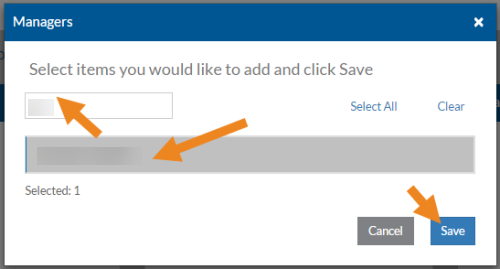
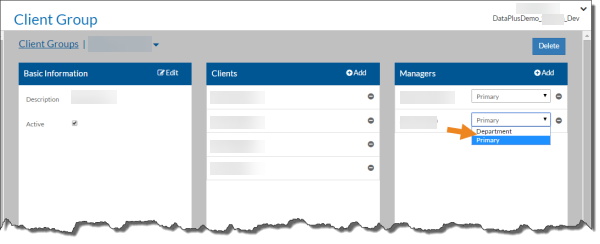
You can change the Manager Type if needed.
-
Select the minus sign next to a manager to remove them from the client group.
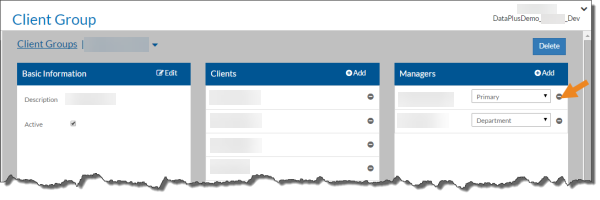
Select Yes in the confirmation pop-up to remove the manager.