Employees Update Time Slots
Complete the following steps to update the time slot of a shift template:
-
Select Scheduling Locations from the menu and then enter the name of the scheduling location in the Search box.
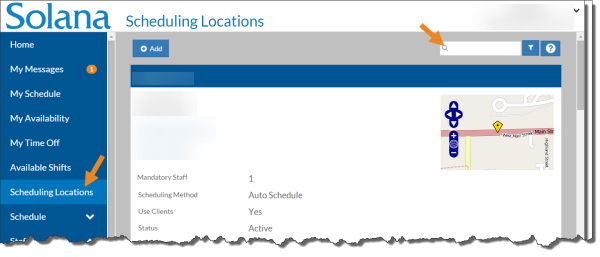
-
Select the card of the scheduling location.
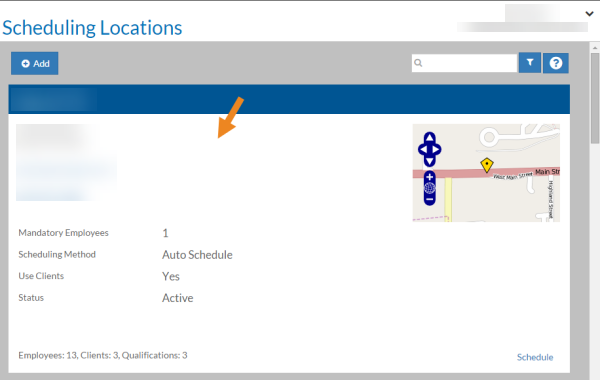
The scheduling location's card opens.
-
Select Shift Templates under the Actions menu.
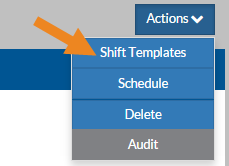
The Shift Templates window opens.
-
Select the time slot you want to modify on the grid.
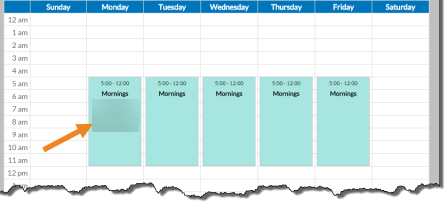
The Time Slot pop-up opens.
-
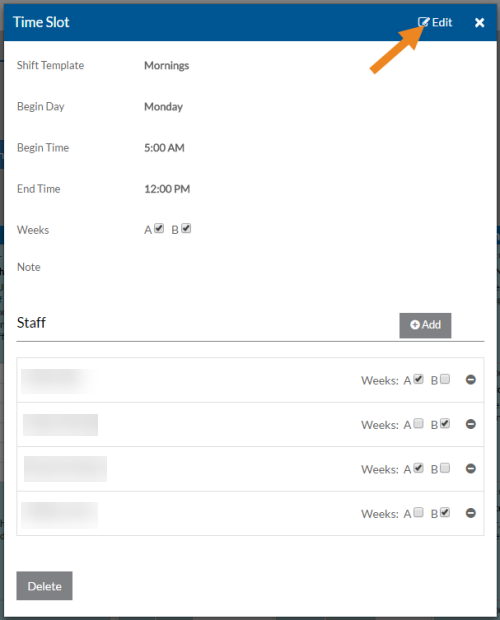
Select Edit to update the associated shift template, the begin day of week, begin time or end time.
-
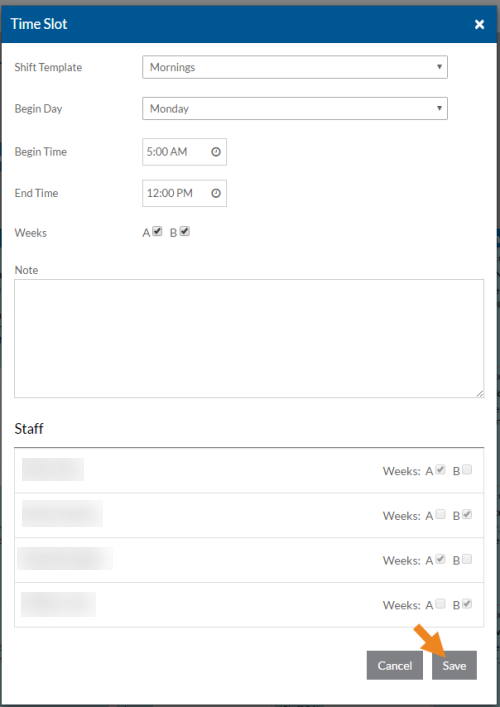
When finished, select Save.
-
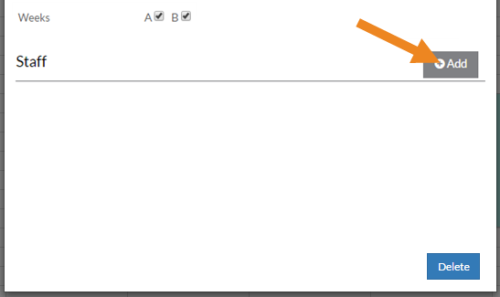
To add staff to the slot, select Add on the Staff card.
-
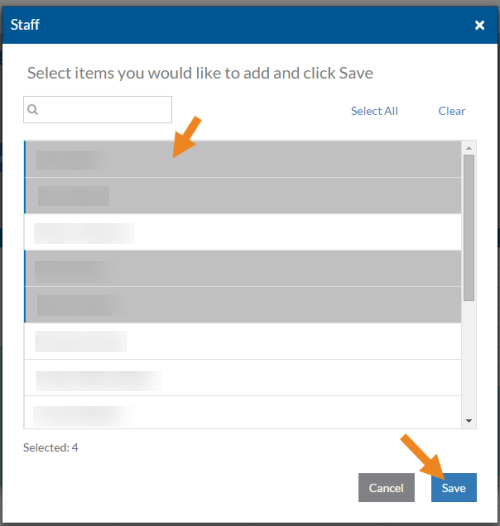
Select the staff you want to assign to this slot and select Save.
-
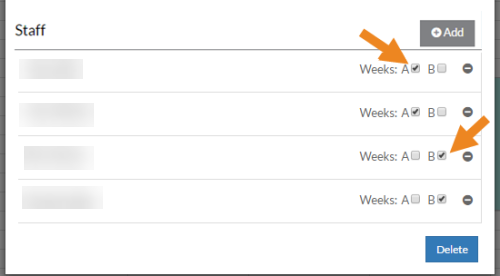
If the scheduling location's Weekly Cycle is not set to "1," then select or clear check box for the correct Weeks (A, B, C, etc.) next to each staff to indicate which week the staff is assigned to that shift.
-
To remove staff from the slot, select the minus sign next to the staff.
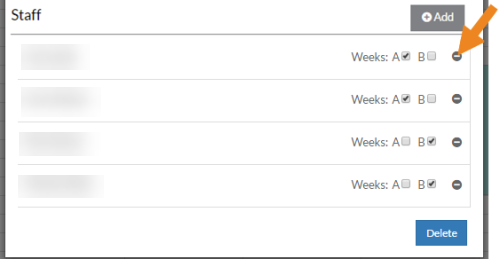
A confirmation message appears.
-
Select Yes.
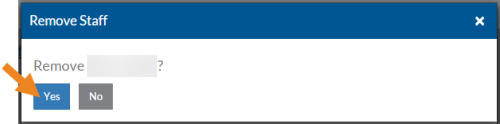
The staff disappears from the card.
-
Click the X in the upper right corner to close the time slot.