Employees Update Shift Templates
Complete the following steps to update the shift template.
-
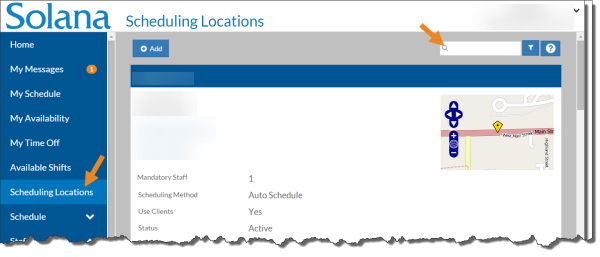
Select Scheduling Locations from the menu and then enter the name of the scheduling location in the Search field.
-
Select the card of the scheduling location.
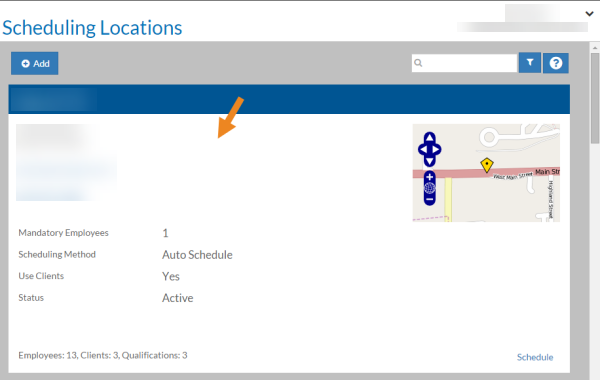
The scheduling location's card opens.
-
Select the Shift Templates option.
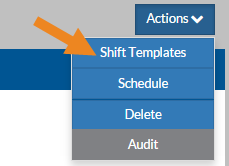
The Shift Templates window opens.
-
Select the arrow next to the name of the shift template that you want to update and click Edit.
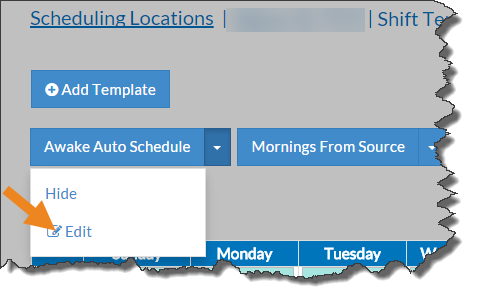
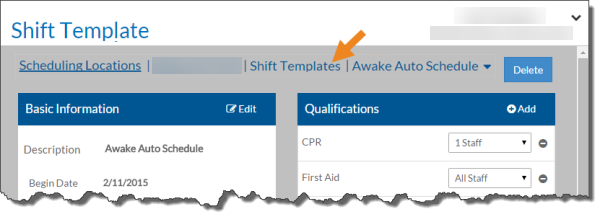
The Shift Template opens.
-
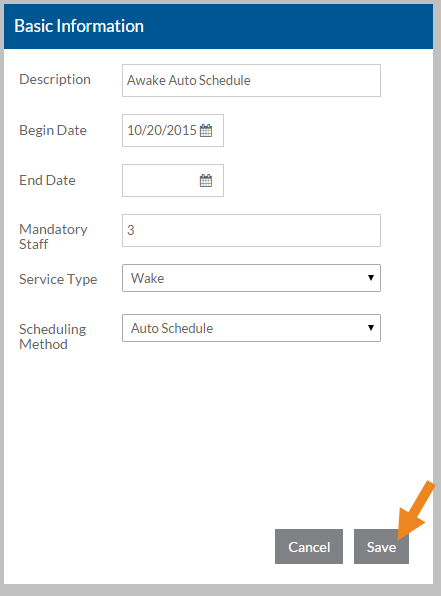
Select Edit on the Basic Information card to make any needed changes.
-
Select Save when finished.
-
To update the qualifications for a shift template, select Add on the Qualifications card.
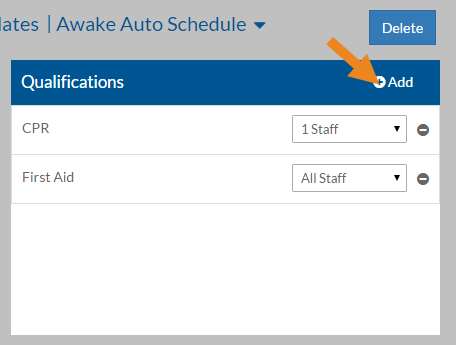
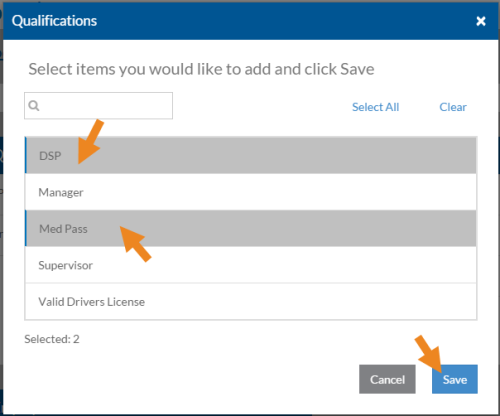
The Qualifications pop-up opens.
-
Select the qualification you want to assign to the shift template and then click Save.
-
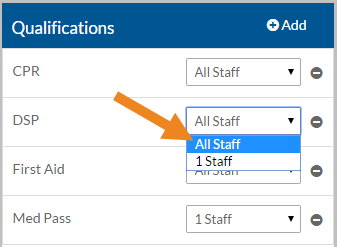
Select the number of staff that must have the qualification to work a typical shift.
-
Select the minus sign next to a qualification to remove it from the shift template.
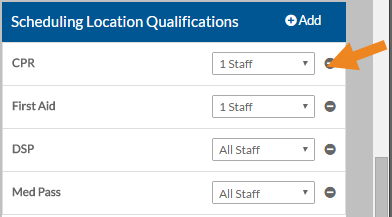
A confirmation message appears.
-
Select Yes.
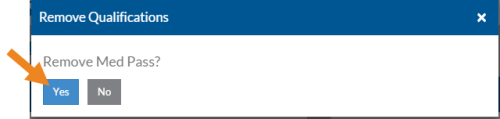
The qualification disappears from the card.
-
To update the clients for a shift template, select Add on the Clients card.
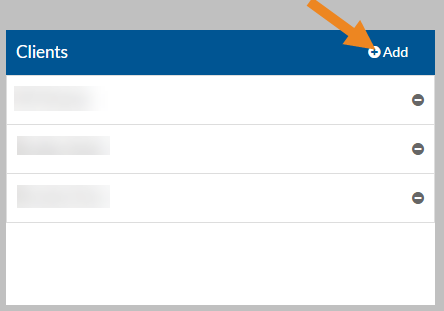
The Clients pop-up opens.
-
Select the client(s) you want to assign to the shift template and then click Save.
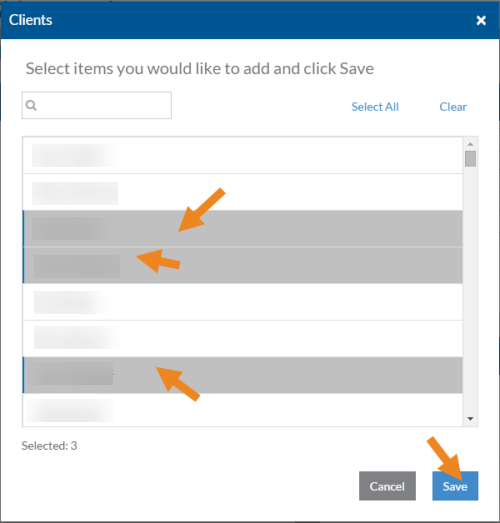
The selected clients appear in the Clients card. If any of the clients have special qualifications, they appear on the Client Qualifications card.
-
Select the minus sign next to a client to remove it from the shift template.
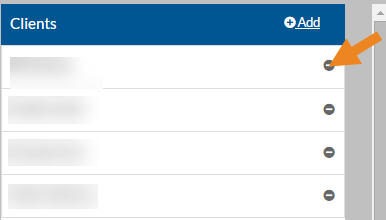
A confirmation message appears.
-
Select Yes.
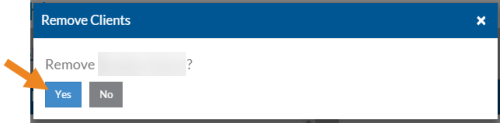
The client disappears from the card. If any of the clients have special qualifications, they disappear from the Client Qualifications card as well.
-
Click Shift Templates in the breadcrumbs to return to the Shift Templates grid.