Employees Time Slots
By default when you add a shift, the number of slots match the Mandatory Staff of the scheduling location. If you increase the shift's Mandatory Staff, you must add additional slots to match. You can also add slots without updating the Mandatory Staff, however, an error flag does not appear if that slot is not filled.

Complete the following steps to add a slot to a shift:
-
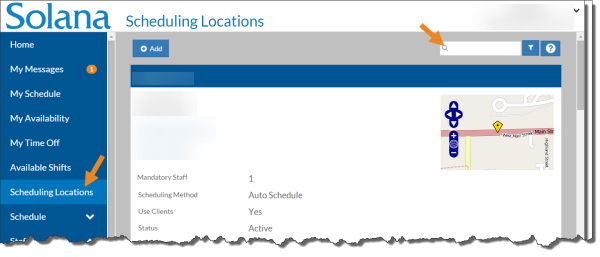
Select Scheduling Locations from the menu and then enter the name of the scheduling location in the Search field.
-
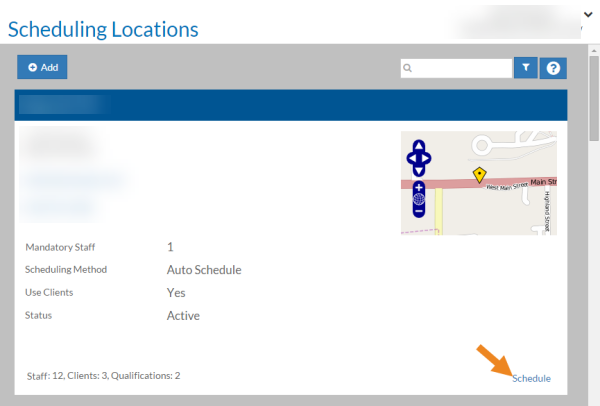
Select the Schedule link on the scheduling location card.
-
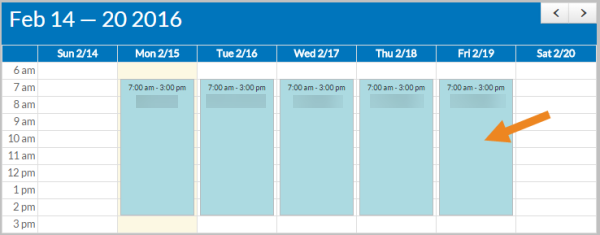
The schedule for the scheduling location opens. Select the shift from the calendar grid.
-
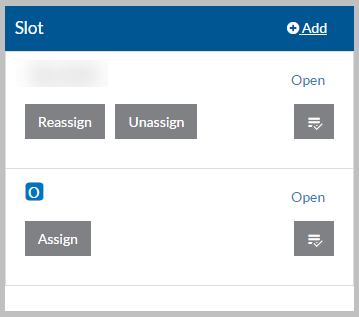
The shift opens. Select Add on the Slot card.
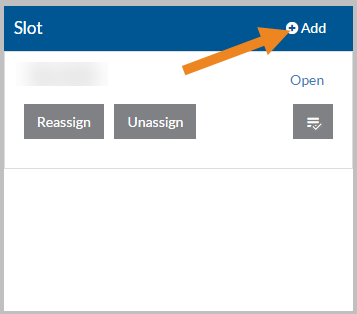
The Added Slot toast appears and a new slot appears on the Slot card.
By default when you add a shift, the number of slots match the Mandatory Staff of the scheduling location. If you do not actually need that many slots, you can reduce the Mandatory Staff of the shift and then inactivate the extra slot(s).
Complete the following steps to inactivate a slot for a shift:
-
Select Scheduling Locations from the menu and then enter the name of the scheduling location in the Search field.
-
Select the Schedule link on the scheduling location card.
-
The schedule for the scheduling location opens. Select the shift from the calendar grid.
-
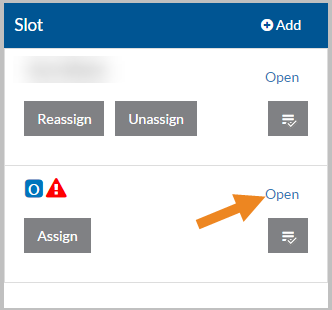
The shift opens. Select the slot you want to inactivate on the Slot card.
-
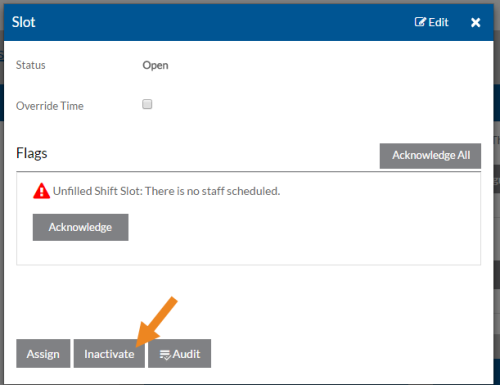
The Slot pop-up window opens. Select the Inactivate button.
-
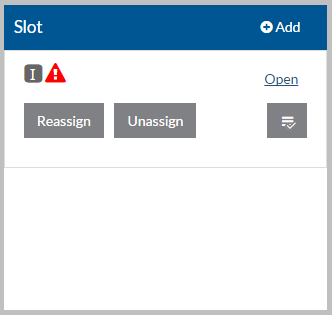
The Slot pop-up closes. An Inactive icon (I) appears on the slot.
The schedule manager can override a specific slot within a shift to a different timeframe if it is shorter or longer than the shift itself.
Complete the following steps to override a slot time:
-
Select Scheduling Locations from the menu and then enter the name of the scheduling location in the Search field.
-
Select the Schedule link on the Scheduling Location page.
The scheduling location's schedule opens.
-
Select the shift from the calendar grid.
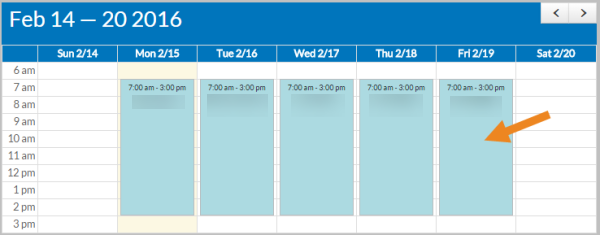
The shift opens.
-
Select the slot you want to override on the Slot card.
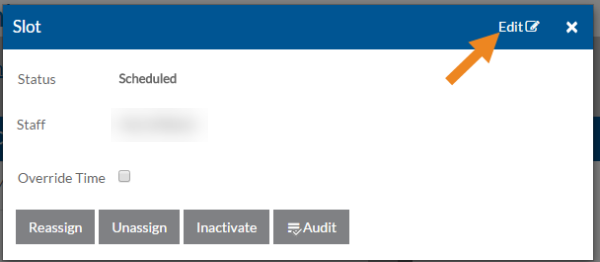
The Slot pop-up opens.
-
Select the Edit option.
-
Select the Override Time checkbox, change the Begin/End Times as needed, and click the Save button.
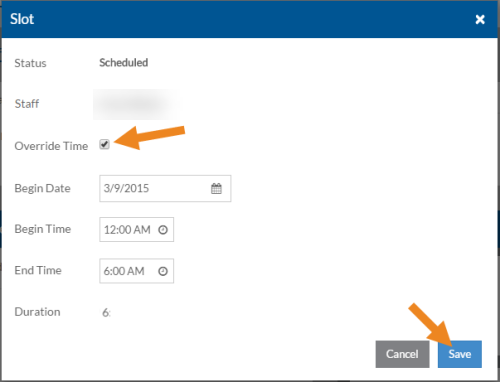
The Slot card closes and the Update Successful message appears.