Employees Third-Party Qualifications
If you use a third-party tracking system for your training requirements, you can import the qualifications into ProviderPro and then sync them to Staff Scheduling.
You only need to import these qualifications one time, and then you can manually add new ones as they come along. Once you have your list of qualifications set up, then you can import the employee qualifications.

Complete the following steps to import third-party qualifications:
-
Log into your ProviderPro live database.
-
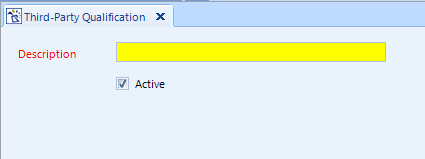
Choose Tools > DataPlus Sync > Third-Party Qualifications. The Third-Party Qualifications form opens in a new window tab.
-
Go to the Import/Export menu and select Create Template.
-
Select Create New Configuration and click Next.
-
Leave all the data properties selected and click Next.
-
Enter a file name and click Create Template.
-
Click Finish.
-
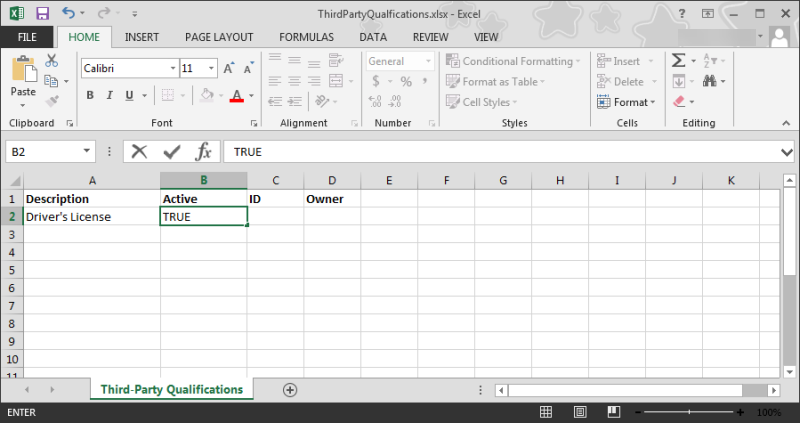
Open the template in Excel.
-
Enter the name of the qualification in the Description column.
-
Enter TRUE in the Active column.
-
Leave the ID and Owner columns empty.
-
Save the template and exit Excel.
-
In ProviderPro, go back to Tools > DataPlus Sync > Third-Party Qualifications.
-
Go to the Import/Export menu and select Import.
-
Click Browse, select the template file and then select Begin Import.
-
Click Commit.
-
Click Finish.
The third-party qualifications automatically sync to Staff Scheduling overnight or you can Request a Sync.
If you use a third-party tracking system for your training requirements, you may be able to export the qualification data from the third-party system and then import the employee qualifications into ProviderPro and then sync them to Staff Scheduling.
To import third-party employee qualifications:
-
Create an Export file from your third-party tracking system.
-
Log in to your ProviderPro live database.
-
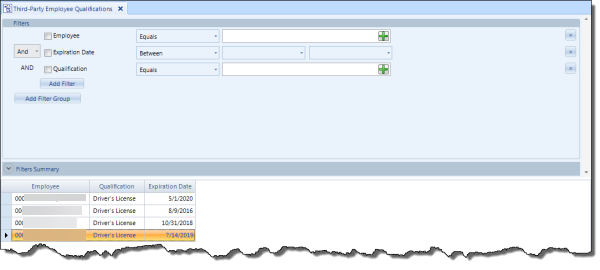
Choose Tools > DataPlus Sync > Third-Party Qualifications. The Third-Party Employee Qualifications form opens in a new window tab.
-
Go to the Import/Export menu and select Create Template.
-
Select Create New Configuration and then click Next.
-
Leave all the data properties selected and click Next.
-
Enter a file name and click Create Template.
-
Click Finish.
-
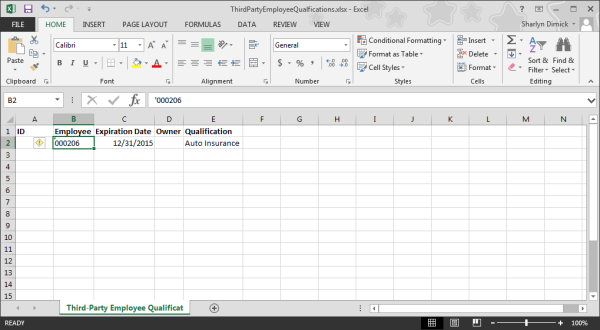
Open the Template in Excel.
-
Cut the Employee Codes/Numbers from the third-party export file and paste them in the Employee column.
-
Cut the Expiration Dates from the third-party export file and paste them in the Expiration Date column.
-
Cut the Description of the requirement/qualification (must match the Description in the list of Third-Party Qualifications) from the third-party export file and paste them in the Qualification column.
-
Leave the ID and Owner columns empty.
-
Sort the template by Employee and Qualification.
-
If there are duplicates, keep the one with the furthest out expiration date and delete the rest.
-
Save the template and exit Excel.
-
In ProviderPro, go back to Tools > DataPlus Sync > Third-Party Employee Qualifications.
-
Do not set any filters and select Delete All from the Delete menu.
-
Go to the Import/Export menu and select Import.
-
Click Browse, select the template file and then select Begin Import.
-
Select Commit and then select Finish.
The third-party employee qualifications automatically syncs to Staff Scheduling overnight or you can Request a Sync.