Employees Remove Staff from Schedule
You can remove staff from all future shifts as well as shift templates (optional). Once you have removed the staff, you can then update shift templates to replace removed staff and generate the shifts again.
Complete the following steps to remove staff:
-
Select Staff from the menu.
-
Enter the name of the staff you want to update in the Search field.
-
Select the card of the staff you want to view.
-
The staff's card opens.
-
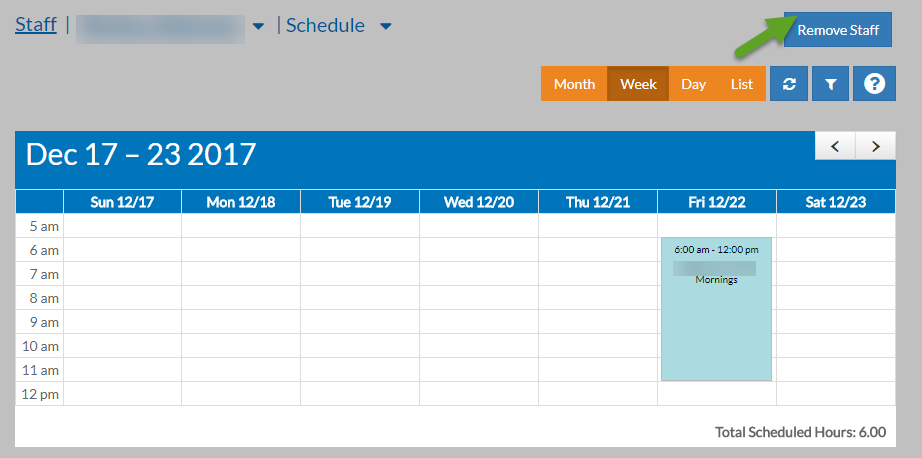
Select Schedule to view the staff's schedule.
-
Next, select the Remove Staff button.
-
Enter the date range of the shifts you want to remove this staff from (the staff are removed from all shifts regardless of the location).
-
Select the Remove From Templates checkboxes if you also want to remove the staff for all shift templates.
-
Select the Remove button.
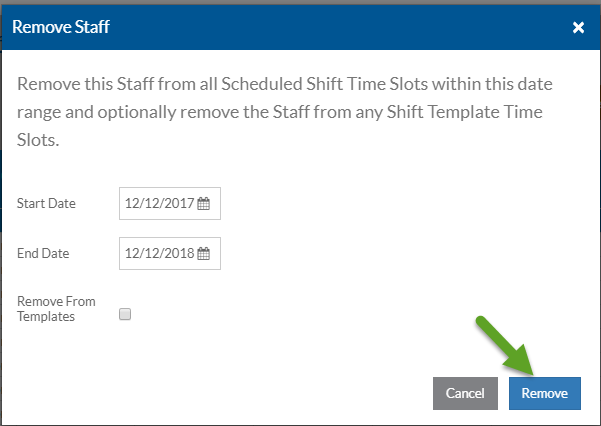
The staff are removed from the shifts in the selected date range and any shift templates if selected. A blue toast message appear when it finishes.