Employees Qualifications
As the setup manager you can manage user-defined qualifications.
Qualifications with a category type of Position, Training, or Third Party sync from ProviderPro and are read only.
Do not add, delete, or make changes to the qualification settings within Staff Scheduling if you sync from ProviderPro. The changes will be overwritten the next time the sync runs. All changes should be made in ProviderPro/Employee Care. To make qualifications settings read-only for Staff Scheduling, turn on the Disable Qualification Synced Properties setting in Options.
Complete the following steps to manage qualifications:
-
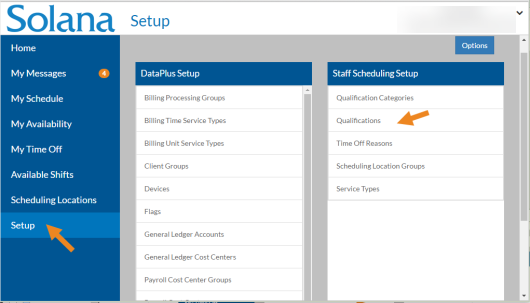
Select Setup on the menu and then select Qualifications on the Staff Scheduling Setup card.
-
Select Add or the card you want to update.
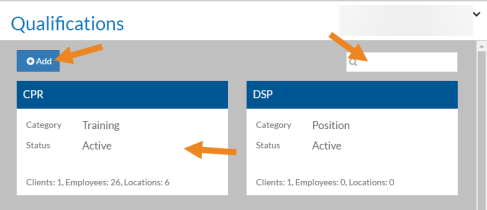
The Qualification opens.
-
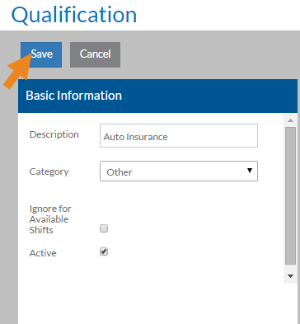
Complete the following information and select Save:
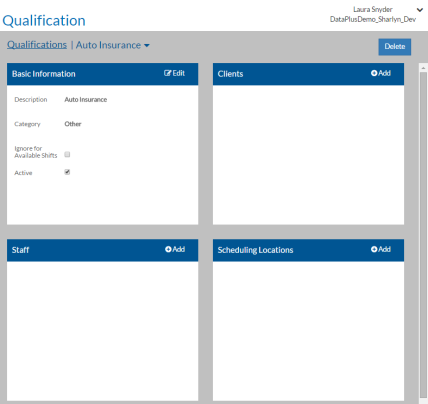
In this field: Enter: Description A Description of the Qualification. Category The desired user-defined Qualification Category. Ignore for Available Shifts If an open or posted shift requires this qualification, the shift will still appear under Available Shifts for staff even if he or she does not have the qualification. Active The Qualification is in use. If this is a new qualification, the Clients, Scheduling Locations and Staff cards appear.
-
To update the clients for a qualification:
-
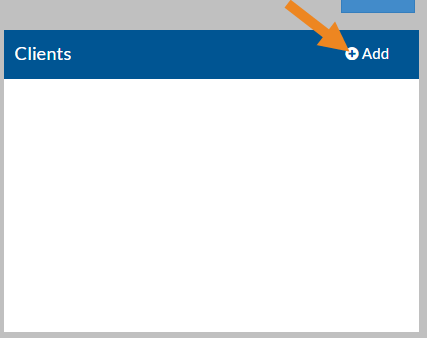
Select Add on the Clients card. The Clients pop-up opens.
-
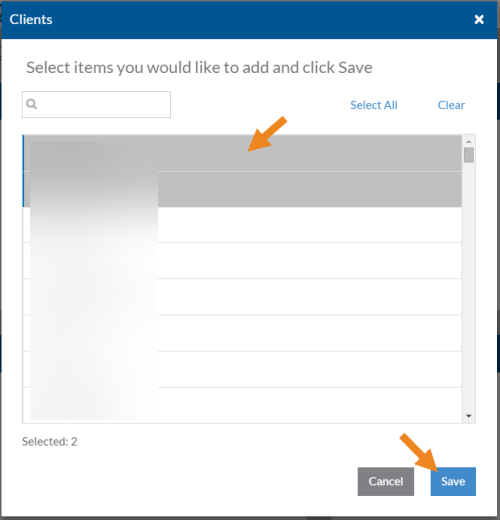
Select the client(s) you want to assign to the qualification and then click Save.
-
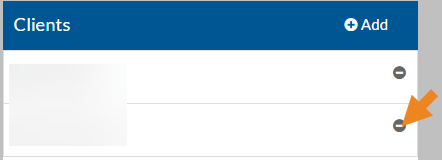
Select the minus sign next to a client to remove it from the qualification.
-
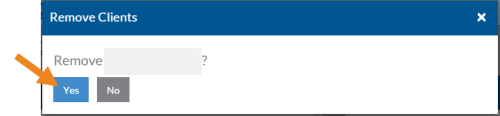
A confirmation message appears. Select Yes.
-
The client disappears from the card.
-
-
To update the scheduling locations for a qualification:
-
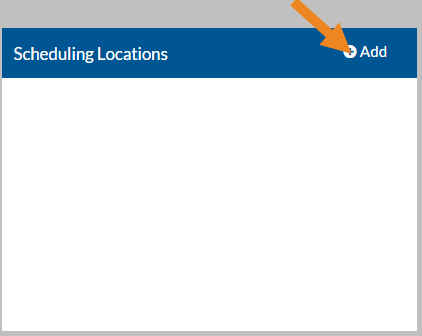
Select Add on the Scheduling Locations card.
-
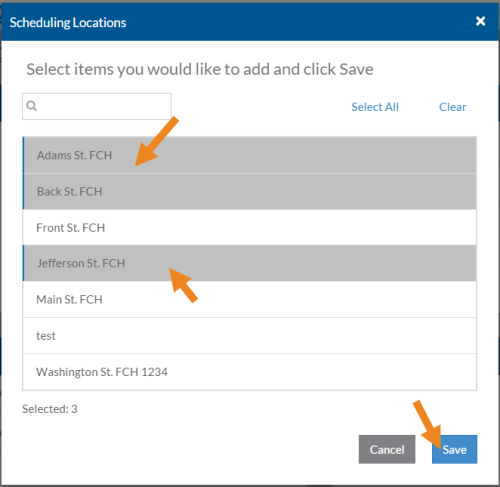
The Scheduling Locations pop-up opens. Select the scheduling locations you want to assign to the qualification and then click Save.
-
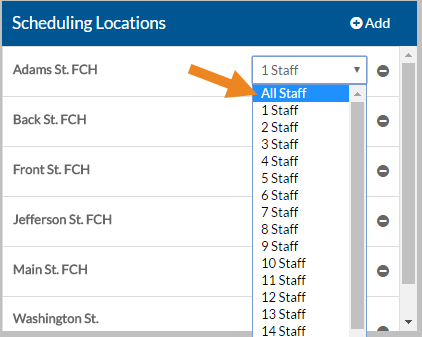
Select the number of staff required to have this qualification at the scheduling location.
-
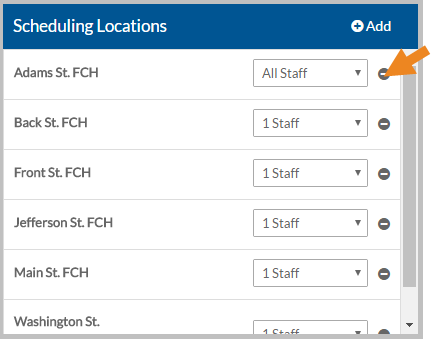
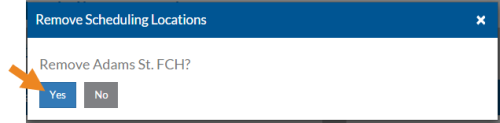
Select the minus sign next to a scheduling location to remove it from the qualification.
-
A confirmation message appears. Select Yes.
-
The scheduling location disappears from the card.
-
-
To update the staff that have this qualification:
-
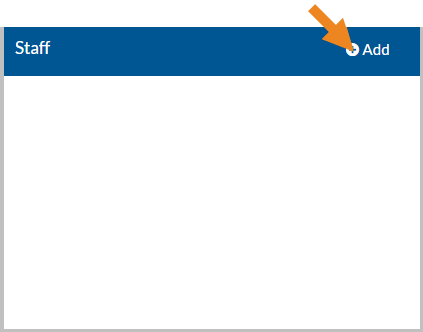
Select Add on the Staff card.
-
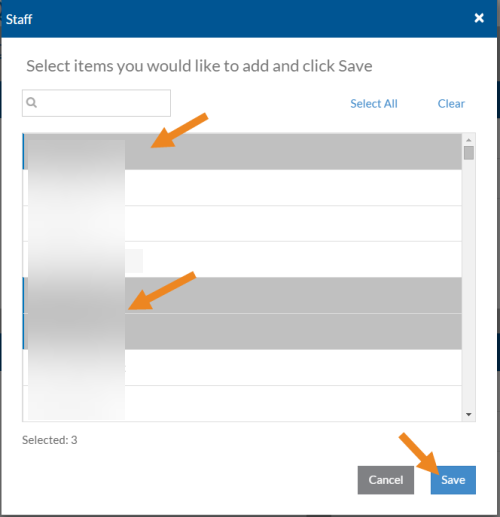
The Staff pop-up opens. Select the staff that have the qualification and then click Save.
-
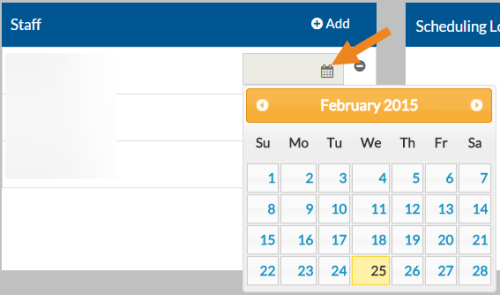
Select the expiration date of the staff's qualification.
-
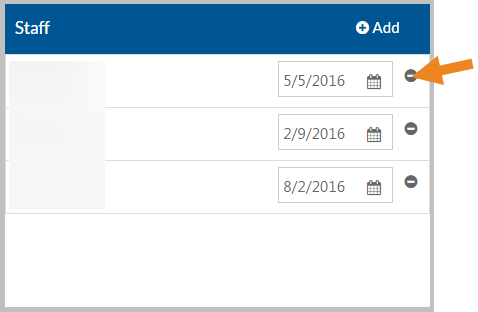
Select the minus sign next to the staff to remove it from the qualification.
-
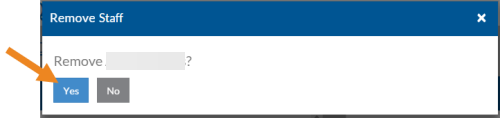
A confirmation message appears. Select Yes.
-
The staff disappears from the card.
-