Employees Publish Schedule for Multiple Scheduling Locations
Complete the following steps to publish the schedule for more than one scheduling location:
-
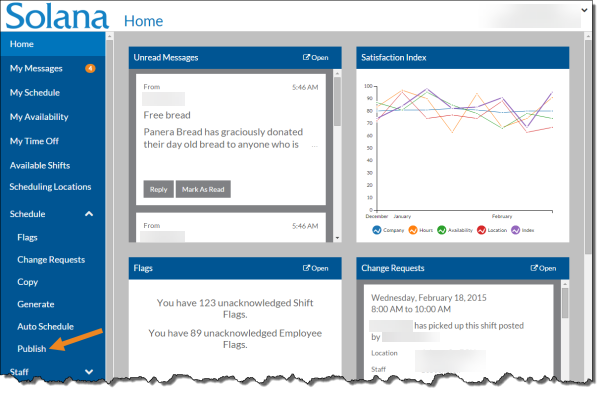
Select Publish from the Schedule menu.
-
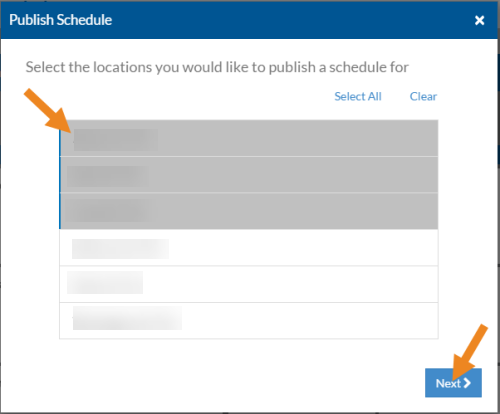
Select the scheduling locations you want to publish and click the Next button.
-
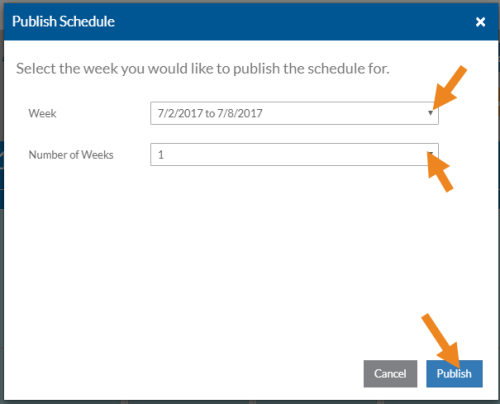
Select the first week you want to publish from the Week dropdown, Next, select an option from the Number of Weeks dropdown, and then click the Publish button.
-
It may take a few minutes for the publish to complete. Next, select Schedule on the menu.
-
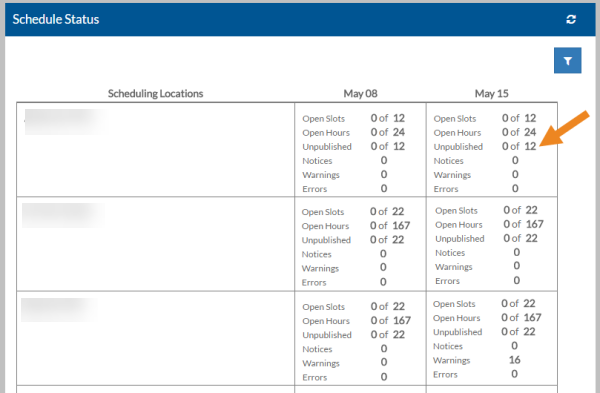
The status of each of the scheduling locations appears. Next, select the location/week to be placed in the scheduling location's schedule.
-
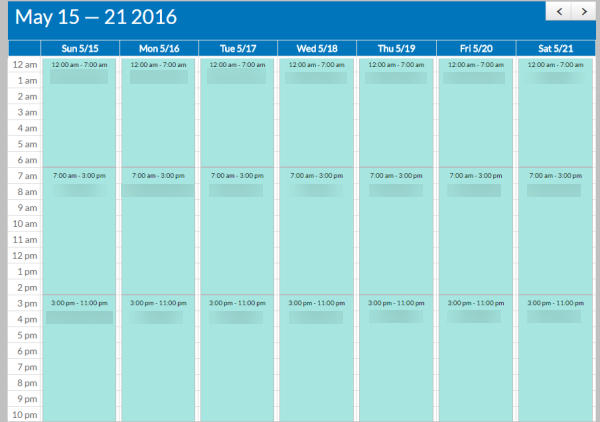
The schedule for that week and scheduling location are listed. The published shifts no longer have stripes on the light green blocks and the scheduled staff are notified of the new schedule.