Employees Scheduling Overview
Schedule managers create and publish the shifts and slots for a scheduling location as well as approve/deny change requests (shift swaps) and acknowledge flags.
The workflow for creating the weekly schedule is shown in the overview diagram below.
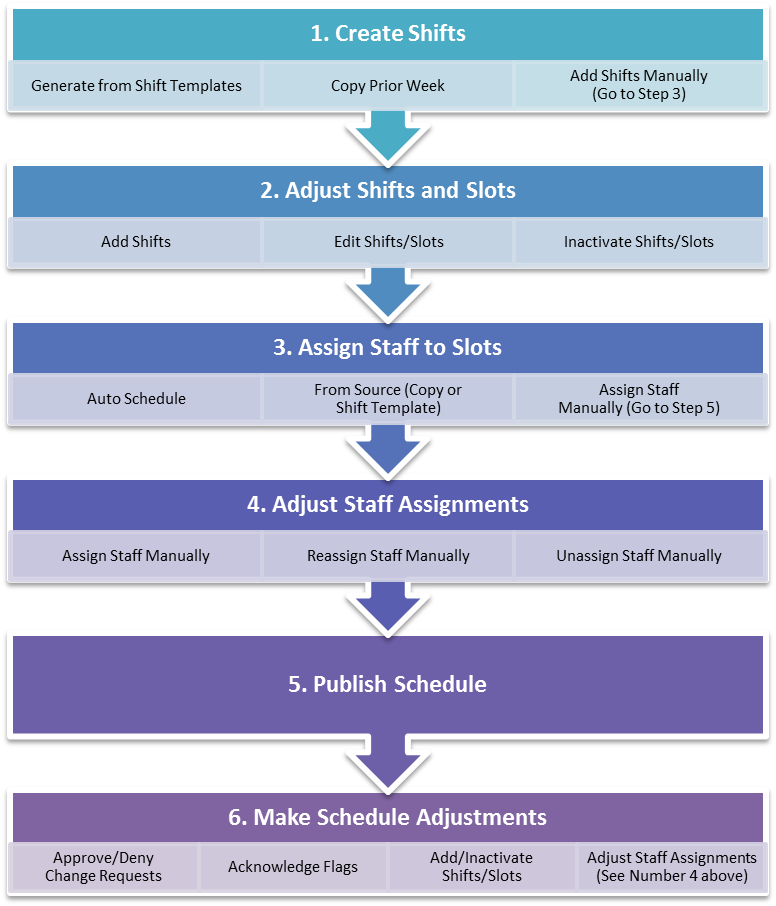
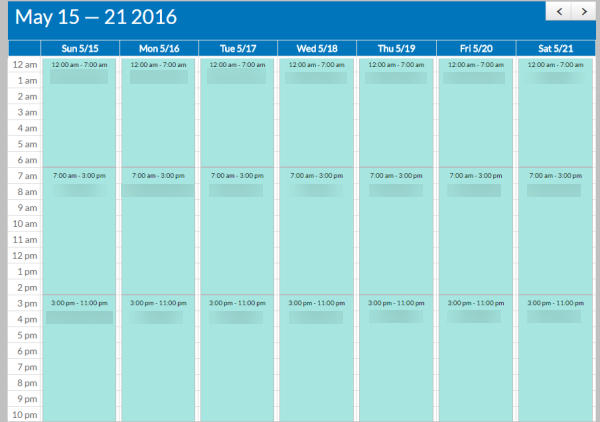
The first step in the process is to create the shifts for the week. A shift is a time block (begin and end date/time) for a location that is configured for required staff qualifications, the number of slots that need to be filled, the clients to be served, and the type of service is to be provided. Shifts can overlap at the same location.
You can create shifts manually, generate them from a shift template, or copy them from a previous week's schedule. A shift template is a time block (begin and end time) that is configured for the day(s) of the week applicable, qualifications staff need based on location and on the client(s) at the scheduling location (if any), the number of slots that need to be filled, with the option to include specific staff to fill those slots.
Whether or not staff are assigned to the slots when using shift templates or making a copy depends on the scheduling method of the shift. If the Scheduling Method is set to From Source, then the staff are preassigned based on either the shift template or the copied week and can then be manually revised. Otherwise, staff can be assigned, reassigned or unassigned to slots manually or use the auto-scheduler to automatically assign staff to the slots, based on the following criteria:
-
Overlap: Staff can't work in two places at the same time.
-
Approved Scheduling Locations: Staff can only work in a scheduling location they are approved for.
-
Client Exclusions: Staff can't work with a client that has excluded them.
-
Preferred Location: Staff preferred and manager preferred.
-
Qualifications: Staff must have the qualifications required for the scheduling location and clients present.
-
Cost: Minimize costs.
-
Preferred Hours: Staff preferred and company preferred.
-
Company Absolute Hours
-
Approved Time Off
-
Staff Preferred Availability/Availability
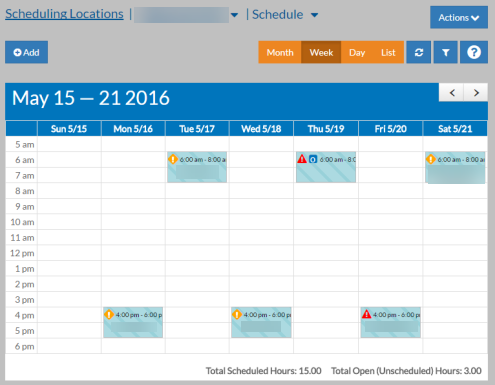
Both open and filled shifts appear in the color set in Options. If the colors are not set up in Options, then both open and filled Shifts appear in light green. If the shifts are not published yet, they is striped.