Manage Scheduling Location Information
While the basic scheduling location information (Description and Address) may sync from ProviderPro, some of the scheduling location information is managed directly in Staff Scheduling, such as the Scheduling Method (method for assigning staff to slots), the number of staff (slots) required per shift, whether shift swaps require approval and the corresponding service location or cost center in Time Tracking. These will be the defaults for any new shifts or shift templates created for the scheduling location.
To manage the scheduling location information:
-
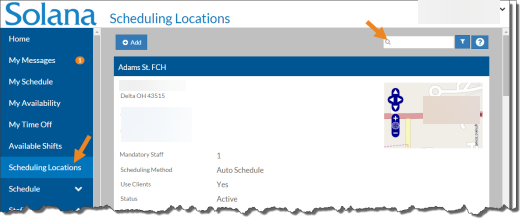
Select Scheduling Locations from the menu.
By default only those scheduling locations with a Status of Active appear in the card list. You can click the Filter icon and clear the Active Only check box to view both active and inactive scheduling locations.
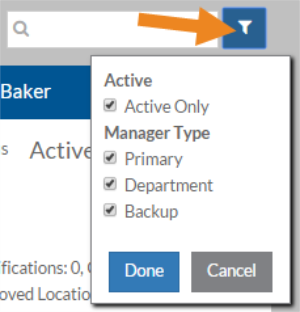
In addition, you can select to see those scheduling locations that appear because you are the Primary, Department or Backup scheduling location or schedule manager.
-
Enter the name of the scheduling location you want to view or modify in the Search box.
-
Select the scheduling location card you want to view or modify.
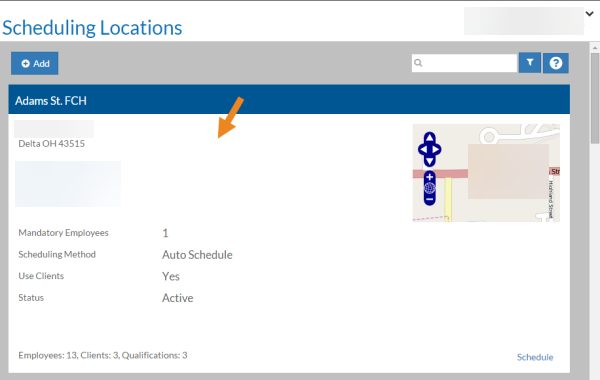
The scheduling location card opens.
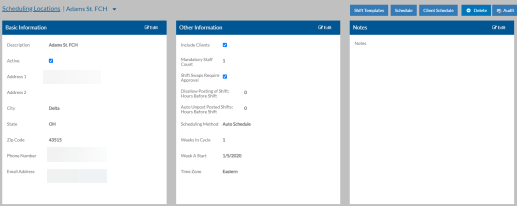
Basic Information typically syncs from ProviderPro. If so, if you change the information here it will be overwritten the next time the sync runs. If you want to make this information read only, turn on the Disable Scheduling Location Synced Properties in Options.
-
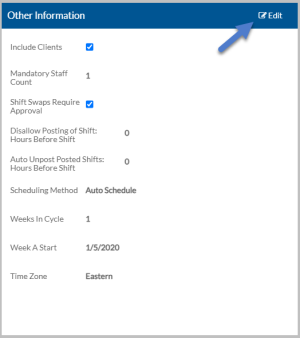
Select Edit on the Other Information card.
-
Update the information as needed and click Save.
In this field: Enter/Select: Include Clients If this scheduling location schedules to the client. If selected, the Clients card will appear. Mandatory Staff The default number of staff required to work most shifts (required). The number of staff per shift can be changed on a per shift basis. Shift Swaps Require Approval If the Schedule Manager must approve any shift swaps (that is when an staff picks up an available shift posted by another staff). Disallow Posting of Shift: Hours Before Shift Set the number of hours before a staff’s shift begins that you want to prevent the staff from being able to post their shift to the Available Shift board. If set to 0, they can post it any time. Auto Unpost Posted Shifts: Hours Before Shift The number of hours before a shift begins that a posted shift that hasn’t been picked up is removed (unposted) from the Available Shifts board automatically. If left set to 0 the shift will not be automatically unposted. Scheduling Method This is the default method for scheduling staff to slots for this scheduling location:
-
Auto Schedule - The auto scheduler assigns staff to the slots of shifts based on a complex algorithm that finds the best mix. When copying or generating a schedule, the slots in shifts are not filled.
-
Do Not Schedule - When copying, generating or auto-generating a schedule, the slots in shifts are not filled. The schedule manager must manually assign staff to them.
-
From Source - When copying or generating a schedule the slots in shifts are filled with the staff from the copied week or in the shift template. The auto-generator will skip over any shift with a schedule method set to From Source.
Weeks In Cycle If this scheduling location has an alternating schedule, enter the number of weeks in the cycle. Otherwise, enter 1. (This is required.) Week A Start Date Enter the start date of the first week in the cycle (Week A). You will only be able to choose a date that is on the first day of the week as set in Scheduling Options. The Week A Start Date isrequiredeven if you only have one week in the cycle. Time Zone The time zone for this scheduling location. It will default to the Time Zone set in DataPlus Options. -
-
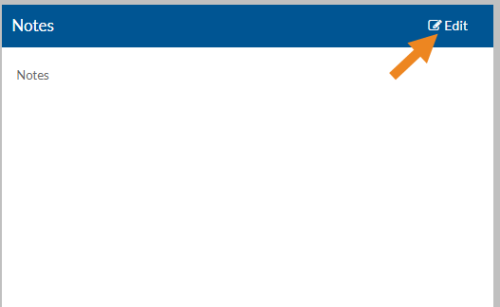
Select Edit on the Notes card to enter any notes related to the Scheduling Location and then click Save.
-
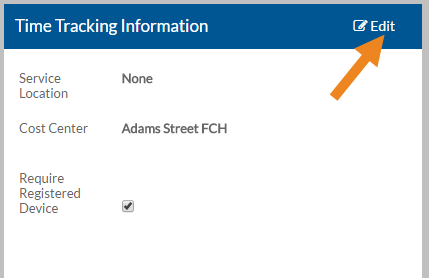
If you have licensed Time Tracking, click Edit on the Time Tracking Information card.
-
Update the information as needed and click Save.
In this field: Enter/Select: Service Location The Service Location that is associated with this Scheduling Location. Cost Center The Payroll Cost Center that is associated with this Scheduling Location. Require Registered Device Staff must Clock In with one of the registered devices associated with this Scheduling Location. Otherwise, (if the flag and location tracking Options are set up) the transaction will be flagged. The Devices card will appear for you to added the devices to. -
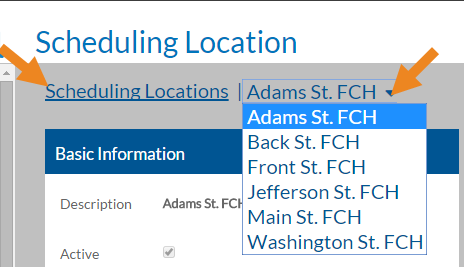
Select the down arrow next to the scheduling location's name in the breadcrumbs to switch scheduling locations, or select Scheduling Locations to return to the list of the scheduling location cards.