Employees Inactivate Shift
If after copying a schedule or generating the schedule, there are shifts that are not needed for that week, you can inactivate them so they no longer appear on the schedule.
Complete the following steps to inactivate a shift:
-
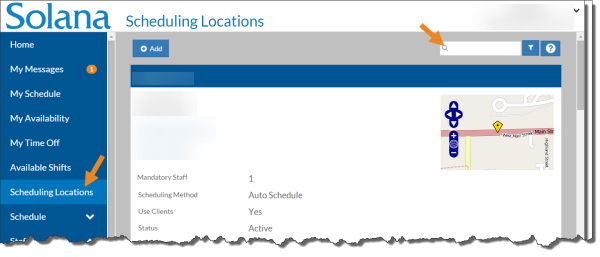
Select Scheduling Locations from the menu, then enter the name of the scheduling location in the Search field.
-
Select the Schedule link on the Scheduling Location page.
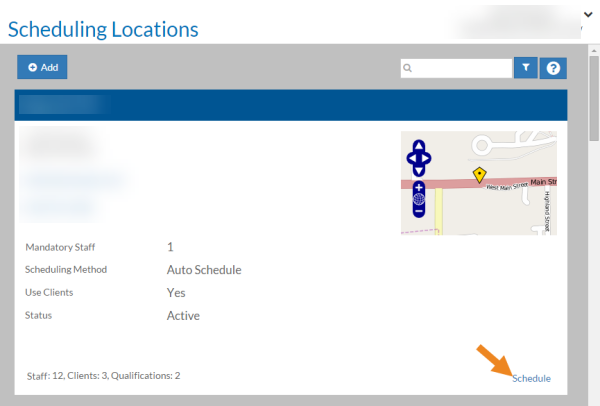
The schedule for the scheduling location opens.
-
Select the shift from the calendar grid.
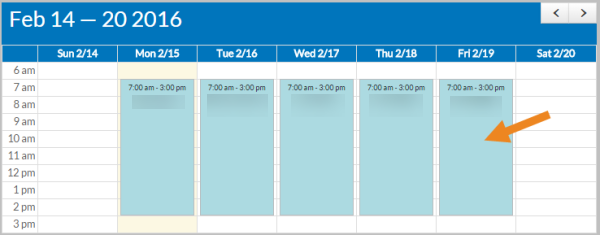
The shift opens.
-
Select the Inactivate button.
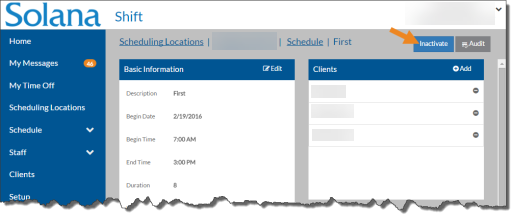
A confirmation message appears.
-
Select the Yes button.
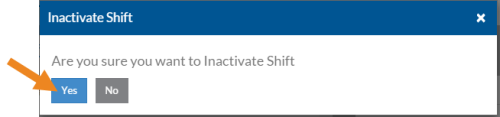
The Shift Inactivated message appears and the inactivated shift disappears from the calendar grid.
If you select the Show Inactive checkbox under the Filters icon, the inactive shifts appear as solid white boxes on the calendar grid.
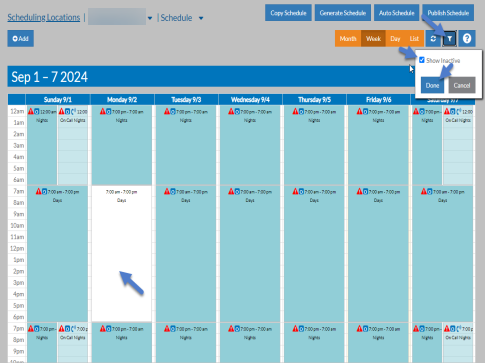
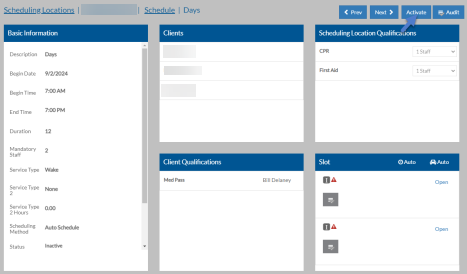
If Allow Reactivating Shifts is turned on in Options, and you accidentally inactivated a shift, you can make it active again. To do so, select the inactive shift and select the Activate button.