Employees Generate Schedule
Use Generate Schedule to create shifts for the weekly schedule based on the shift templates set up for the scheduling location.
-
If the scheduling location's Schedule Method is set to From Source, then any staff assigned to the Shift Template's Time Slots are included in the generated shifts.
-
If the scheduling location's Weeks in Cycle option is greater than one, the shifts are based on the next week in the rotation as determined by the Week A Start date of the scheduling location.
You can generate shifts for one scheduling location or multiple scheduling locations at the same time.
It may take a few minutes for the Generate process to complete. Click the Refresh icon to view the generated shifts.
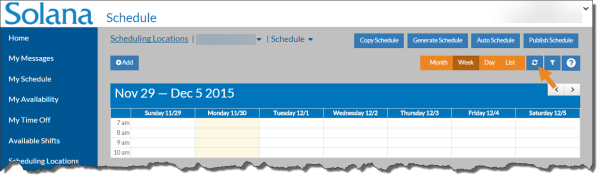

Complete the following steps to generate weekly shifts for one scheduling location:
-
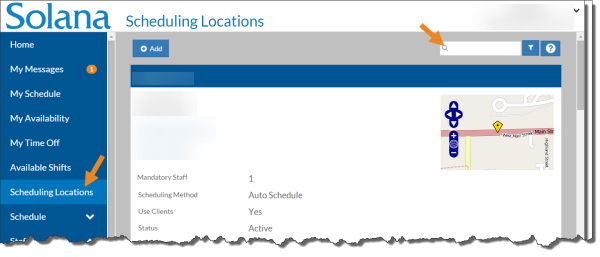
Select Scheduling Locations from the menu and then enter the name of the scheduling location in the Search field.
-
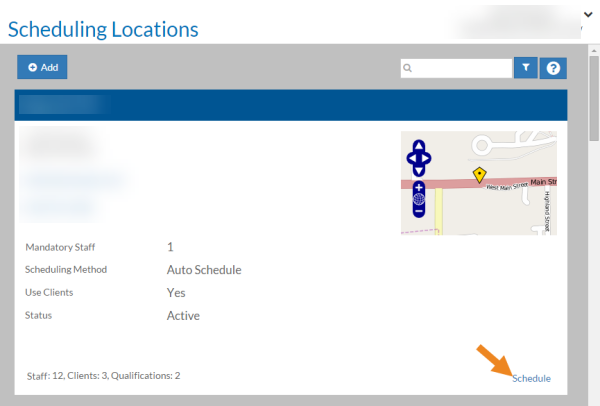
Select the Schedule link on the scheduling location card.
-
The schedule for the scheduling location opens. Next, select the Generate Schedule option located under the Actions menu.
-
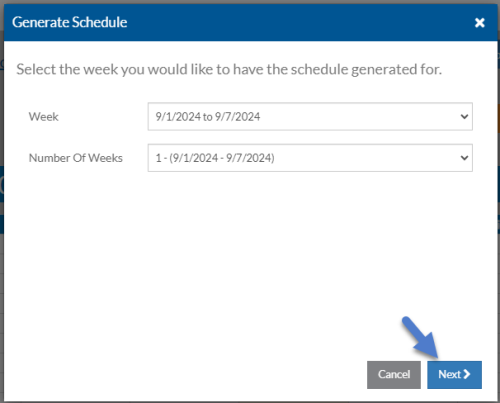
Select the first week you want to generate shifts for, the number of weeks you want to generate, and click the Next button.
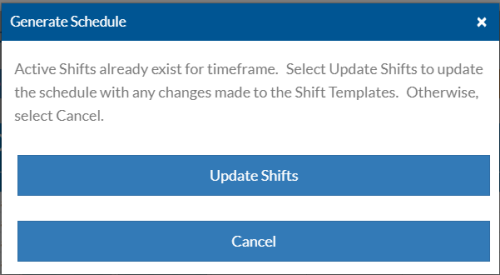
If the week you selected already has shifts and if you've made changes to the shift templates (new shifts or different staff assigned to shifts only), you are prompted to update shifts to continue or cancel to exit.
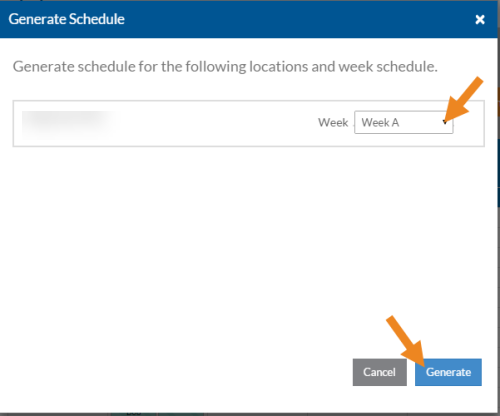
If the scheduling location has an additional Weekly Cycle, you can select which week in the cycle generates as the first week. It defaults to the correct week in the cycle, based on the Week A Start Date of the scheduling location, but it can be overridden if needed.
-
Select the Generate button.
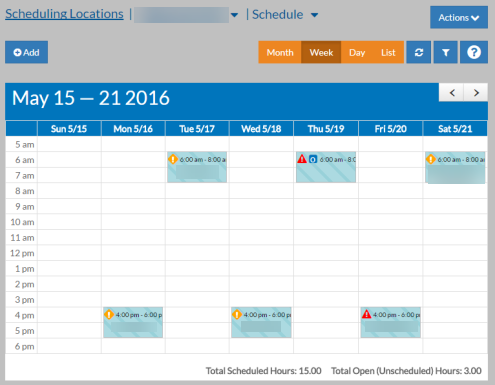
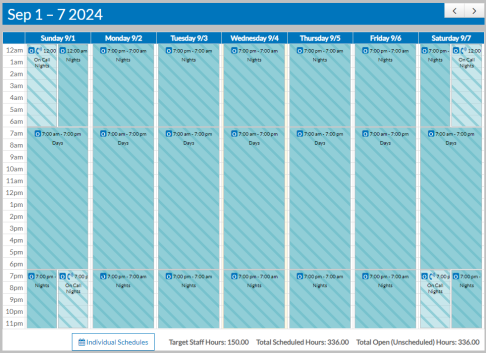
It may take a few minutes for the schedule to generate. The shifts are striped because they are not published yet.
To generate the weekly shifts for more than one scheduling location:
-
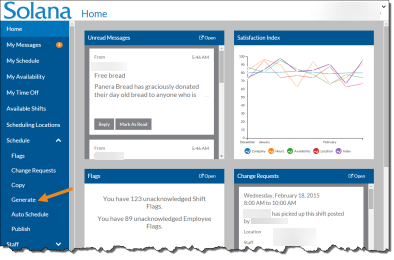
Select Generate from under the Schedule menu.
-
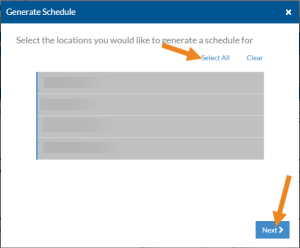
Select the scheduling locations you want to generate shifts for and click the Next button.
-
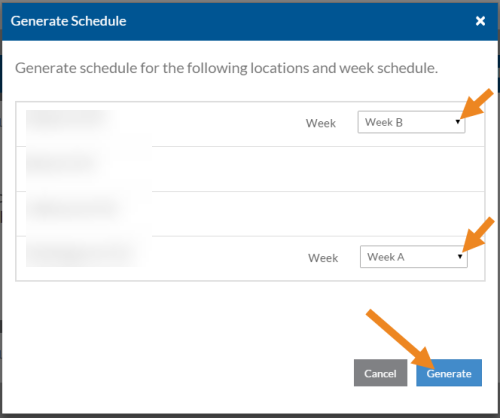
Select the first week you want to generate shifts for, the number of weeks you want to generate and click the Next button.
-
If the week you selected already has shifts and if you've made changes to the shift templates (new shifts or different staff assigned to shifts only), you is prompted to update shifts to continue or cancel to exit.
-
Select Generate.
-
If any of the scheduling locations has a Weekly Cycle other than one, you can select which week in the cycle you want to generate for the first week you selected to generate. It defaults to the correct week in the cycle based on the Week A Start Date of the scheduling location, but you can override it if needed.
-
It may take a few minutes for the generate to complete.
-
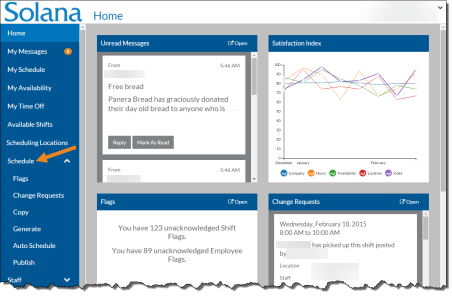
Select Schedule on the menu.
-
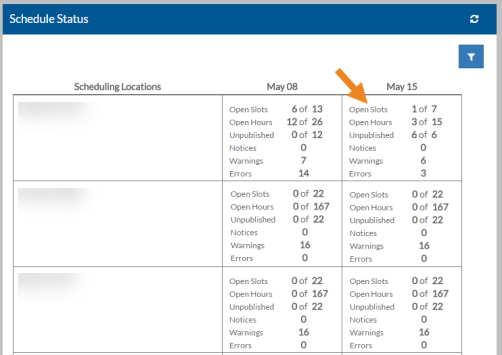
You see the status of each of the scheduling locations.
-
Select the scheduling location/week to go to the scheduling location's schedule.
-
You see the schedule for that week and scheduling location.