Employees Exclude Staff from Clients
The auto-scheduler does not assign staff to a slot with a client if the client has excluded the staff from working with him/her
Complete the following steps to exclude staff from working with a client:
-
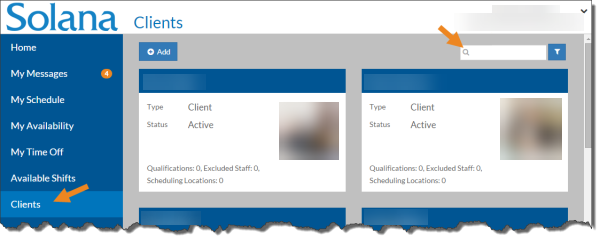
Select Clients from the menu and then enter the name of the client you want to update in the Search box.
-
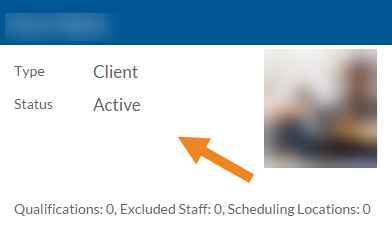
Select the card of the client you want to exclude staff from.
-
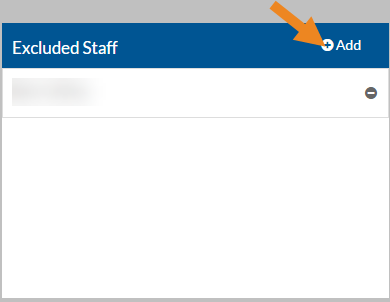
The client's card opens. Select Add on the Excluded Staff card.
-
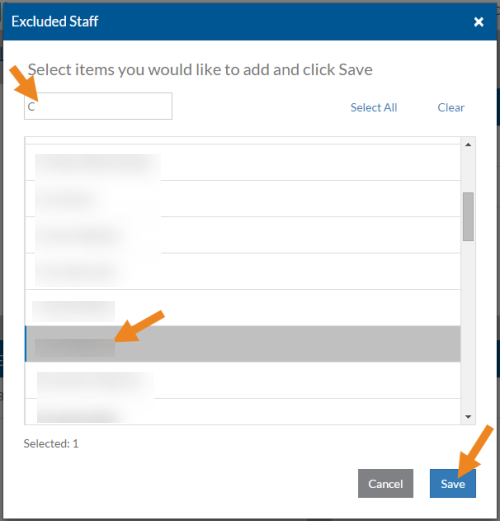
The Excluded Staff pop-up opens. Select the staff that the client wants to exclude from working with them and then click the Save button.
-
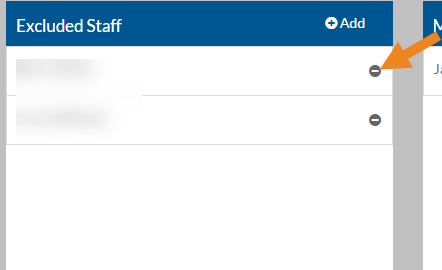
Select the minus icon next to an excluded staff to remove it from the client.
-
A confirmation message appears. Click Yes to remove the excluded staff.