Employees Copy Schedule for Multiple Locations
Complete the following steps to copy weekly shifts from one week to another week for more than one scheduling location:
-
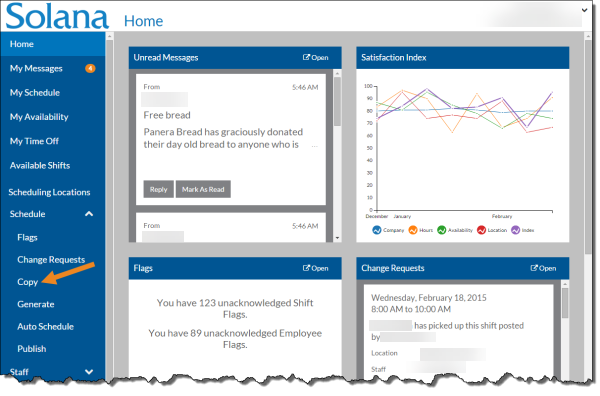
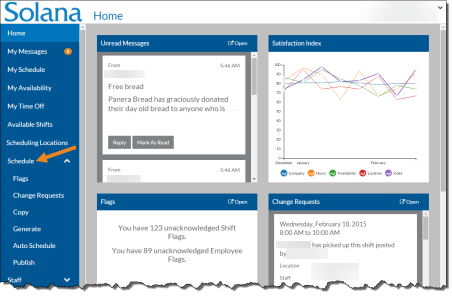
Select Copy from the Schedule menu.
-
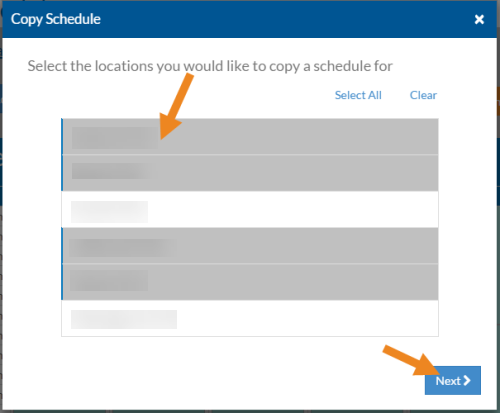
Select the scheduling locations you want to copy shifts for and click the Next button.
-
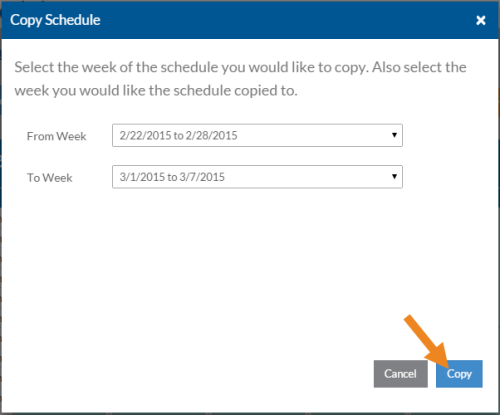
Select the week you want to copy from and to, then click the Copy button.
-
It may take a few minutes for the copy to complete. Next, Select Schedule on the menu.
-
You see the status of each of the scheduling locations. Next, Select the scheduling location/week to appeas in the scheduling location's schedule.
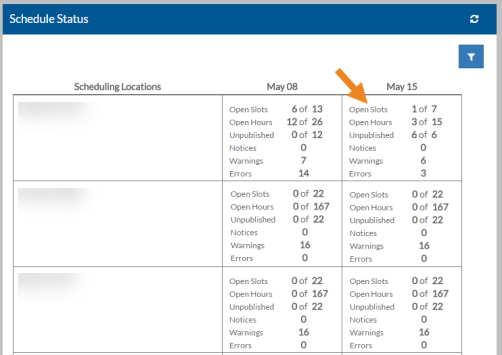
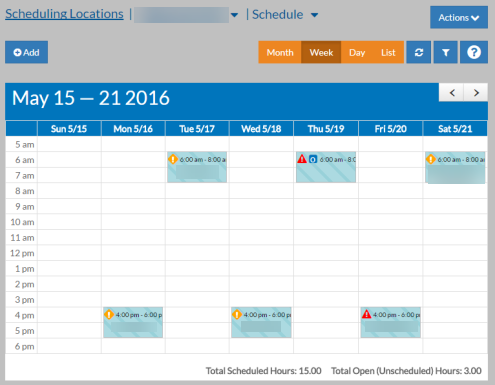
You see the schedule for that week and scheduling location. The shifts are striped because they are not published yet.