Employees Availability

Complete the following steps to add availability.
-
Select My Availability from the menu and then select the Add button or select a day/time cell in the grid.
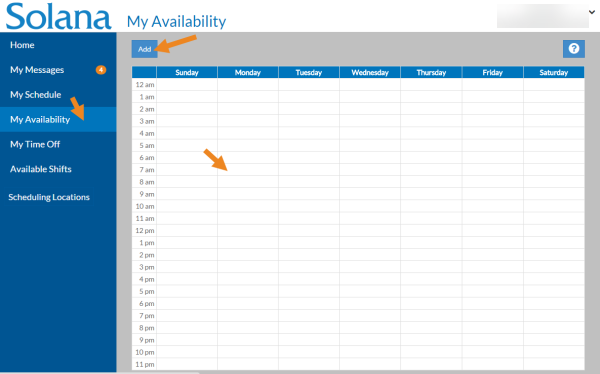
The Add Available Time window opens.
-
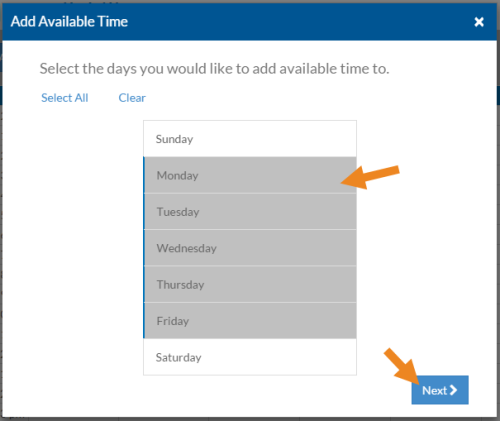
Select the days of the week for this availability block and select the Next button.
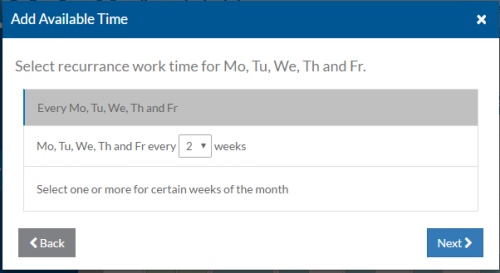
Select the recurrence for your availability as follows. Then select the Next button.
-
Select This Option: If you availability is:
Select This Option: If you availability is: Every On the same day/time every week Every X Weeks (Where X is 2, 3, 4, 5, 6) On the same day/time alternating every X number of weeks. For example, if you select 2, you would be available every other week. Select one or more for certain weeks of the month (Every 1st, 2nd, 3rd, 4th and/or 5th) On the same day/time on a specific week of the month. For example, if you select 1 and 2, you would only available on the day/time the first and second weeks of the month. -
Complete the following information and select the Next button.
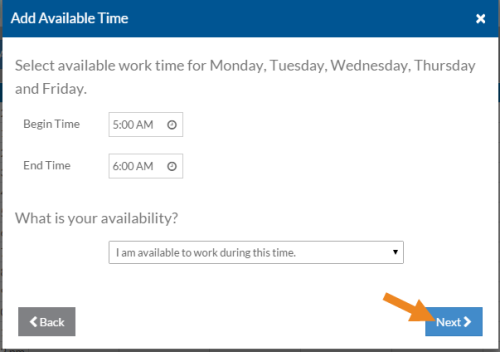
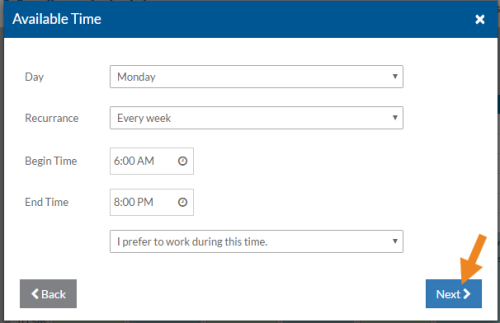
Select Definition Begin Time The time of the day your availability begins for the selected days of the week. End Time The time of the day your availability ends for the selected days of the week. What is your availability? I am available to work during this time OR I prefer to work during this time. -
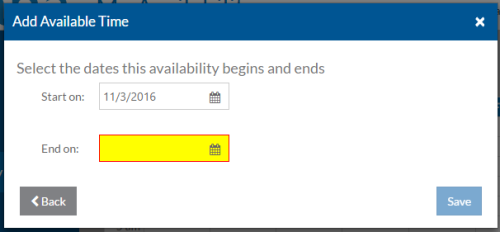
Complete the following information and select the Save button.
-
Start on field: Leave the Start on date set to the current date to begin immediately or enter a begin date in the future. The block will appear with stripes on it, if tit is for the future.
-
End field: on Enter the date your availability ends.
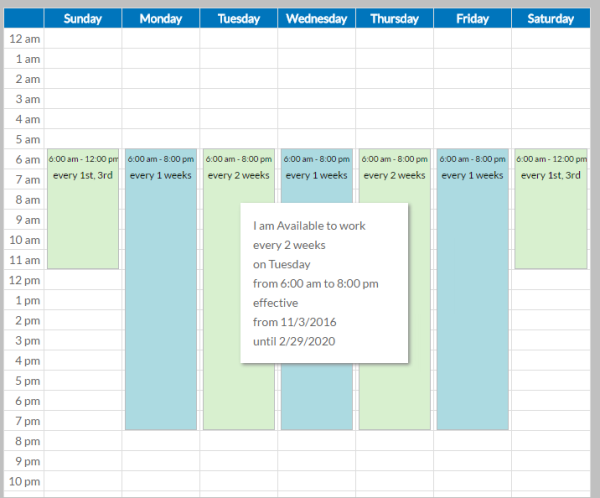
The time blocks will appear blue on the grid if you are available to work and green if you prefer to work that time frame. If the availability doesn't start until a future date, the schedule block will have stripes on it.
-
Complete the following steps to end availability.
-
Select My Availability from the menu and then select the day/time block in the grid.
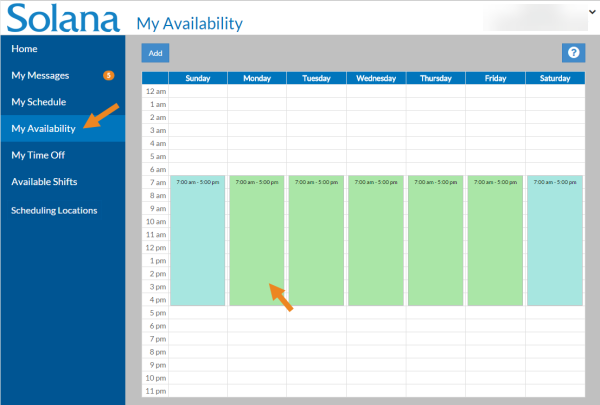
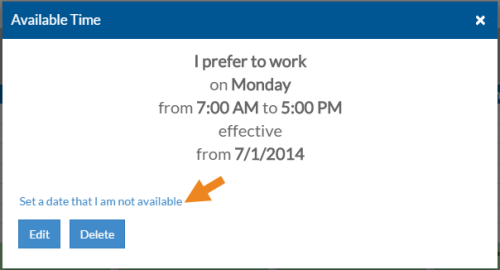
The Available Time pop-up opens.
-
Select the Delete button.
-
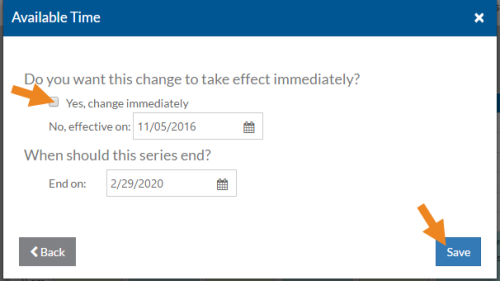
Leave the Yes, end immediately checkbox selected if you want to end this availability time frame effective immediately. Otherwise, clear the checkbox and enter the date your availability should end.
-
Select the Delete button.
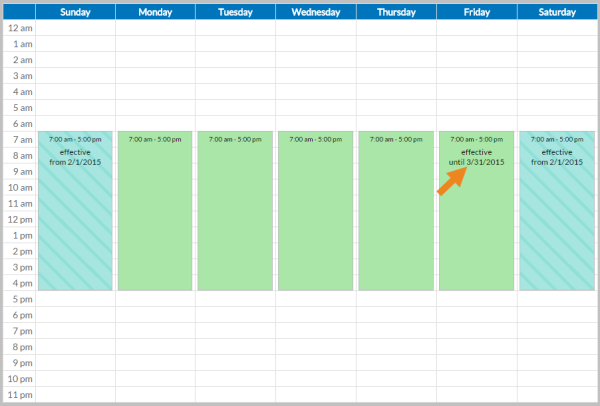
If the availability ends in the future the block shows the effective end date. Otherwise, the block disappears immediately.
The auto-scheduler looks at availability to schedule your preferred slots first, shown as green time slots, and then your available slots (blue) next. This feature does not schedule you when you are not available (white slots) or are not available on a future date (white slots with gray stripes). You can also set up future availability (blue slots with stripes) and future preferred availability (green slots with stripes).
Complete the following steps to update availability.
-
Select My Availability from the menu and then select the day/time block in the grid.
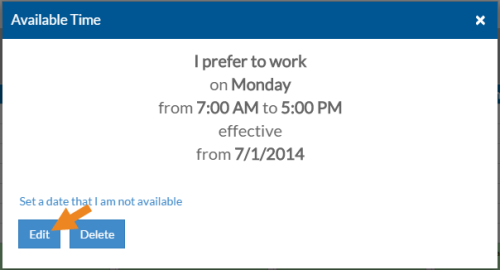
The Available Time pop-up opens.
-
Select Edit.
-
Make the desired changes and select the Next button.
-
Leave the Yes, change immediately checkbox selected if you want the change to go into effect now. Otherwise, clear the checkbox and enter the date the change should begin.
-
Select the Save button.
The block in the grid reflects the changes. The block appears with stripes on it, if the change is for the future.