Assign Devices to Scheduling Locations
If an agency is also using Time Tracking and scheduling location requires that staff clock in using a registered device, you must select the registered devices that are associated with the scheduling location.
To assign devices to a scheduling location:
-
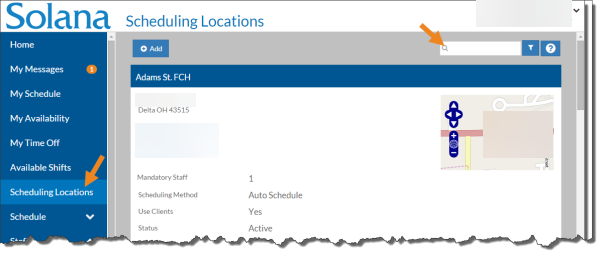
Select Scheduling Locations from the menu and then enter the name of the scheduling location in the Search box.
-
Select the card of the scheduling location you want to assign devices to.
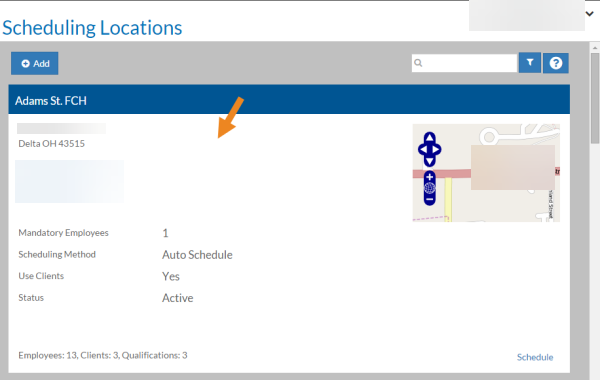
The scheduling location's card opens.
-
Select Add on the Devices card.
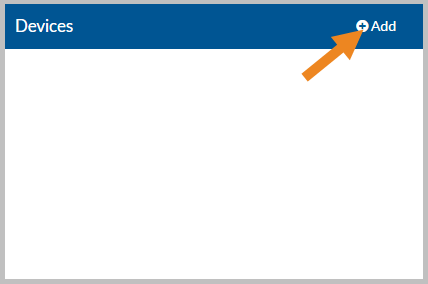
The Devices pop-up opens.
-
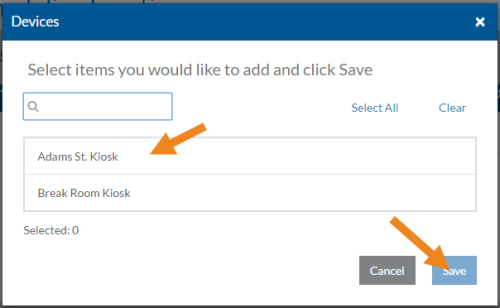
Select the device(s) you want to assign to the scheduling location and then click Save.
-
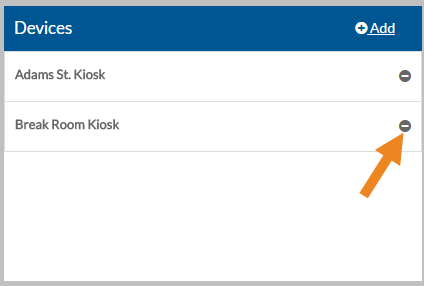
Select the minus sign next to a device to remove it from the scheduling location.
-
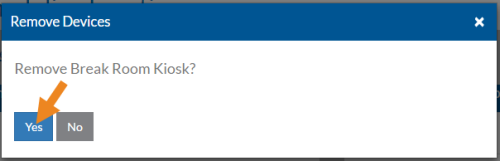
A confirmation message appears. Select Yes.
The device disappears from the card.