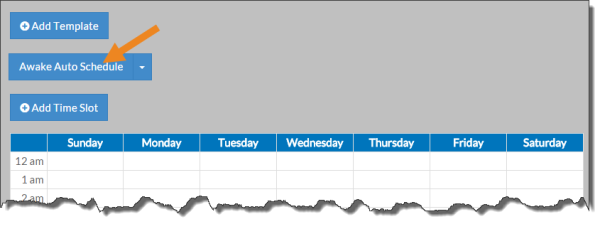
Employees Add Shift Templates

Complete the following step to add a shift template:
-
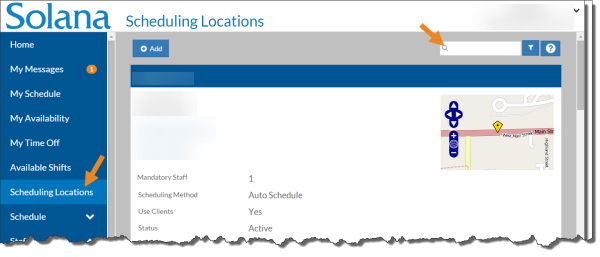
Select Scheduling Locations from the menu and then enter the scheduling location name in the Search field.
-
Select the card of the scheduling location where you want to add a shift template.
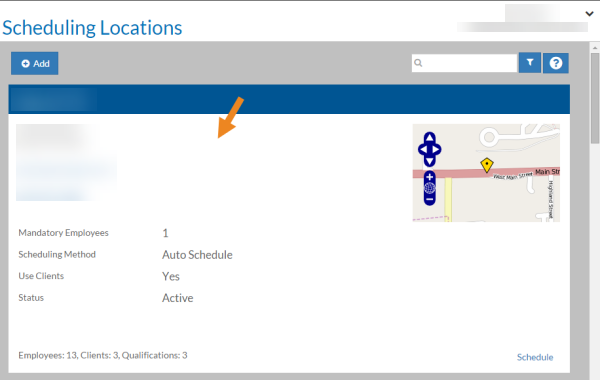
The card opens for the scheduling location.
-
Select Shift Templates from the Actions menu.
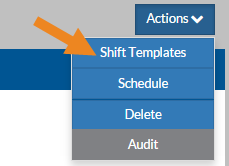
The Shift Templates window opens.
-
Click the Add Template button.
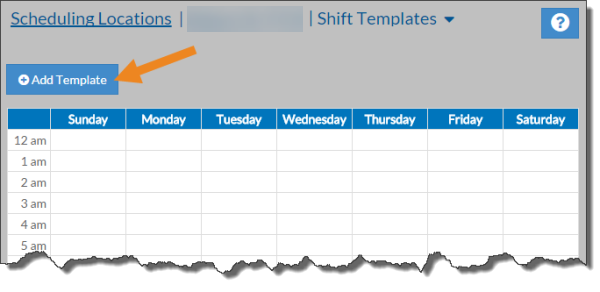
The Shift Template with only the Basic Information card opens.
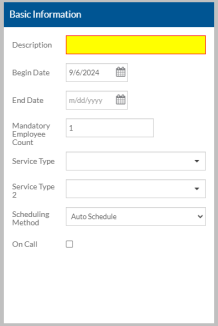
-
Complete the information on the Basic Information card as listed in the table below. Click the Save button.
In this field Enter Description A description of the shift template, such as mornings, days, or nights Begin Date The date this shift template goes into effect. The Generate Schedule process does not create shifts from shift templates with a begin date in the future. End Date The date this shift template ends (field can also be left blank). The Generate Schedule process does not create shifts from shift templates with an end date in the past. Mandatory Staff The minimum number of staff required to work the shift. The location Mandatory Staff Count defaults Service Type The related service type that is provided during this shift Service Type 2 If more than one service type is provided during this shift, use the related Service Type. Scheduling Method The default method for scheduling staff to slots for this shift template:
-
Auto Schedule - The auto scheduler assigns staff to shift slots based on a complex algorithm that finds the best mix.
-
Do Not Schedule - When copying or generating a schedule, the slots in shifts are not filled. When copying, generating, or auto-generating a schedule, the slots in shifts are not filled. The Schedule Manager must manually assign staff to them.
-
From Source - When copying or generating a schedule, the slots in shifts are filled with the staff from the copied week or in the shift template. The auto-generator skips over any shift with a schedule method set to From Source.
On-Call If Schedule On-Call Shifts is turned on in Options, select On-Call if the time slots associated with this Shift Template is On-Call hours. On-Call time slot blocks appear in a lighter color and have a phone icon on them. On-Call hours do not count towards a staff's company absolute or preferred maximum and are not included in scheduled hours calculations. Staff can pick up on-call shifts even if they are already at their maximums. The Qualifications cards appear with defaults from the scheduling location. If the scheduling location includes clients, then the Clients card also appears along with the Client Qualifications card (read only) if any of the clients have special qualifications. You can make changes to the qualifications and clients as needed.
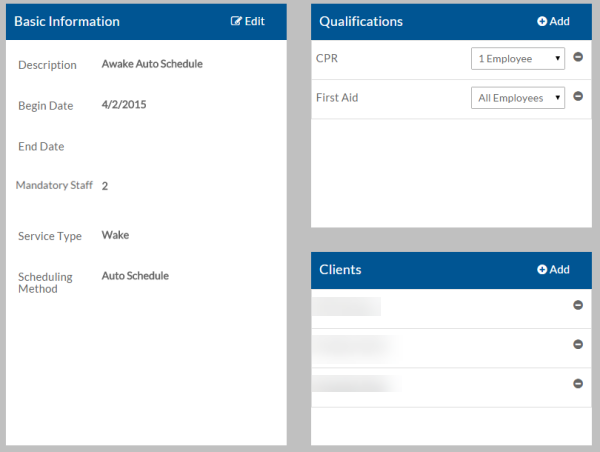
-
Complete the following steps to update the qualifications for a shift template.
-
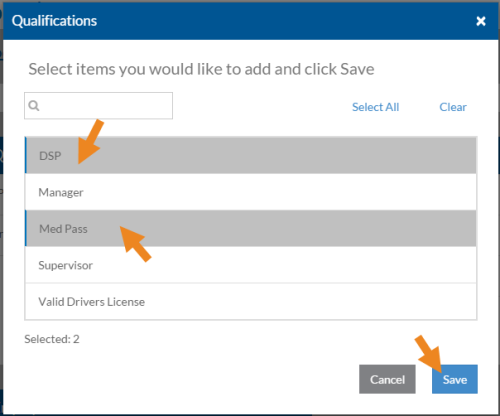
Select Add on the Qualifications card.
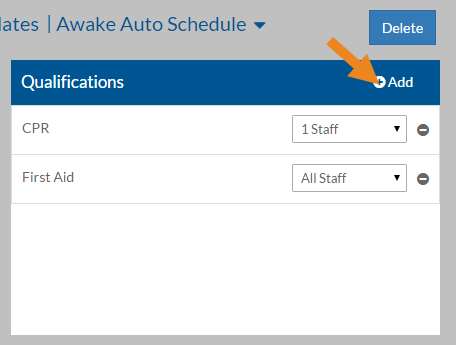
The Qualifications pop-up window opens.
-
Select the qualification you want to assign to the shift template and then click the Save button.
-
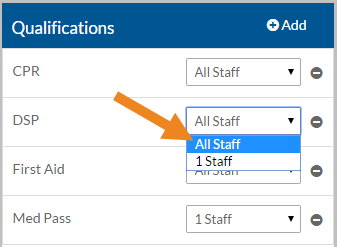
Select the number of staff that must have the qualification to work a typical shift.
-
Select the minus sign next to a qualification to remove it from the shift template.
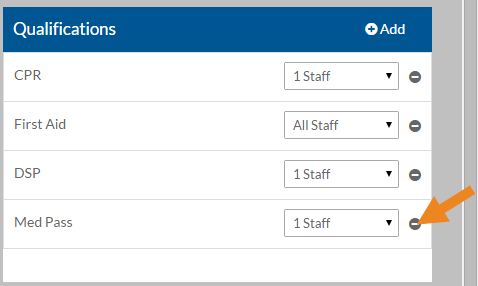
A confirmation message appears.
-
Select the Yes button.
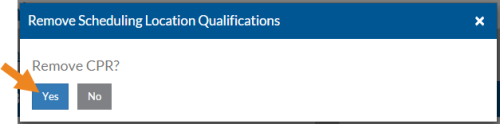
The qualification disappears from the card.
Complete the following steps to update the clients for a shift template.
-
Select Add on the Clients card.
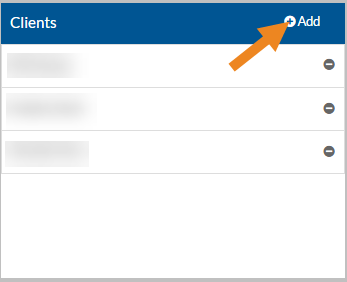
The Clients pop-up window opens.
-
Select the client(s) you want to assign to the shift template and then select the Save button.
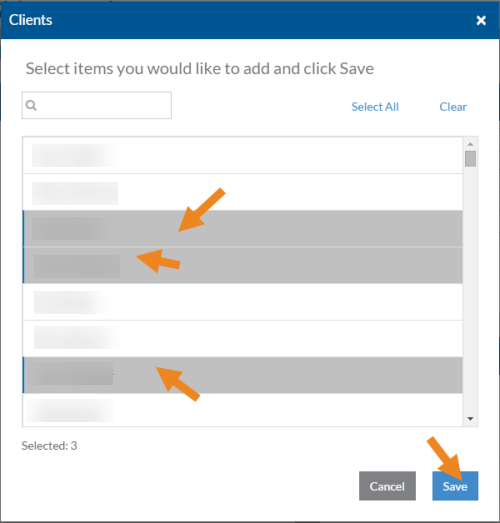
The selected clients appear in the Clients card. If any of the clients have special qualifications, they appear on the Client Qualifications card.
-
Select the minus sign next to a client to remove it from the shift template.
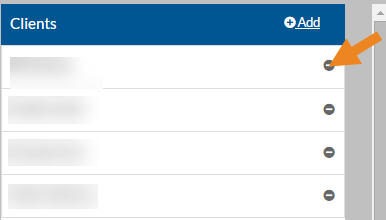
A confirmation message appears.
-
Select the Yes button.
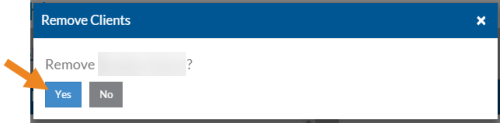
The client disappears from the card. If the removed client has special qualifications, they is removed from the Client Qualifications card as well.
-
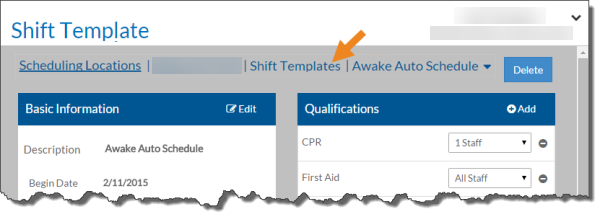
Select Shift Templates in the breadcrumbs to return to Shift Templates.
-
The new template appears as a button where time slots can be added.