Add Scheduling Locations
If your scheduling locations do not sync from ProviderPro billing or payroll cost centers, you can add them directly to Staff Scheduling.
Do not add, delete or make changes to the Scheduling Location settings that sync within Staff Scheduling if you sync from ProviderPro. The changes will be overwritten the next time the sync runs. Make all changes in ProviderPro. To make those settings read-only in Staff Scheduling, turn on the Disable Scheduling Location Synced Properties setting in Options.
-
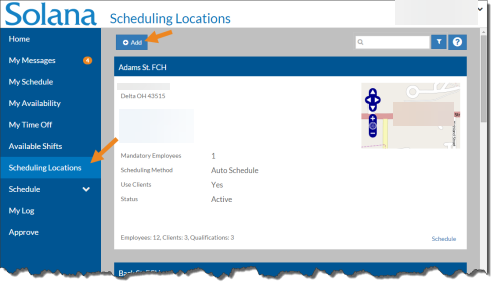
Select Scheduling Locations from the menu and then select Add.
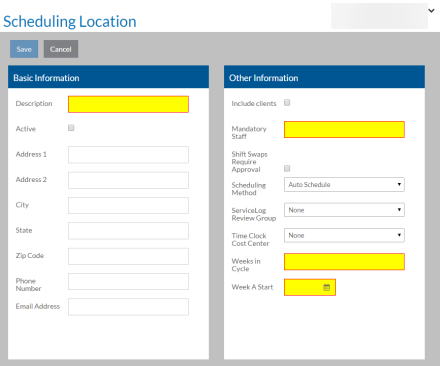
Blank Basic Information and Other Information cards appear.
-
Complete the following information and click Save:
In this field: Enter/Select: Description The name of the scheduling location (required) Active If the scheduling location is used in Staff Scheduling Address 1 and 2 The street address of the scheduling location City The city of the scheduling location State The state of the scheduling location Zip Code The zip code of the scheduling location Phone Number The scheduling location's phone number Email Address The scheduling location's email address Include Clients If this scheduling location schedules to the client Mandatory Staff The default number of staff required to work most shifts (required). The number of staff per shift can be changed on a per shift basis. Shift Swaps Require Approval If the Schedule Manager must approve any shift swaps (that is when staff pick up an open shift or a shift posted by another staff). Scheduling Method This is the default method for scheduling staff to slots for this scheduling location:
-
Auto Schedule - The auto scheduler assigns staff to the slots of shifts based on a complex algorithm that finds the best mix. When copying or generating a schedule, the slots in shifts are not filled.
-
Do Not Schedule - When copying, generating or auto-generating a schedule the slots in shifts are not filled. The schedule manager must manually assign staff to them.
-
From Source - When copying or generating a schedule, the slots in shifts are filled with the staff from the copied week or in the shift template. The auto-generator will skip over any shift with a schedule method set to From Source or Do Not Schedule.
Service Log Review Group The corresponding review group in Service Log for this scheduling location. Time ClockCost Center The corresponding cost center in Time Clock for this scheduling location. Weeks In Cycle If this scheduling location has an alternating schedule, enter the number of weeks in the cycle (up to 8). Otherwise, enter 1. (required) Week A Start Date Enter the start date of the first week in the cycle (Week A). You will only be able to choose a date that is on the first day of the week as set in Options. If your Weeks in Cycle is set to one(1), you can select any date that starts of the first day of the week for your agency (required). -
The Qualifications, Staff, Devices and Clients cards (if the Include clients checkbox is selected) appear.