Employees Acknowledge Flags One Shift
Schedule managers can acknowledge a shift, or an employee (slot) flag from the shift, or the slot with the flag.
Complete the following steps to acknowledge a shift or slot flag:
-
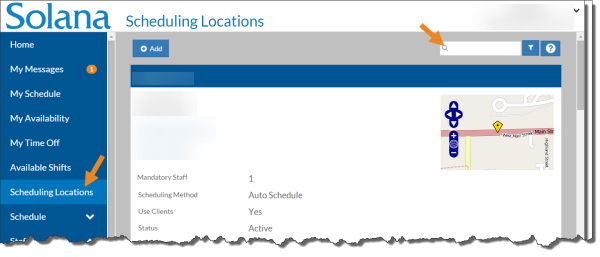
Select Scheduling Locations from the menu and then enter the name of the scheduling location in the Search field.
-
Select the Schedule link on the Scheduling Location card.
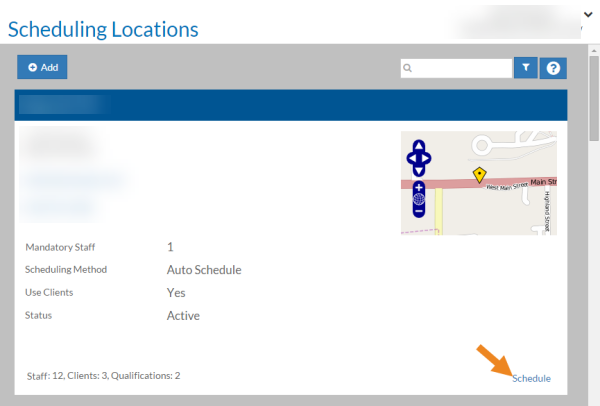
The schedule for the scheduling location opens.
-
Next, select the shift from the calendar grid.
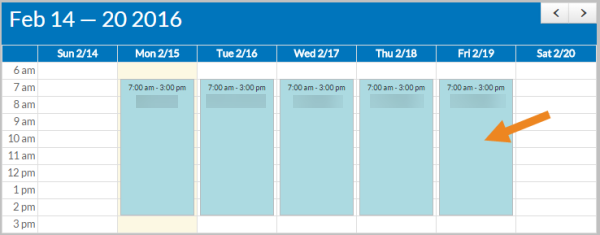
The shift opens.
-
Select the Acknowledge button to acknowledge an individual or the Acknowledge All option to acknowledge all of the flags on the Flags card.
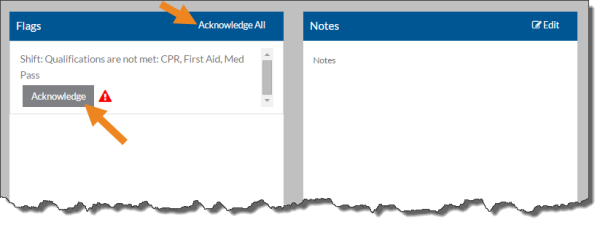
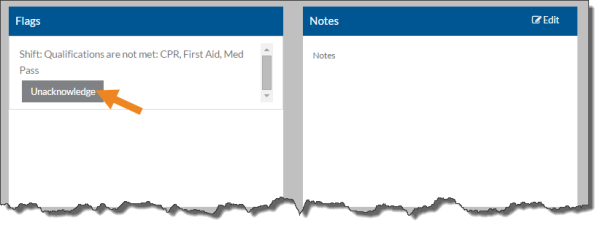
The Acknowledged Flag Successfully message appears, the buttons change to read Unacknowledge, and the flag icons disappear. If you made a mistake, you can select the Unacknowledge button to reset the flag.
-
Select the slot with the flag you want to acknowledge on the Slot card.
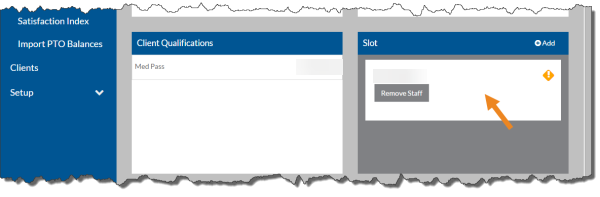
The Slot pop-up opens.
-
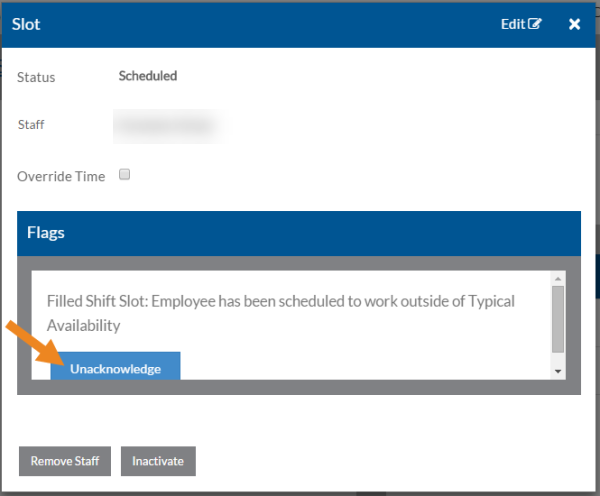
Next, select the Acknowledge button to acknowledge an individual or the Acknowledge All option to acknowledge all of the flags on the Flags card.
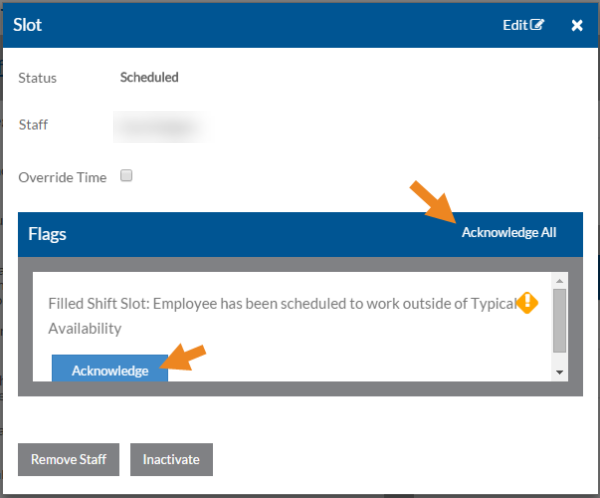
The Acknowledged Flag Successfully message appears, the buttons change to Unacknowledge and the flag icons disappear. If you made a mistake, you can select Unacknowledge to reset the flag.