Employees Acknowledge Flags for Multiple Shifts
Schedule managers can acknowledge shift and staff flags for multiple shifts and staff from the Flags card.
Complete the following steps to acknowledge multiple shift and staff flags:
-
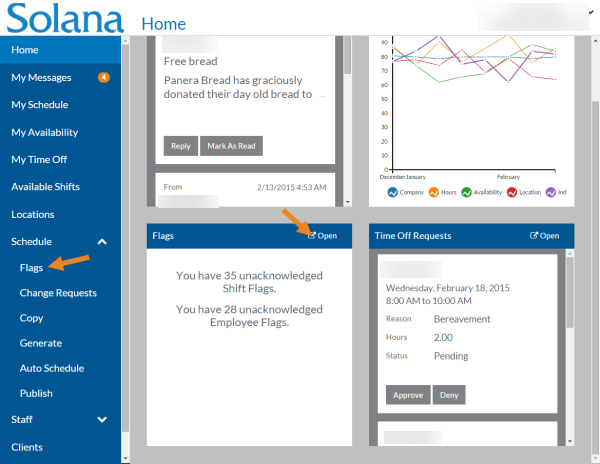
Select Flags from the Schedule menu or select Open on the Flags card on the Home screen.
-
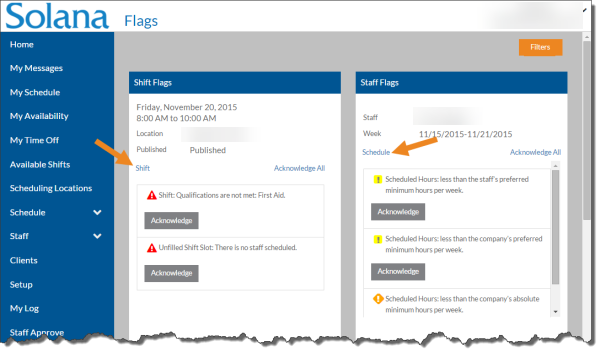
Select the Shift link to view the details about the shift that the flags are on or select the Schedule link to view the staff's schedule.
-
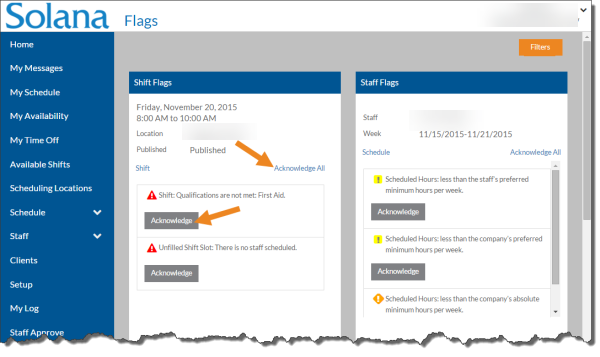
Select Acknowledge to acknowledge an individual or the Acknowledge All to acknowledge all of the flags on a Shift Flags or Staff Flags card.
-
The Acknowledged Flag Successfully appears. Depending on your filters settings either the card disappears or the buttons change from Acknowledge to Unacknowledge.
Select Filters, mark or clear the appropriate checkboxes to narrow the Flag cards shown by the selected criteria, and then click the Done button.
-
If you made a mistake and need to unacknowledge a flag, make sure the filters are set to show acknowledged flags, and then select the Unacknowledge button to unacknowledge an individual, or select the Unacknowledge All button to unacknowledge all of the flags on a Shift Flags Flags card.
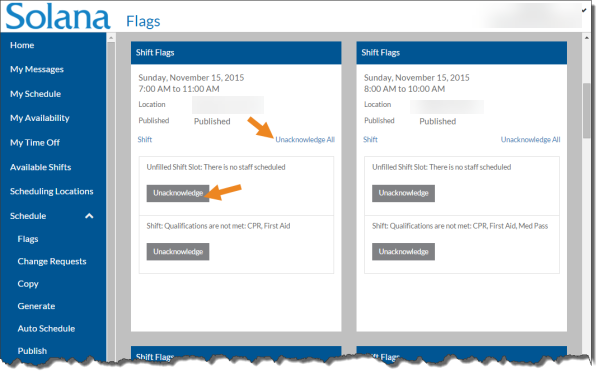
The Unacknowledged Flag Successfully toast appears. Depending on your Filters settings either the card disappears or the buttons change back to Acknowledge.