Billing Rhode Island Update Billing Rates
This topic assists our Rhode Island Customers in updating their billing rate changes in the ProviderPro application.
For more information, refer to Funding Source Billing Service Types.
Update Global Rates in the Bill Codes
To update the Global Rates within the Bill Codes follow the steps below:
-
Go to Client Management > Billing > Funding Sources, select the appropriate Funding Source.
-
Select the Service Types tab to open the Billing Service Type.

-
Select the Contract Codes tab to open the Contract Code.

-
Select the Bill Codes tab to open the Bill Code.
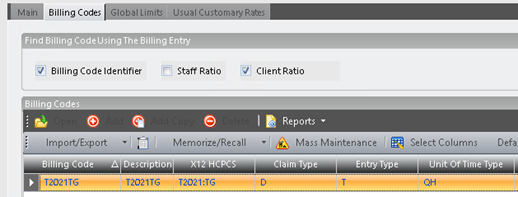
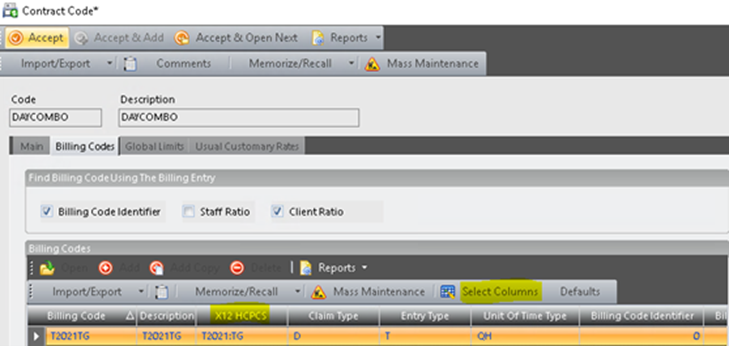
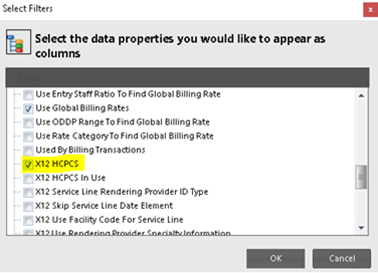
If you do not see the X12 HCPCS column in ProviderPro when looking at the list of Bill Codes within a Contract Code, we recommend turning this on as it makes finding the correct Billing Codes with the corresponding HCPCS information much easier. To do this, click Select Columns then scroll down and select X12 HCPCS, click OK.
-
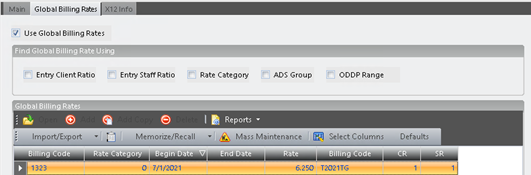
Select the Global Billing Rates tab to open the previous Global Billing Rate.
-
End date the current/existing Global Billing Rate with the appropriate date, and click Accept.

-
Click Add, enter the Begin Date and the Newly Updated rate, and click Accept.
Leave the end date blank until needed to update rates again in the future.
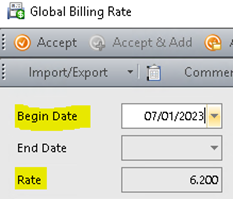
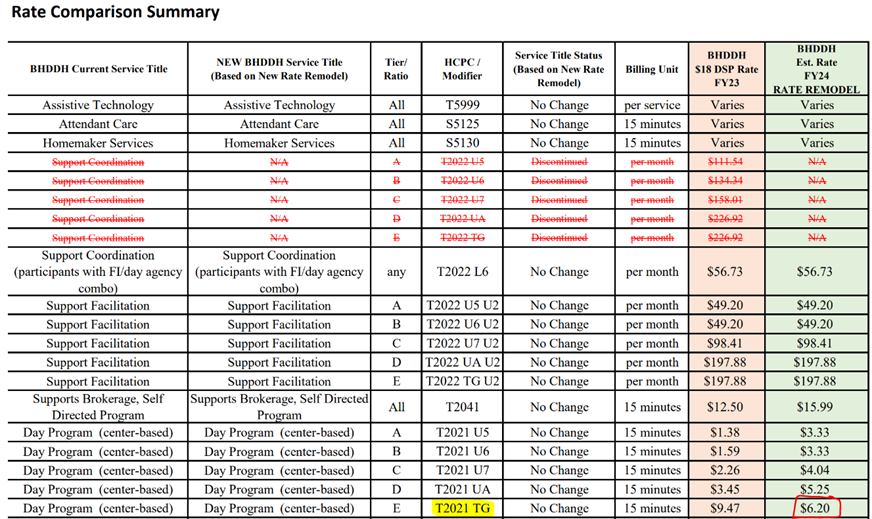
Using the updated Rate Comparison Summary, in this example T2021:TG and utilize the FY24 Rate Model column in green. The rate for T2021:TG is $6.20.
-
Accept all the Billing Service popup screens (Bill Code, Contract Code, Billing Service Type) and click Save.
Accept and Save after each Billing Service Type or Contract Code to ensure that if the user making the changes closes the screen without saving, minimal information is lost/re-entered.