Employees Work Related Injuries
You can track information about injuries that occur to your employees while on the job from the Work-Related Injuries work flow. The information you can track includes OSHA-reportable information along with additional information such as treatment information and workers’ compensation.

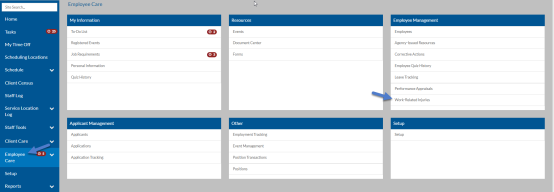
Select Employee Care from the menu and then select Work-related Injuries from the Employee Management card.
-
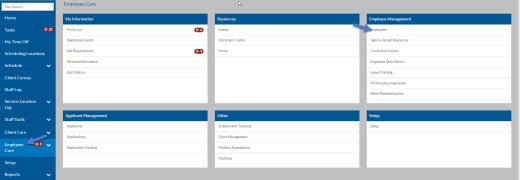
Select Employee Care from the menu and then select Employees from the Employee Management card.
-
Select anywhere on the Employee card of the employee you want to see work-related Injuries for.
-
Switch to the Work-Related Injuries tab.
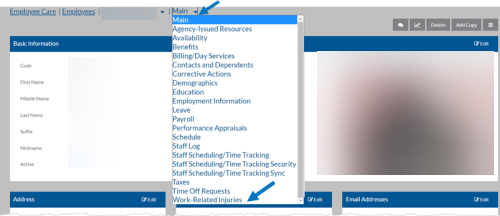
The Work-Related Injuries grid appears.
From here you can do multiple functions:
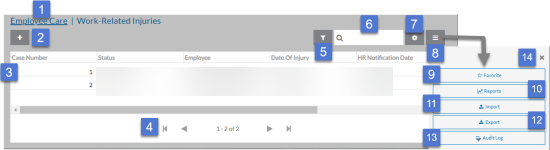
1 Return to the Employee Care navigation screen. 2 Add a new work-related injury. 3 Open a work-related injury. 4 Use the outer arrow to go to the first performance appraisal or the last one in the grid. Use the inner arrows to go to the next or previous set of work-related injuries. 5 Open the Filters to adjust your filter settings. 6 Search for a work-related ijury. 7 Add, remove and reorder columns in the grid. 8 Open the Options tray to view additional functions. 9 Add or remove the work-related injuries grid from your Favorites menu. 10 Run a report. 11 Import performance appraisals from MS Excel. 12 Export performance appraisals to MS Excel. 13 View the audit history. 14 Close the Options tray. You may see a message similar to the one below. This message means additional corrective actions match your filter settings, but there are too many to show. If this happens you either need to adjust your filters or use the search to find the one you are looking for.

-
Select a Work-Related Injury to open or select the + icon to add a new one.
On this Card Available Cards/Fields Main Basic Information
-
Status
-
Case Number
-
Employee
-
Date of Injury
-
Time of Injury
-
HR Notification Date
-
Person Notified
-
Time Arrived at Work on Day of Injury
-
Date Returned to Work
-
Injury/Ilness: Injury or Illness
-
Injury Type
-
Injury Type Notes
-
Object Causing Injury
-
Cause Or Contributing Event
-
On Company Premises
-
Location Where Injury Occurred
-
Task Employee Engaged In
-
Employee Died
-
Date of Death
Body Parts Affected
Witness Information
-
Witness Name
-
Witness Phone
Safeguards
-
Safeguards Provided
-
Safeguards Used
-
Safeguards
OSHA OSHA Information
-
OSHA Recordable: This injury is an OSHA recordable injury and should appear in the OSHA 300 reports.
-
Job Title
-
Payroll Cost Center (If licensed): If you are running the OSHA 300 or OSHA 300a by cost center, you should set the PR Cost Center to be custom required.
-
OSHA Injury/Illness: Injury, Skin Disorder, Respiratory Condition, Poisoning, Hearing Loss or Other
-
Injury Results: Days Away From Work, Remained at Work - Job Transfer, Remained At Work - Other or Death
-
OSHA Restricted Duty Notes
Prevention This Accident
-
Employee Opinion
-
Supervisor Opinion
Similar Accidents
-
Employee Opinion
-
Supervisor Opinion
Treatment Treatment Information
-
In-house Treatment
-
First Aid
-
Emergency Room
-
Out Patient
-
Hospitalized
First Aid Information
-
Date
-
Administered By
-
Treatment
Physician Visit
-
Date
-
Physician
-
Specialty
-
Treatment
-
Hospital/Clinic Visit
-
Date
Hospital/Clinic
Treatment
Contact
Stay (Days)
Workers' Compensation Workers' Compensation Info
-
Workers' Compensation Claim Number
-
Date Filed
-
Date Closed
-
Days of Work Missed
-
Days of Restricted Duty
-
Wages Lost
From here you can do these additional functions:
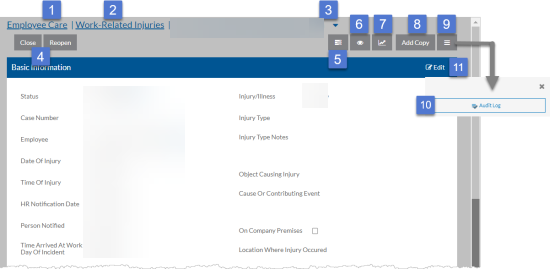
1 Return to the Employee Care navigation screen. 2 Return to the work-related Injuries grid. 3 Change to another tab:

4 Change the status of the work-related injury (if you have security permissions to do so). 5 Add or view any related tasks. A black number badge indicates the number of tasks (both open and completed) associated with it. 6 Add, view or remove watchers. A black number badge indicates the number of watchers already associated with it. 7 Run a report. 8 Create a copy. 9 Open the Options tray. 10 View the change history of it. 11 Edit the work-related injury. When finished editing, select Save (or Cancel to discard changes). -
To manage the work-related injury setup lists:
-
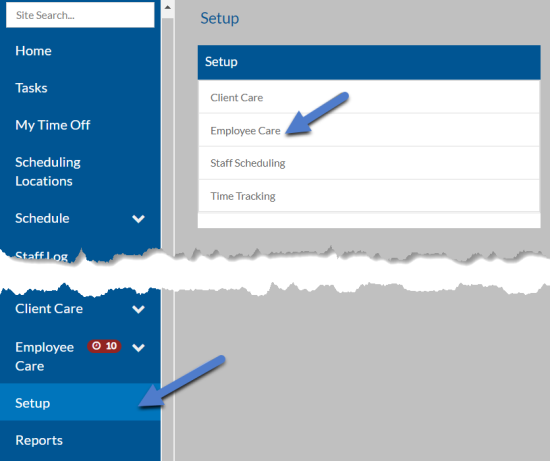
Select Setup from the navigation pane and then select Employee Care.
-
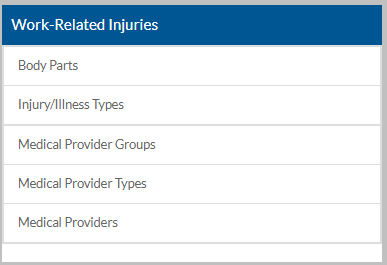
Scroll down to the Work-Related Injuries card.
-
Select the setup list you want to manage:
This Setup List Used Here For Body Parts Incident Treatments: Injury Information Workplace Injuries Groups the specific parts of the body to highlight together when selecting the affected body part of an incident or employee injury. For example, you might set up the right eye, left eye, nose, left check, right check, mouth and chin to be selected as one body part called Face. Each discrete body part must be assigned to a grouping. Injury/Illness Types Workplace Injuries Describes the type of injury or illness the employee suffered, such as broken bone, head injury, cut, etc. Medical Provider Groups Client Medical: Medical Providers
Medical Providers (Below)
Workplace Injuries
The various provider groups (and contact information) that a medical provider may be a part of or that a client may see. Medical Provider Types Client Medical: Medical Providers
Medical Providers (Below)
Workplace Injuries
The type of the medical provider such as dentist, pharmacy, hospital, allergist, psychologist, etc. Medical Providers Client Medical: Medical Providers
Workplace Injuries
The name and contact information of medical providers. You can also select one or more medical provider groups and medical provider types associated with the medical provider. -
Select anywhere on an existing card to open to view or edit or select the + to add a new one.
-
Enter the Code and/or Description and select Save.