Employees Supplemental Education
Record and track the supplemental educational events and classes that an employee takes that are not required.

To view Supplemental Education for multiple employees, select Employee Carefrom the menu and then select Supplemental Education from the Other card.
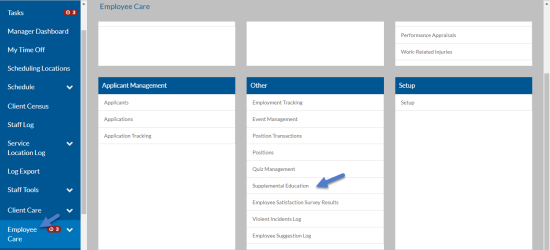
-
Select Employee Care from the menu and then select Employees from the Employee Management card.
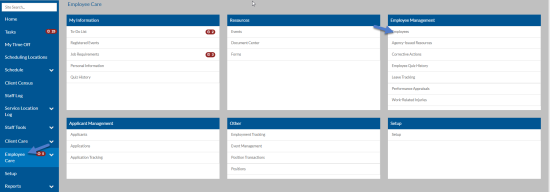
-
Select anywhere on the Employee card of the employee you want to see supplemental education for.
-
Switch to the Supplemental Education tab.
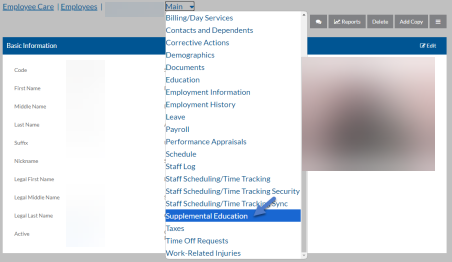
The Supplemental Education grid appears. From here you can do multiple functions:
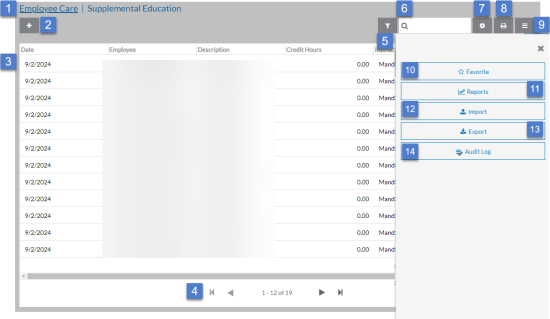
1 Return to the Employee Care navigation screen. 2 Add a new supplemental education record. 3 Open a supplemental education record. 4 Use the outer arrow to go to the first event or the last supplemental education record in the grid. Use the inner arrows to go to the next or previous set of supplemental education records. 5 Open the Filters to adjust your filter settings. 6 Search for a supplemental education record. 7 Add, remove and reorder columns in the grid. 8 Print the current columns and rows that appear in the grid. 9 Open the Options tray to view additional functions. 10 Add or remove the Supplemental Education grid from your Favorites menu. 11 Run a supplemental education report. 12 Import supplemental education records from MS Excel. 13 Export supplemental education records to MS Excel. 14 View the audit history for all supplemental education records. You may see a message similar to the one below. This message means additional corrective actions match your filter settings, but there are too many to show. If this happens you either need to adjust your filters or use the search to find the one you are looking for.

-
Select a Supplemental Education record to open or select the + icon to add a new one.
On this Card Available Fields Basic Information -
Date
-
Employee
-
Description
-
Credit Hours
-
Instructor
-
Batch Number
From here you can do these additional functions:
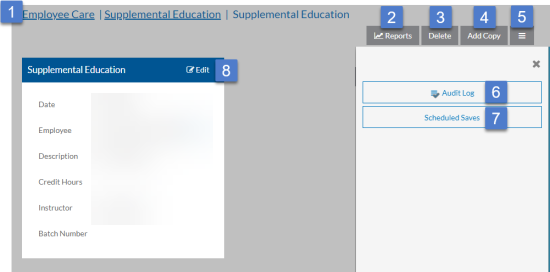
1 Return to the Employee Care navigation screen or the Supplemental Education grid 2 Run a report. 3 Delete the supplemental education record. 4 Create a copy of the supplemental education record. 5 Open the Options tray. 6 View the change history of the supplemental education record. 7 View or delete any pending scheduled adds or changes. 8 Edit the supplemental education record. When finished editing, select Save (or Cancel to discard changes). -