Employees Schedule Location Groups
Administrators can manage the scheduling location groups that they can then use when setting up staff scheduling security. In order for the Schedule Manager to view the schedule for multiple scheduling locations at the same time, the Administrator must first set up Scheduling Locations Groups and assign them to the correct Schedule Managers (if the Schedule Manager cannot Schedule All Locations).
Do not add, delete or make changes to the scheduling location group settings within Staff Scheduling if you sync from ProviderPro. The changes are overwritten the next time the sync runs. Make all changes in ProviderPro. To make scheduling location group read only in Staff Scheduling, turn on the Disable Default Synced Properties setting in Options.
To manage scheduling location groups:
-
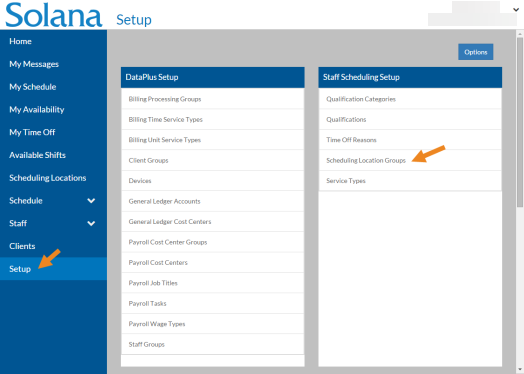
Select Setup on the menu and then select Scheduling Location Groups on the Staff Scheduling Setup card.
-
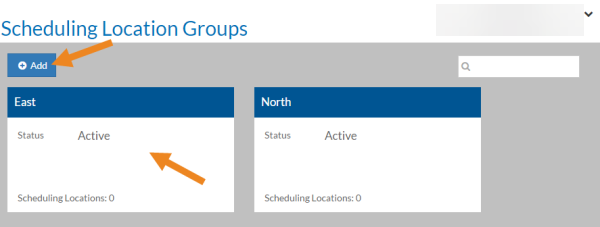
Select Add or the card you want to update.
-
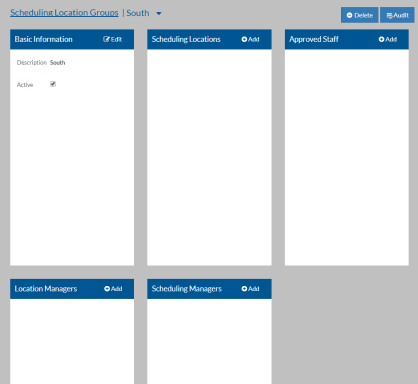
The Scheduling Location Group opens. Complete the following information and select Save:
In this field: Enter: Description A Description of the scheduling location group. Active The scheduling location group is in use. If this is a new scheduling location group, the Scheduling Locations, Approved Staff, Location Managers and Scheduling Managers cards appear.
-
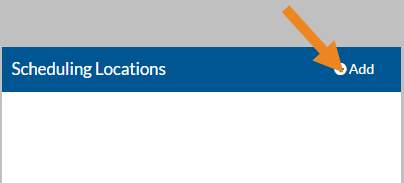
Select Add on the Scheduling Locations card.
-
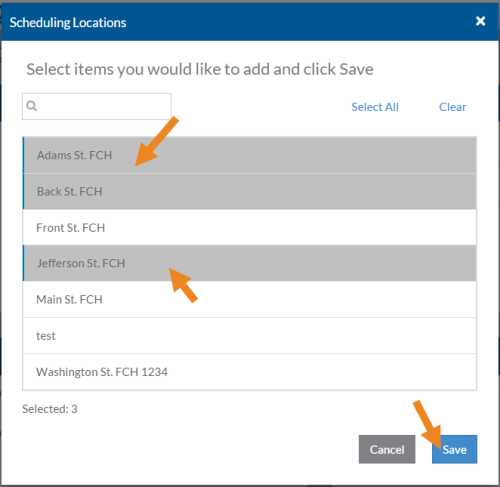
The Scheduling Locations pop-up opens. Select the scheduling locations you want to assign to the scheduling location group and then click Save.
-
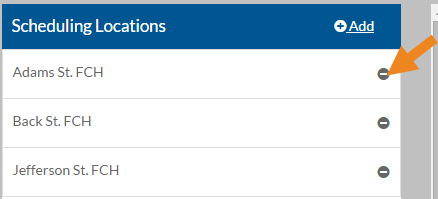
Select the minus sign next to a scheduling location to remove it from the scheduling location group.
-
A confirmation message appears. Select Yes. The scheduling location disappears from the card.
-
Select Add on the Approved Staff card. The Approved Staff pop-up opens.
-
Select the staff that are approved to work at the scheduling locations in this scheduling location group and then click Save.
-
Select the minus sign next to an approved staff to remove it from the scheduling location group. A confirmation message appears. Select Yes. The approved staff disappears from the card.
-
Select Add on the Location Managers card. The Location Managers pop-up opens.
-
Select the employees that can manage the scheduling locations (shift templates, qualifications, etc.) in this scheduling location group and then click Save.
-
Select the minus sign next to a location manager to remove it from the scheduling location group. A confirmation message appears. Select Yes. The location manager disappears from the card.
-
Select Add on the Scheduling Managers card. The Scheduling Managers pop-up opens.
-
Select the employees that can create schedules for the scheduling locations in this scheduling location group and then click Save.
-
Select the minus sign next to a scheduling manager to remove it from the scheduling location group. A confirmation message appears. Select Yes. The scheduling manager disappears from the card.