Employees Quiz Feature

The Quizzes feature allows you to provide learning content (PDFs, documents, links to videos, etc.) to employees and then administer an open-notes, auto-graded quiz to them about that content. The quiz can be about a Client (or a Client in relation to their Placement), Placement, or Other topic. The quiz is associated with an employee requirement (which can optionally be auto-generated) to track compliance and the requirement is assigned to a requirement plan (which can optionally be auto-generated) to determine who must take it. Based on the requirement’s settings, staff permission group settings, and the passing score designated in the quiz, if the employee does not pass the quiz the employee can optionally be prevented from logging Time Tracking entries (the agency can designate which entries are locked out via Time Tracking Options).
In addition if a new version of the quiz is needed, the agency can require everyone to retake the quiz immediately or set it so the new version of the quiz appears the next time the employee is required to take it and when new employees are required to take it.
In order to auto-generate requirements and requirement plans from quiz management, the agency must already have a combined Time Tracking/Staff Scheduling and Client Care/Employee Care/ProviderPro database and be set up to use intra-database syncing with the new quiz package definition.
In order to use the Quiz Management feature, you must license Quizzes. You also need to have security permissions to add and change Quiz Management and Quiz Settings as well as Employee Categories, Employee Requirement Management, and Employee Requirement Plans.
The following items are needed in order to create quizzes:
-
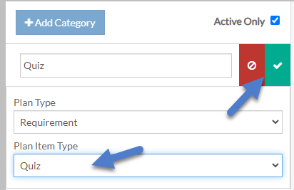
Employee Requirement Category - This is a one-time setup item to create a category for Quizzes with a Plan Item Type of Quiz. It is similar to Events in that there are not any additional setup lists to add to it from this screen.
-
Employee Requirement - If you decide to auto-generate requirements from the quiz, you need to create a requirement to use as the template to generate them from.
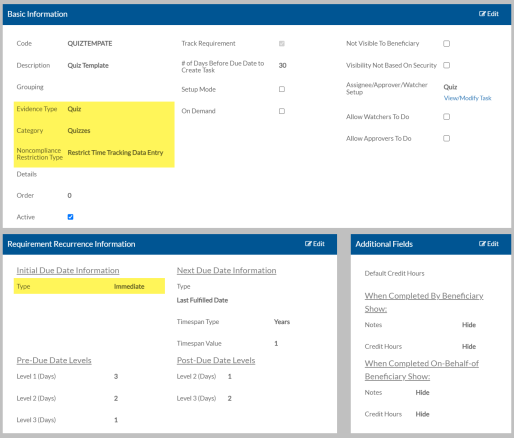
The Requirement is set up as usual with these best practices:
-
Evidence Type -Set to Quiz
-
Category - Set to Quiz
-
Noncompliance Restriction Type - Set to Restrict Time Tracking Data Entry if the employee must pass the quiz before logging time.
-
Initial Due Date Type - Set to Immediate
-
Assignee - This Beneficiary
-
Approver - False
-
-
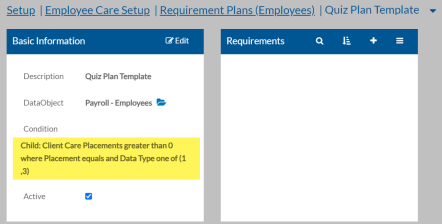
Employee Requirement Plan - If you decide to auto-generate requirement plans from the quiz, you need to create a requirement plan to use as the template to generate them from. The requirement plan should not have any requirements assigned to it and have the filter set up as follows:
-
Child: Client Care Placement Greater than 0
-
Placement equals blank
-
Data Type one of: Managers Inclusive and Staff Inclusive
If managers aren’t required to take the quizzes, do not select Managers Inclusive. If your security is set up at the placement level (i.e. staff do not get security permissions from the Department or Program level of the Placement tree, select Staff Exclusive instead)
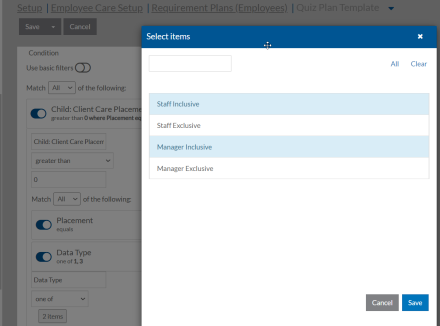
If you do not auto-generate the Requirement Plans, you would set the Placement to equal the placement of the clients the quizzes are for. You may need to drill down further and select the Client Placement child of the Placement and then select the Client property to equal a specific client. Make sure the Quiz Version is marked Publish before making the Requirement Plan active.
-
-
Quiz Settings - This is a one-time setup item where you turn on the settings to auto-generate requirements and/or requirement plans and select the requirement plan template.
-
Quiz Management - This is where the actual quiz questions and answers are managed. It is also where the requirement is associated with the quiz.
-
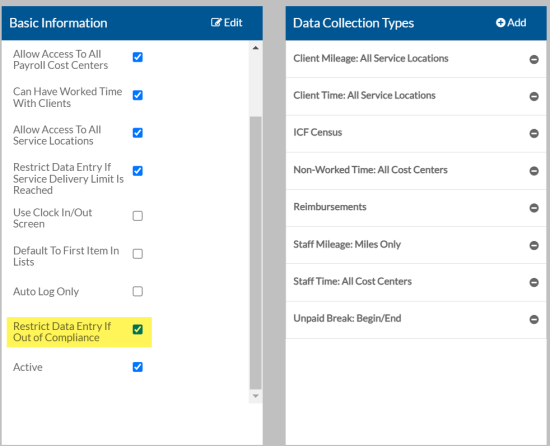
Staff Permission Group - If you want to prevent staff from logging time if a requirement is not met and the requirement has the Noncompliance Restriction Type set to Restrict Time Tracking Data Entry, then you must also mark the Restrict Data Entry if Out of Compliance check box in the Staff Permission Groups for those staff that should be restricted. Time Tracking Options (see below) also need to be set to designated which Time Tracking entries to restrict.
-
Time Tracking Options - Scroll down to the bottom of Time Tracking Options to find the Compliance Settings card. From here select which types of Time Tracking transactions you want staff with a Staff Permission Group set to Restrict Data Entry if Out of Compliance to be locked out of if the have not completed a requirement with a Noncompliance Restriction Type set to Restrict Time Tracking Data Entry. The types related to clients are Worked Time with Clients Entry, Mileage With Clients Entry and Client Census Entry.
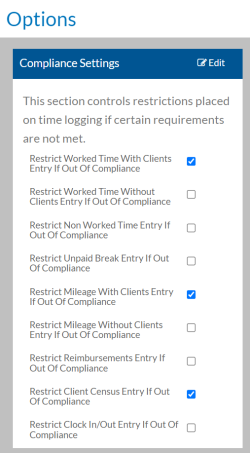
Quiz versions are maintained under Quiz Management. A quiz can be about a client, a client in the context of a placement (client placement), a placement or another miscellaneous topic (other).
To create a new quiz or a new quiz version:
-
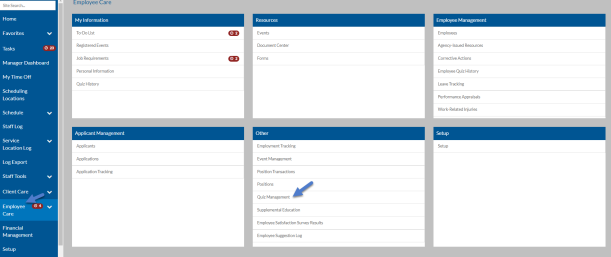
Select Employee Care from the main menu and then select Quiz Management from the Other card.
-
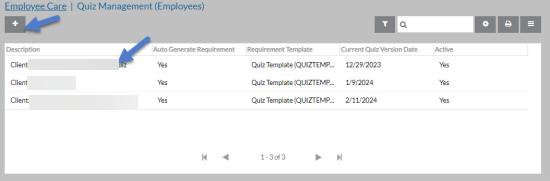
Select the + to add a new quiz or select an existing quiz to modify one.
-
Complete the following information and then select Save.
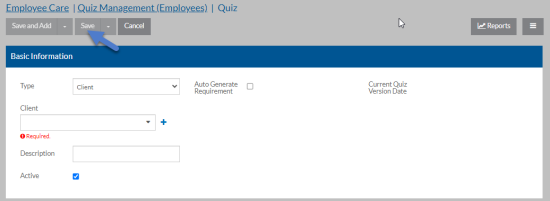
In this field Enter or Select Type Who/What the quiz is about: Client, Client Placement, Placement, or Other Client If the Type is Client or Client Placement, the Client this quiz is about. Client Placement If the Type is Client Placement, the Client Placement of the Client selected that this quiz is about. Placement If the Type is Placement, the Placement that this quiz is about Description If the Type is Other, the Description is required. It is a brief explanation of what the quiz is about. Active The quiz is in use. Auto Generate Requirement To automatically create a requirement that is tied to this quiz based on the requirement template selected.
Auto Generate Requirements must also be selected in Quiz Settings, the database must be set up for intra-database syncing and have the SyncQuizzesToRequirements package definition set up.
Requirement Template If Auto Generate Requirement is selected, the requirement with an Evidence Type of Quiz to use when generating the requirement.
During implementation, recommendation is to set a database default here to make it easier for the user.
-
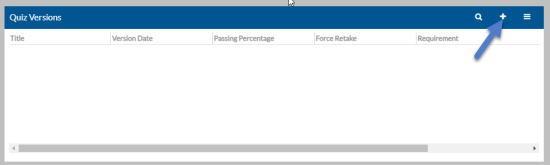
Select the + on the Quiz Versions card to create a new version of the quiz or select an exiting one to modify it.
-
Complete the following information:
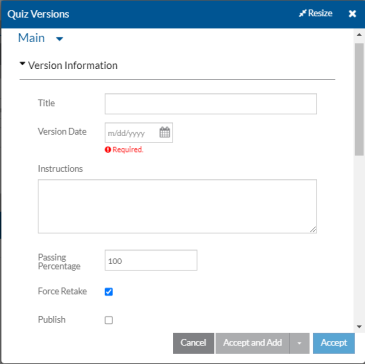
In this field Enter or Select Title A brief description of the quiz topic Version Date The date this version of the quiz is in effect. Instructions Any instructions or details that you want to appear to the employee taking the quiz. Passing Percentage The percentage of the questions the employee must get correct in order to pass the quiz and have the associated requirement marked complete. Force Retake If this is the first version of the quiz leave Force Retake selected. Otherwise, select Force Retake to make all employee required to take this quiz re-take the quiz immediately. If not selected, employees will take the new quiz the next time the quiz is scheduled to take or re-take based on the last time they completed it (if they have taken it previously) and the requirement’s settings.
Requirement IfForce Retakeis selected andAuto Generate Requirement is NOT selected in the Quiz, select the Requirement that this Quiz Version is tied to. Each Quiz Version must be tied to a unique requirement and assigned to a requirement plan. If this Quiz Version is replacing a previous one, you will need to make the requirement tied to the previous version inactive. Publish When this quiz is ready to be taken, make sure Publish is selected.
Remember to set the Quiz Version to Publish before making the Requirement live in a Requirement Plan.
-
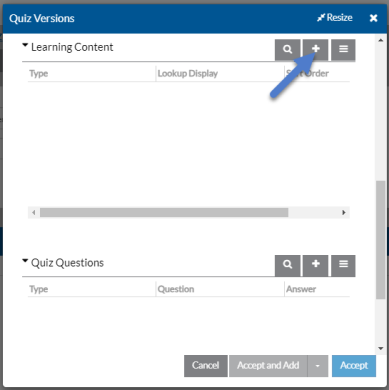
Scroll down and select the + on the Learning Content card to upload a document or add a link to a website or select an existing one to modify it.
-
Complete the following information and then select Accept.
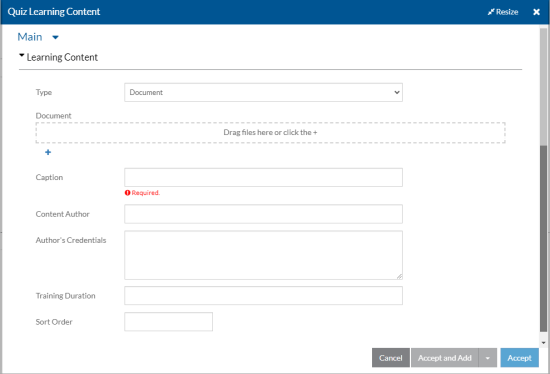
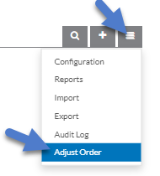
In this field Select or Enter Type Document or External (web address). Document If Type is Document, drag the document into the dotted square or select the + to browse for and select the document with the learning content for this quiz. Website If Type is External, enter the website address to the video or other learning content for this quiz. Caption The caption to appear next to the document or web link. Content Author The creator, author or trainer of the learning content document or link. Author’s Credentials The credentials of the author who created or presented the learning content. Training Duration The amount of time it will take the user to read or view the learning content. Sort Order A number to indicate the order the learning content should appear at the top of the quiz. You can use the Adjust Order option found under the Options menu of the Learning Content card to reorder the items later.
-
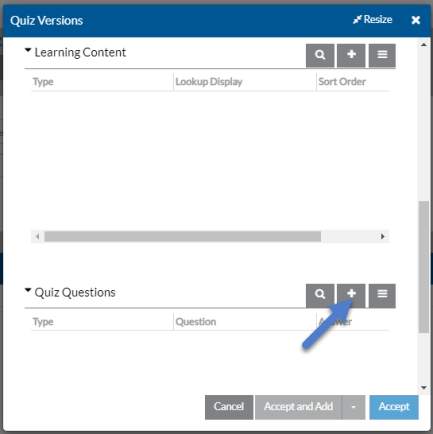
Scroll down and select the + on the Quiz Questions card to add a new question or select an existing one to modify it.
-
Complete the following information and then select Accept.
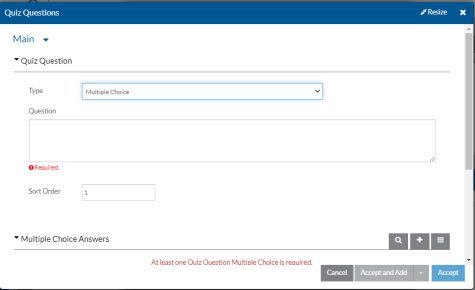
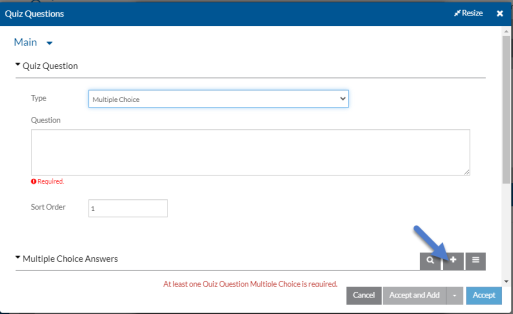
In this field Select or Enter Type The type of question this will be: True or False, Text Value, or Multiple Choice.
Question The quiz question that the employee will see. Answer Is True If the Type is True or False, select if the answer to the question is True. Correct Answer If the Type is Text Value, enter the correct answer. Sort Order A number to indicate the order the question should appear in the quiz. You can use the Adjust Order option found under the Options menu of the Quiz Questions card to reorder the questions later.
-
If the Type is Multiple Choice, scroll down and select the + on the Multiple Choice Answers card to add a new answer or select an existing one to modify it.
-
Complete the following information and then select Accept.
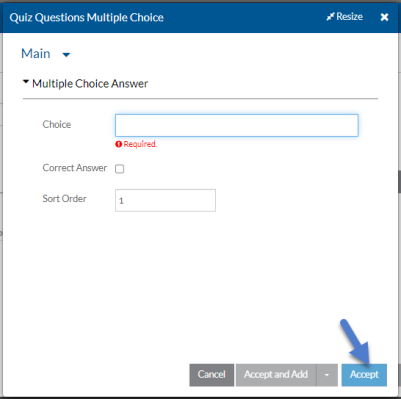
In this field Select or Enter Choice An option that will be shown as a possible answer to the question. Correct Answer Select if this choice is a correct answer. More than one choice can be selected as Correct Answer. Sort Order A number to indicate the order the choice should appear under the question. You can use the Adjust Order option found under the Options menu of the Multiple Choice Answers card to reorder the choices later.
-
Select Accept to close the Quiz Question.
-
Select Accept to close the Quiz Version.
-
Select Save to save the quiz.
If auto-generating the requirement and the requirement plan, they are created the next time a ProviderPro Sync runs.
Quiz Settings determine whether requirements and requirement plans are automatically created from the quiz management setup.
In addition to turning on these settings, the database must be set up for intra-database syncing and have the Sync Quiz Requirements package definition setup to automatically create requirements and requirement plans.
To manage the quiz settings:
-
Select Setup from the main menu and then select Employee Care from the Setup card.
-
Scroll down to the Quizzes card and then select Quiz Settings.
-
Select + if a row does not exist for quiz settings yet. Otherwise, select the quiz settings row.
-
Complete the following information and then select Save:
-
Auto Generate Requirements - To automatically create a requirement for the Quizzes that have Auto Generate Requirement selected.
-
Auto Generate Requirement Plans - To automatically create a requirement plan for the Quizzes that have Auto Generate Requirement selected.
-
Requirement Plan Template - If Auto Generate Requirement Plan is selected, the requirement plan to use as the base for the auto generated requirement plans.
-