Employees Performance Appraisals
You can track employee performance appraisals from the Performance Appraisals work flow.

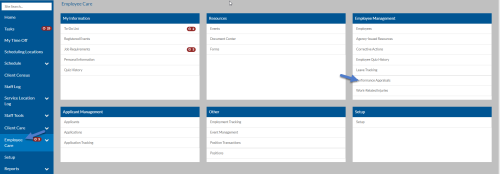
Select Employee Care from the menu and then select Performance Appraisals from the Employee Management card.
-
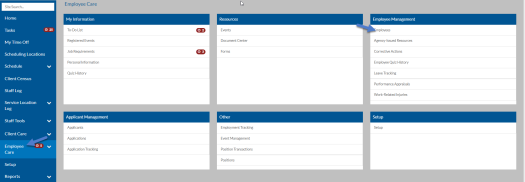
Select Employee Care from the menu and then select Employees from the Employee Management card.
-
Select anywhere on the Employee card of the employee you want to see performance appraisals for.
-
Switch to the Performance Appraisals tab.
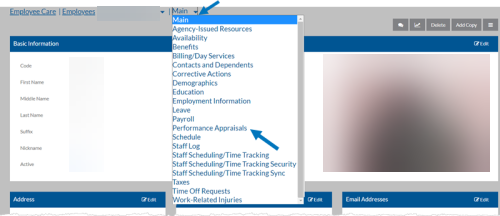
The Performance Appraisals grid appears.
From here you can do multiple functions:
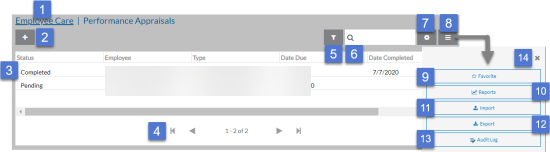
1 Return to the Employee Care navigation screen. 2 Add a new performance appraisal. 3 Open a performance appraisal. 4 Use the outer arrow to go to the first performance appraisal or the last one in the grid. Use the inner arrows to go to the next or previous set of performance appraisals. 5 Open the Filters to adjust your filter settings. 6 Search for a performance appraisal. 7 Add, remove and reorder columns in the grid. 8 Open the Options tray to view additional functions. 9 Add or remove the performance appraisals grid from your Favorites menu. 10 Run a report. 11 Import performance appraisals from MS Excel. 12 Export performance appraisals to MS Excel. 13 View the audit history. 14 Close the Options tray. You may see a message similar to the one below. This message means additional corrective actions match your filter settings, but there are too many to show. If this happens you either need to adjust your filters or use the search to find the one you are looking for.

-
Select a Performance Appraisal to open or select the + icon to add a new one.
On this Card Available Fields Basic Information -
Status: Pending, Disregarded, Closed Employee
-
Type
-
Date Due
-
Date Completed
-
Rating Score
-
Salary Change
-
Salary Change Effective Date
-
Appraisal Completed By
-
Comments
From here you can do additional functions:
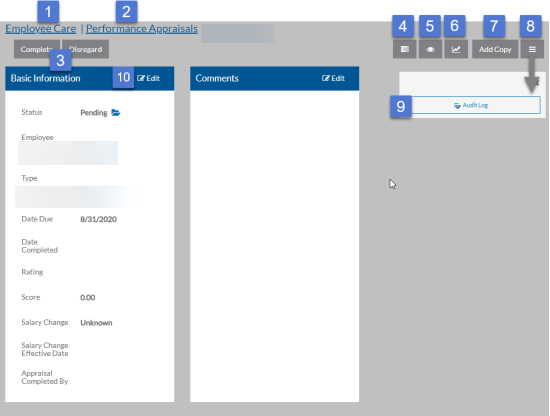
1 Return to the Employee Care navigation screen. 2 Return to the Performance Appraisals grid. 3 Change the status of the performance appraisal (if you have security permissions to do so). 4 Add or view any related tasks. A black number badge indicates the number of tasks (both open and completed) associated with it. 5 Add, view or remove watchers. A black number badge indicates the number of watchers already associated with it. 6 Run a report. 7 Create a copy. 8 Open the Options tray. 9 View the change history of it. 10 Edit the performance appraisal. When finished editing, select Save (or Cancel to discard changes). -
To manage the performance appraisal related setup lists:
-
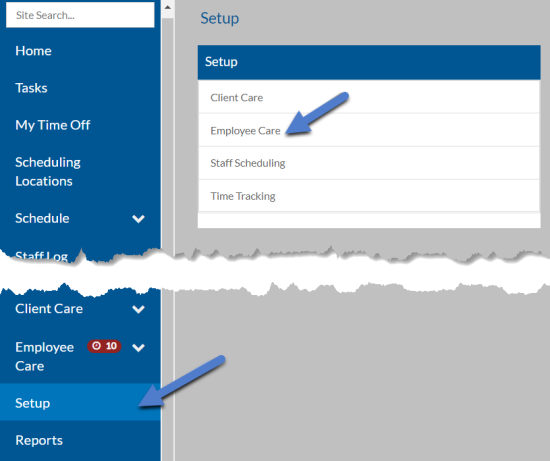
Select Setup from the navigation pane and then select Employee Care.
-
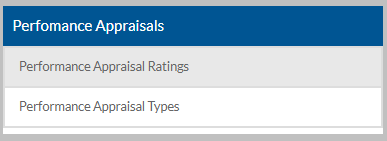
Scroll down to the Performance Appraisals card.
-
Select the setup list you want to manage:
This Setup List Used Here For Performance Appraisal Ratings Performance Appraisals Performance Appraisal Ratings can be used to describe the outcome of the employee’s review such as exceeds expectations, meets expectations or needs improvement. Performance Appraisal Types Performance Appraisals Performance Appraisal Types are used to describe the type of appraisal conducted such as 90-day review or yearly appraisal. -
Select anywhere on an existing card to open to view or edit or select the + to add a new one.
-
Enter the Code and/or Description and select Save.