Employees Payroll Tab

If you have licensed ProviderPro Payroll and it is set to be visible in Employee Care, employee payroll-related information is found on the Payroll tab.
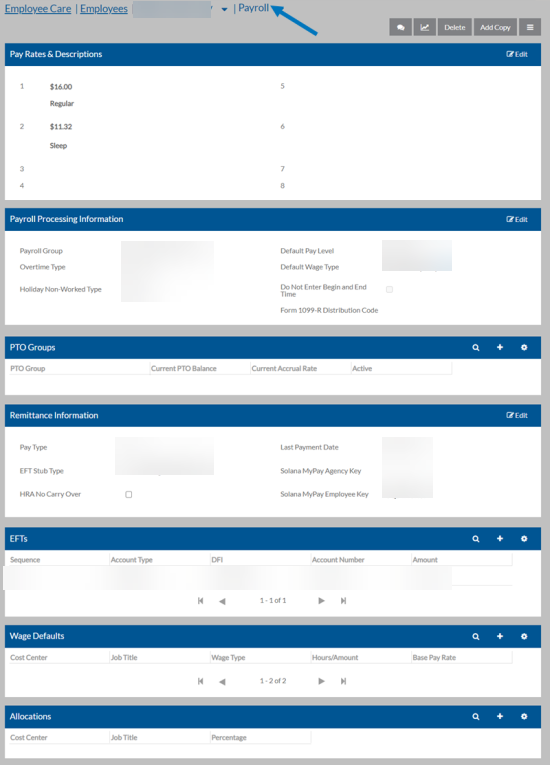
On this Card Available Fields
Pay Rates and Descriptions

Up to eight hourly base pay rates for this employee. The base pay rate is the rate that is selected to use as the employee’s Default Pay Level or that is entered in the Wage Entry. The actual pay rate that the employee earns is then calculated by using the base pay rate in effect along with any wage type formula.

If you enter a rate, you must also enter a corresponding description or an error message appears when you try to save the employee’s record.

If Use Position Management is selected and Employment Tracking is enabled (Employee Care only) in Position and Placement Options, these fields are read only and are managed by the Employment Tracking Wizard. If Use Position Management is selected have Employment Tracking enabled (Employee Care only), these fields are read only and are managed via the Employment Tracking Wizard.

Payroll Processing Information
  • Payroll Group: If you are using Payroll or Day Services, the payroll group is required. The payroll group is used when processing payroll.

If you need to generate 1099s for your clients, Sandata recommends that you break your employee and client payroll into two separate payroll groups.

  • EIN Group: If you have licensed the Payroll EIN Group feature set, the EIN Group is required.

  • Overtime Type: The overtime type to use when calculating overtime for this employee when the Payroll Group selected above has a Wage Entry Type of “Detail - Calculate Overtime.” If Use Position Management is selected andboth Employment Tracking and Sync Primary Position Information to Employeeare enabled in Position and Placement Options (Employee Care only), this information is read only and sync from the primary position.

  • Holiday Non-Worked Type: The holiday non-worked type to use when creating holiday non-worked wage entry defaults for the non-worked holiday schedules tied to it. If Use Position Management is selected andboth Employment Tracking and Sync Primary Position Information to Employeeare enabled in Position and Placement Options (Employee Care only), this information is read only and sync from the primary position.

  • Default Pay Level: Select None or Pay Rate 1- 8 to use as the employee’s default Pay Level or base pay rate for Wage Entry. The pay rate that you select to be the default pay level must have a pay rate associated with it above.

  • Default Wage Type

  • Do Not Enter Begin and End Time: This employee’s wages is entered in summary or total hours even though the Payroll Group selected above is not set to “Summary.” If Use Position Management is selected andboth Employment Tracking and Sync Primary Position Information to Employeeare enabled in Position and Placement Options (Employee Care only), this information is read only and sync from the primary position.

  • Form 1099-R Distribution Code: This is the code that is associated with this employee's Form 1099-R when it is created. This code goes in Box 7 of the 1099-R.

PTO Groups

If you licensed the Payroll Paid Time Off feature set, you can track an employee’s paid time off (PTO) information. PTO includes the time an employee can take off with pay, such as vacation or personal time. Assign the PTO groups to the employee to accrue and relieve it as time is earned and taken.

  • PTO Group

  • Current PTO Group

  • Current Accrual Rate

  • Active: If you make the PTO group inactive, the employee is not able to use any remaining balance or accrue additional time to it.

Remittance Information
  • Pay Type: EFT Pre-note, EFT or Check. If you select EFT Pre-note, ProviderPro creates a practice EFT transaction to send to the bank (to verify routing and account numbers are correct) and create a check for the employee. After you mark the EFTs as closed, the Payment Type automatically changes to EFT. The next time payroll is processed only the EFT is created. If you select EFT Prenote or EFT, you must enter at least one Employee EFT entry with an amount of -1. If not, an error message appears when you try to save the employee.

  • EFT Stub Type: If the Payment Type is EFT and EFT stubs are being emailed to employees or you have licensed Sandata MyPay, you need to select the Email EFT Stub Type. If emailing, select which of the employee’s email addresses to send it to: Email 1,Email 2 or Email 3. If sending it to Solana MyPay, select Send to Solana MyPay. Otherwise, set it to Do Not Email to print the EFT stub instead. Note: You must also select the Email Employee EFT Stubs check box or the Use Solana MyPay check box in PR Options. If not, this field is disabled.

  • HRA No Carry Over

  • Last Payment Date: The Last Payment Date is automatically filled in during the payroll process. It is the date of the employee’s last pay check or electronic funds transfer (EFT).

  • Sandata MyPay Agency Key

  • Sandata MyPay Employee Key

EFTs

Employees cannot receive part of their pay as an EFT and the rest in a check. To pay an employee by EFT, you must also set up the company’s EFT information in the GL Money Account that is used to pay this employee.

If this employee has a Payment Type of EFT or EFT Prenote, you must enter one or more EFTs:

  • Account Type: Checking or Savings.

  • DFI: The nine-digit routing number of the employee’s bank account.

  • Account Number

  • Amount: The amount to be deposited. The last entry in the sequence must have -1 as the amount to indicate the balance should be deposited in that account.

  • Sequence: A number to indicate what order to process the EFTs, if the employee has more than one account.

Wage Defaults

The Add Defaults Wizard uses employee wage defaults to create Wage Entries. These Wage Entries can be used as a starting point to make data-entry quicker.

Employees can have multiple Wage Defaults - one for each job title and cost center. However, if you are setting up allocations for an employee using the Allocations card, the employee should only have one Wage Default.

  • Cost Center

  • Job Title

  • Wage Type

  • Base Pay Rate: The base pay rate selected must have a rate associated with it.

  • Hours/Amount

Allocations

Instead of manually allocating an employee’s time to multiple cost centers as you are creating Wage Entries, you can automate this process by setting up allocations. Enter all of the employee’s wages into one Wage Entry for one job title/cost center combination and let the Calculate Wage Wizard automatically perform the allocations based on the percentage allocations settings.

It’s important to note that if multiple Wage Entries are entered for more than one job title and cost center for an employee, you may not get the Wage Results that you expect. Any active percent allocations in the employee’s record is applied to all Wage Entries regardless of what job title or cost center has been entered in the Wage Entries themselves.

The number of allocations must equal 100% or the employee’s record is not saved.

  • Cost Center

  • Job Title: The job title selected must be an active job title for this employee (entered on the Employment Information tab)

  • Percentage