Employees Events

You can manage any training classes your agency offers or hosts as well as other events through the Events Management work flow.
-
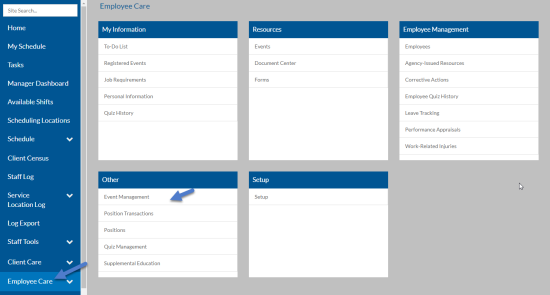
Select Employee Care from the menu and then select Event Managementfrom the Other card.
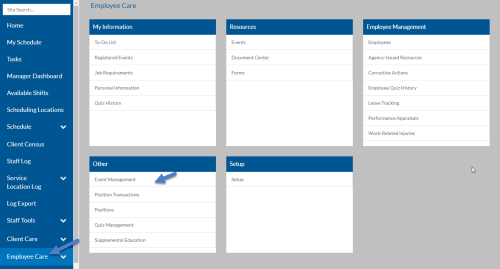
The Event Management grid appears.
From here you can do multiple functions:
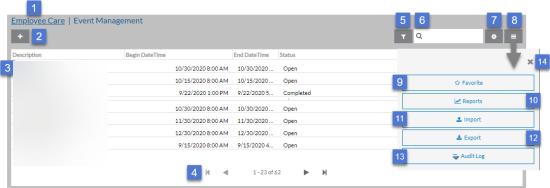
1 Return to the Employee Care navigation screen. 2 Add a new event. 3 Open an event. 4 Use the outer arrow to go to the first event or the last one in the grid. Use the inner arrows to go to the next or previous set of events. 5 Open the Filters to adjust your filter settings. 6 Search for an event. 7 Add, remove and reorder columns in the grid. 8 Open the Options tray to view additional functions. 9 Add or remove the Event Management grid from your Favorites menu. 10 Run a report. 11 Import events from MS Excel. 12 Export events to MS Excel. 13 View the audit history. 14 Close the Options tray. -
Select an event to open or select the + icon to add a new one.
On this Card Available Fields Basic Information -
Status
-
Description
-
Begin Date/Time and
-
End Date/Time
-
Visible Date/Time: This is when the event starts appearing for employees to view.
-
Visible to All Users: The event appears under Events on the Resources card for all users to view,
-
Details
Additional Information -
Location Type: Physical or Online
-
Location (if Location Type is Physical)
-
Online Meeting URL (if Location Type is Online)
-
Instructor
-
Credit Hours
-
Fulfills Requirement: Select if completing this event fulfills an employee's job requirement. This field cannot be changed after the event is saved.
-
Requirement: If Fulfills Requirement is selected, select the requirement it fulfills. Only requirements with a Type of Event appears. This field cannot be changed after the event is saved.
Registration Information -
Min. Attendees: Leave this 0 if there is not a minimum event size.
-
Max. Attendees: Leave this 0 if there is not a maximum event size. Once the maximum is met, no one else is able to register for it.
-
Registration Begins: The date and time users can start registering for the event. It must be on or after the visible date.
-
Registration Ends
-
Use Event Registration: If Fulfills Requirement is not selected, then select if you want users to register for this event. If Fulfills Requirement is selected, then this setting is set in the associated requirement instead.
Attendance Type -
Track Attendance Type: Do Not Track, Attendance Only, Graded - Pass/Fail, Graded - Percent. Once you save the event, you cannot change this field
-
Passing Percent: If Tracking Attendance Type is Graded - Percent, enter the passing percentage.
User Roles One or more user roles for this event":
-
User
-
Event Role: View Attendees, Maintain Attendees (add and remove), Take Attendance.
-
-
From here you can do these additional functions:
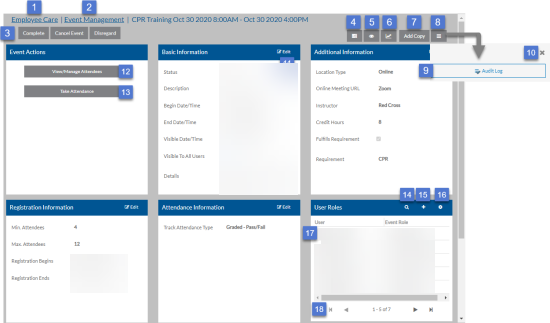
1 Return to the Employee Care navigation screen 2 Return to the Event Management grid 3 Change the status of the event (if you have security permissions to do so). You can change the event from Open to Closed, Disregarded or Canceled as well as Reopen a Closed, Disregarded or Canceled event. 4 Add or view any related tasks. A black number badge indicates the number of tasks (both open and completed) associated with it. 5 Add, view or remove watchers. A black number badge indicates the number of watchers already associated with it. 6 Run a report. 7 Create a copy. 8 Open the Options tray. 9 View the change history of it. 10 Close the Options tray. 11 Edit the event. When finished editing, select Save (or Cancel to discard changes). 12 View and/or manage attendees based on your user role. 13 Take attendance if you have that user role. 14 Search for a specific user role. 15 Add a user roles. User roles determine who can add/delete and view attendees as well as who can take attendance. 16 Change the grid and sort settings for the User Roles grid. 17 Open a user role to view, edit or delete it. 18 Use the outer arrow to go to the first user role or the last one in the grid. Use the inner arrows to go to the next or previous set of user roles.
If you have the correct user role for an event, you can you can view, add or delete attendees:
-
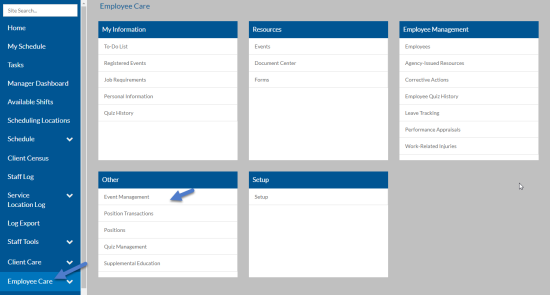
Select Employee Care from the main menu and then select Event Management from the Human Resources card.
-
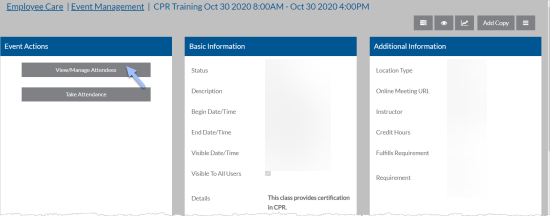
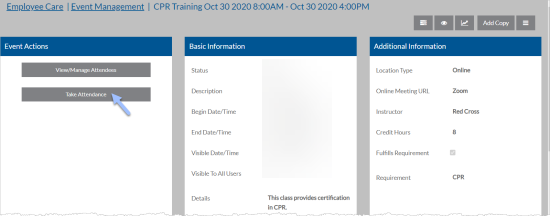
Select the event that you want to take attendance for.
-
Select View/Manage Attendees from the Event Actions card, the list of attendees appears.
-
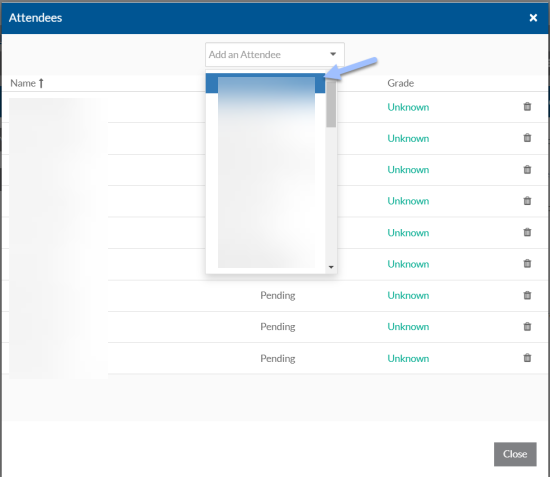
Select a name from the Add an Attendee list to register an employee for the event.
-
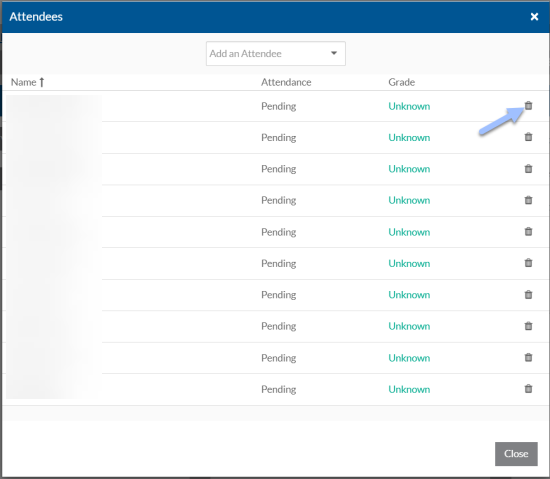
Select the trash can icon next to an attendees name to unregister them.
If you have the user role to take attend for an event, you can mark whether a registered attendee attended or not as well as track whether they passed or not. If the event fulfills a job requirement, once the attendee is marked attended and/or passed their requirement status is set to fulfilled.
To take event attendance,
-
Select Employee Care from the main menu and then select Event Management from the Human Resources card.
-
Select the event that you want to take attendance for.
-
Select Take Attendance from the Event Actions card.
-
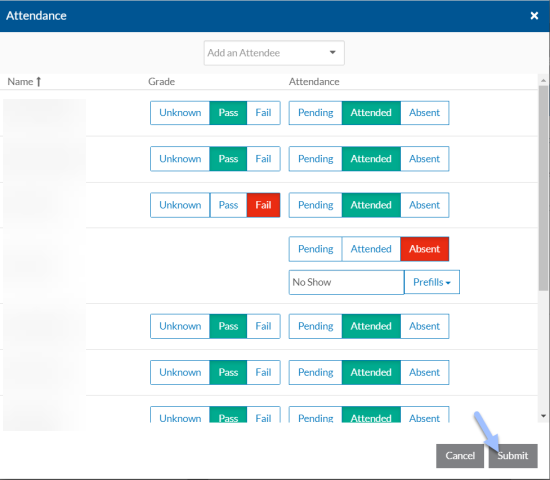
Depending on the attendance tracking type of the event, select the correct attendance status.
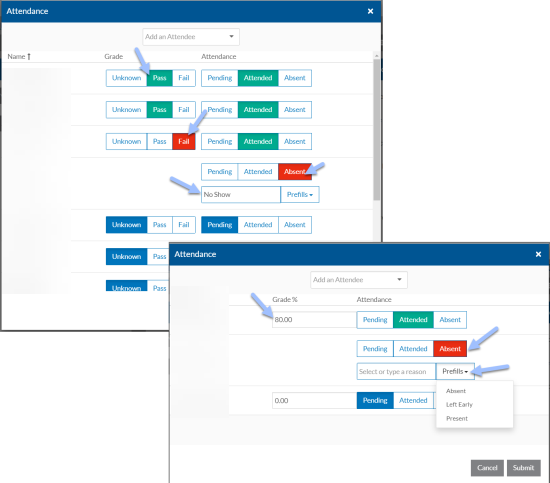
If you mark Pass or Fail or enter a Percentage, the Attended button automatically toggles on.
If you select Absent, you are then be prompted to enter a reason or select one from the Pre-filled menu.
-
Select Submit to record the attendance and update the attendees' job requirement status (if the event is tied to a requirement).