Employees Global Locations
Global locations give a central place to manage all of your location-based setup lists without having to know which database or module to navigate to.
-
Billing Cost Centers
-
Payroll Cost Centers
-
General Ledger Cost Centers
-
Client Care Placements
-
Client Care Placement Locations
-
Client Care Physical Locations
-
Time Tracking Service Locations (after syncing to DataPlus)
-
Staff Scheduling Scheduling Locations (after syncing to DataPlus)
Using the Global Location Wizard can quickly create new locations all at once and tie them to the appropriate security groups or tie together existing locations that should be linked together in a global location. Once the global location is created you can update the description, address and geo-location settings of the global location and update all of the tied locations as well. When you inactivate the global location, you automatically inactivate all the tied locations as well. You can quickly open the tied location from the global location to update additional settings that only apply to that location/cost center type.
If you want to use the Global Location Wizard to create new locations, you can't use custom required fields.
If you license Staff Scheduling, set the Staff Scheduling Location Sync Source to either Payroll Cost Center or Billing Cost Center in Database Preferences. You are then able to switch between the various tabs when viewing a Payroll Cost Center or Billing Cost Centers (Main, Time Tracking Settings and Staff Scheduling Settings).
The locations that are tied to the global location are what sync to Time Tracking/Staff Scheduling billing cost center syncs over as the service location and scheduling location, the payroll cost syncs over as the payroll cost center and the general ledger cost center syncs over as the general ledger location.
To add a new or modify a global location:
-
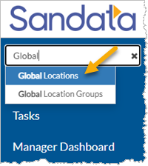
Enter Global Location in the Site Search.
-
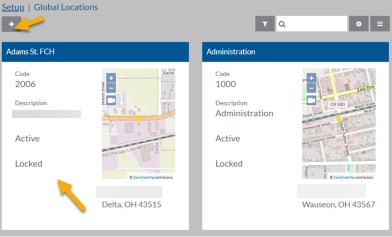
Select the + icon to add a new global location. Skip to Step 13 if the global location already exists.
-
Select one of the following options and select Next.
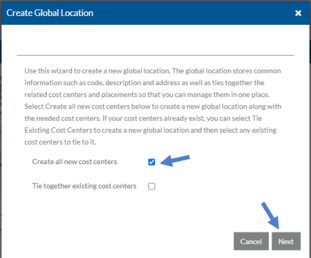
Select this option: If: Create all new cost centers None of the cost centers/locations exist yet.
Go to Step 4.
Tie together existing cost centers If one or more of the cost centers/locations already exists and you want to tie them together so that you can manage them as a global location.
Go to Step 11.
-
If you selected Create all new cost centers and this new location is a client-based location, select the box next to Is This Location Client Based?, select the client from the Client list and then click Next. Otherwise, simply click Next.
For client-based locations, you must add the client first.
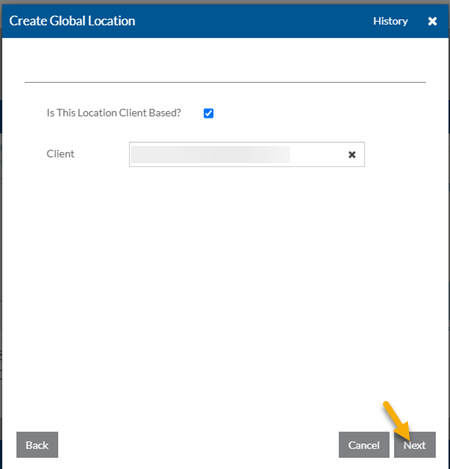
If you create a billing cost center for this global location it automatically sets as the selected client’s default billing cost center.
-
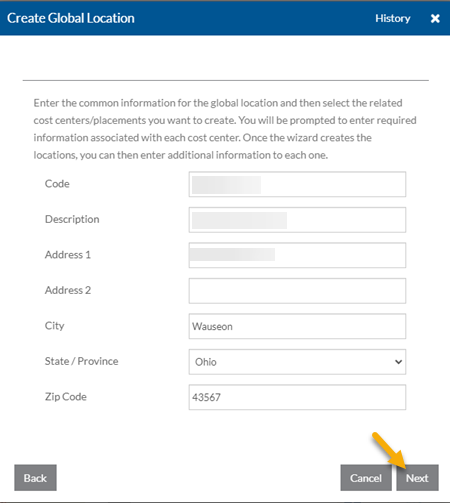
Complete the following common information as needed and select Next.
-
Code
-
Description
-
Address 1 and 2
-
City, State and Zip Code
If you selected a client in Step 4 it prefills the information from that client.
-
-
Select the check boxes for the cost centers/locations you want to create:
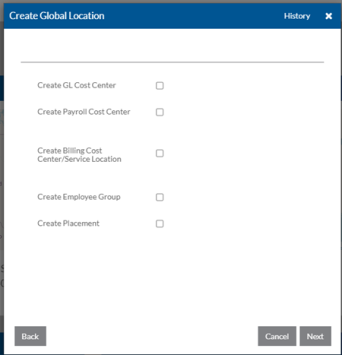
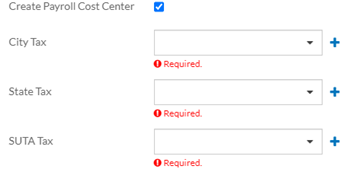
Select this check box: To: Create GL Cost Center Create a new General Ledger Cost Center if you have licensed General Ledger. Create Payroll Cost Center Create a new Payroll Cost Center if you have licensed Payroll. You are prompted to select the City, State and SUTA taxes as these fields are required.
Create Billing Cost Center/Service Location Create a new Billing Cost Center/Service Location if you have licensed Billing or Time Tracking. You are prompted to select the Processing Group as this field is required.
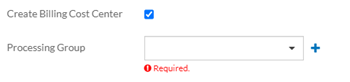
If this is a client-based location, this billing cost center automatically sets as the selected client's default cost center. When the Time Tracking/Staff Scheduling sync runs the client then be tied to this service location as well.
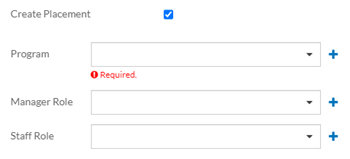
Create Employee Group Create a new employee group to tie the employee together the employees that are working at this location for security and requirements purposes. Create Placement Create a new Placement if you have licensed Client Care.
-
The Program is the program where this placement should appear under in the Client Placement tree.
If you selected a Client above, the selected client is automatically set in this placement. If not, you need to add clients to the placement after the global location is created.
-
The Manager Role is the security group for the managers that are working with the clients at this location (select the manager positions later in the wizard). Only security groups that have a Type of Role and have Use with Record Access Group selected appear.
-
The Staff Role is the security group for the staff that works with the clients at this location. If set a Staff Role and you selected Create Employee Group above, that employee group automatically be selected on the Staff Groups card of this Placement. Only security groups that have a Type of Role and have Use with Record Access Group selected appears.
-
-
When finished, select Next.
-
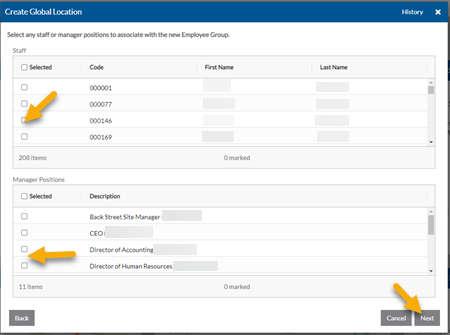
If you select Create Employee Group, first select the Staff that is working at this location or approved to be scheduled at this location and then select the positions that employee managers of this employee group and select Next.
-
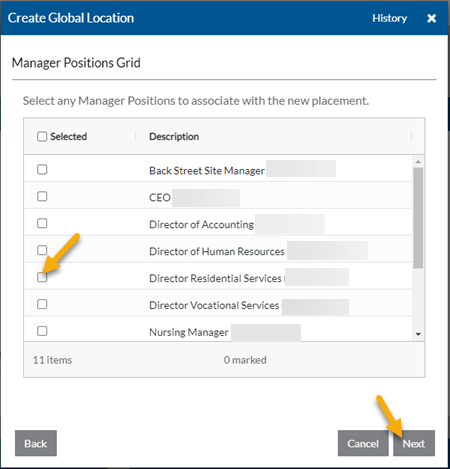
If you selected Create Placement and entered a Manager Role, select the positions that are client managers for this placement and select Next.
A progress bar displays as the new locations are created.
-
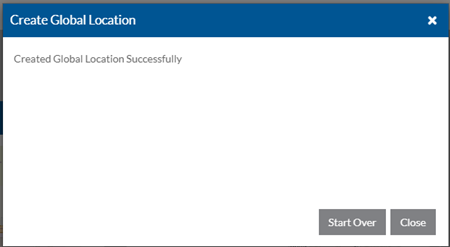
When finished click Close to exit the wizard. Skip to Step 14.
-
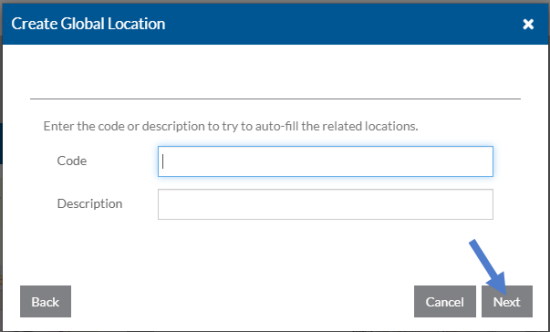
If you selected Tie together existing cost centers, enter the code or description of the ones you want to tie together and then select Next.
-
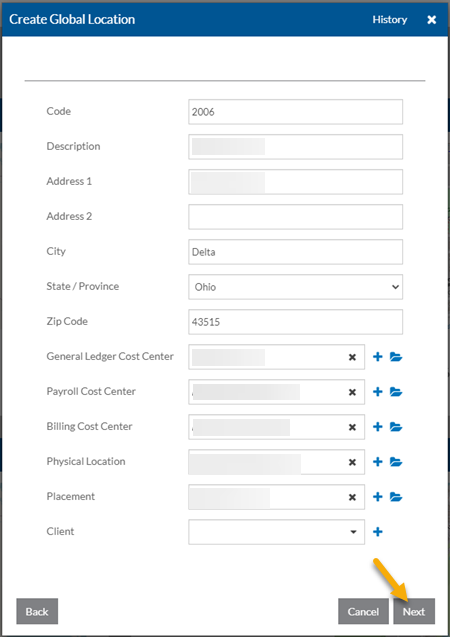
Verify the correct cost centers appear and if not, change them to the correct one and select Next.
-
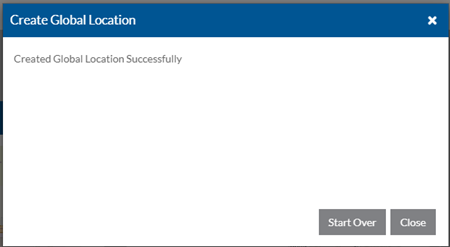
Select Close to exit the wizard.
-
Search for the global location and select the card to open it.
-
Modify the global location information as follows:
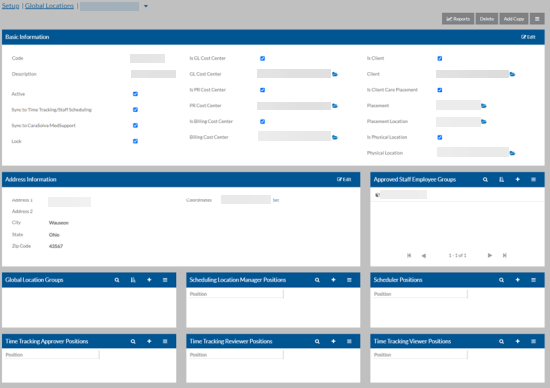
On this card: Enter or Select Basic Information -
Code
-
Description
-
Active
-
Sync to Time Tracking/Staff Schedule - This syncs the associated billing cost center, general ledger cost center and payroll cost center to Time Tracking as well as either the billing cost center or the payroll cost center to Staff Scheduling scheduling locations (based on the Sync to Staff Scheduling Type set in Database Preferences) if Lock is selected.
-
Sync to CaraSolva MedSupport - If you have licensed Sandata eMar integration, this syncs the associated placement to CaraSolva MedSupport if Lock is selected
-
Lock - If selected, then the Code, Description, Active, Sync to Time Tracking/Staff Scheduling, Sync to CaraSolva MedSupport and address information is read-only in the associated GL Cost Center, PR Cost Center, Billing Cost Center, Physical Location, Placement Location and Placement. If you change any of these fields in the global location, it also change them in linked places as well.
-
Is GL Cost Center - If selected the GL Cost Center field appears and is required.
-
Is PR Cost Center - If selected the PR Cost Center field appears and is required.
-
Is Billing Cost Center - If selected the Billing Cost Center field appears and is required.
-
Is Client - If selected the Client field appears and is required.
-
Is Client Placement - If selected the Placement and Placement Location fields appear and are required. The Is Physical Location field also appears and if selected the Physical Location field appears and is required.
Address Information -
Address 1 and Address 2
-
City, State Zip, Code
-
Coordinates - These are auto-generated for you based on the address entered when you save. If the coordinates aren't exact, you can select the Set link to manually adjust the coordinates.
Approved Staff Employee Groups Select one or more employee groups. If you selected Create Employee Group when creating the global location, that employee groups should already be selected.
The employees tied to the Staff or Staff Positions cards of the selected employee groups syncs to staff scheduling location groups as staff approved to work at the selected global locations above. Depending on the settings of the employee's staff permission group and associated data collection types, the staff may also be able to log time at these locations as well.
Global Locations Groups Select one or more global location groups that this global location should be a part. Global Location Groups are mainly used for Staff Scheduling/Time Tracking syncing purposes. Scheduling Location Manager Positions If a position's Scheduling Location Manager Type is set to Selected, you can select one or more positions that manage this location. The employees that fill the selected positions syncs over as the staff scheduling location scheduling location managers.
To do so, select the +, select the appropriate position(s), and then set the Manager Type as Primary or Department. Primary receives notifications and department does not.
Scheduling Manager Positions If a position's Schedule Manager Type is set to Selected, you can select one or more positions that schedule this location. The employees that fill the selected positions syncs over as the staff scheduling location schedulers.
To do so, select the +, select the appropriate position(s), and then set the Manager Type as Primary or Department. Primary receives notifications and Department does not.
Time Tracking Approver Positions If a position's Time Tracking Approver Type is set to Selected, you can select one or more positions that approve time and mileage for this location. The employees that fill the selected positions syncs over as the service location approvers and payroll cost center approvers.
To do so, select the +, select the appropriate position(s), and then set the Manager Type as Primary or Department. Primary receives notifications and Department does not.
Time Tracking Reviewer Positions If a position's Time Tracking Reviewer Type is set to Selected, you can select one or more positions that review time and mileage for this location. The employees that fill the selected positions syncs over as the service location reviewers and payroll cost center reviewers.
To do so, select the +, select the appropriate position(s), and then set the Manager Type as Primary or Department. Primary receives notifications and Department does not.
Time Tracking Viewer Positions If a position's Time Tracking Viewer Type is set to Selected, you can select one or more positions that view time and mileage for this location. The employees that fill the selected positions sync over as the service location viewers and payroll cost center viewers.
To do so, select the +, select the appropriate position(s), and then set the Manager Type as Primary or Department. Primary receives notifications and Department does not.
-
-
Select Save when finished.
A sync to Time Tracking/Staff Scheduling automatically kick off. It takes a few minutes before you see the new service locations, scheduling locations payroll cost centers and general ledger cost centers, staff groups and associated security settings in Time Tracking/Staff Scheduling.
-
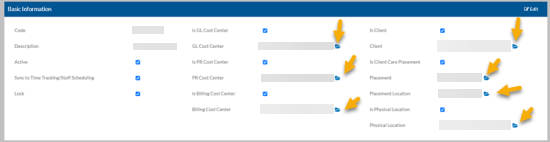
Select the folder icon next to the cost center/location tied to the global location.
-
Enter or modify the additional fields that are specific to the type of cost center/placement you opened and select Save when finished.
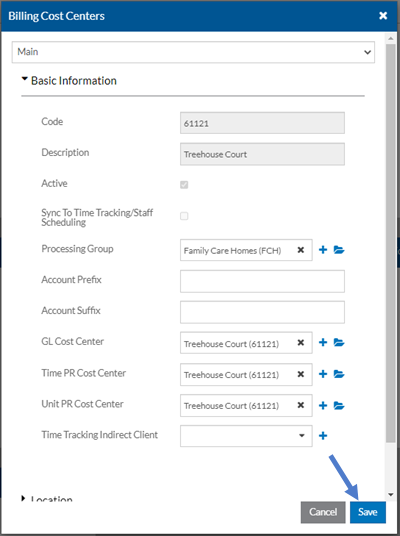
For additional information about the fields of the various locations/cost centers tied to global locations, refer to the corresponding topic:
-
Billing Cost Centers
-
General Ledger Cost Centers
-
Payroll Cost Centers
-
Placements
-
Service Locations
-
Scheduling Locations
-
-
Switch tabs to view additional settings.
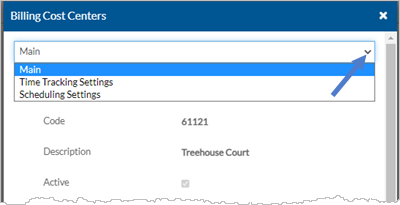
If this is a new global location, you are not able to switch to the Staff Scheduling Settings or Time Tracking Settings tab until the sync to Time Tracking/Staff Scheduling completes.