Employees Employment Terminations
You can use the Employment Tracking Wizard when an employee leaves employment to remove them from a position or managed position and complete their termination information that will then appear in their employment history.
In order to run the Employment Tracking Wizard, users need security permissions to add employment tracking transactions (and its children). In order to view the Employment History created users need read security permissions to employment tracking transactions (and its children).
-
Launch the Employment Tracking wizard:
-
Select Employee Care in the menu pane and then select Employment Tracking on the Other card.
-
Select the + above the Employment Tracking grid.

-
Select the employee you are terminating.
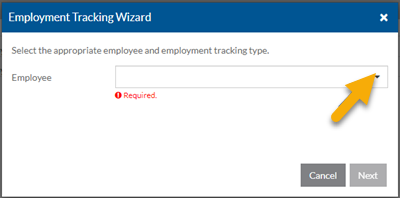
OR
-
Select Employee Care in the menu pane and then select Employees on the Employee Management card.
-
Select the card of the employee you are terminating.
-
Select the Options menu on the right.

-
Select Employment Tracking.
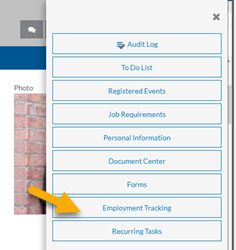
-
-
Select Termination from the Type list and then select Next.
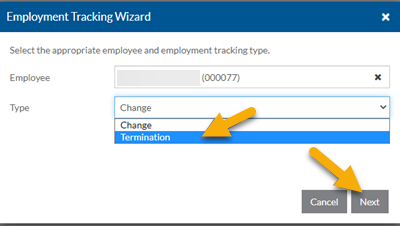
-
Select the Termination Reason, whether it is Voluntary and if the employee is Eligible for Rehire and select Next.
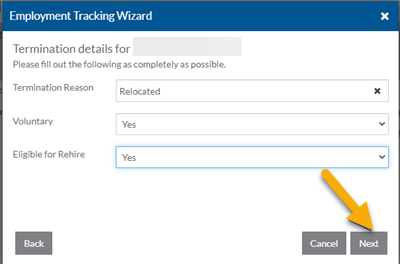
-
Enter the Effective Date of the termination and a Reason and select Finish.
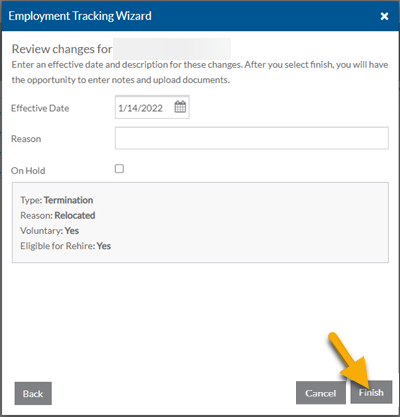
-
Select Close to exist the wizard.
The entry appears in the Employment Tracking transactions grid.
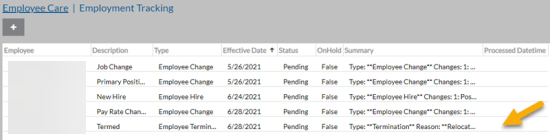
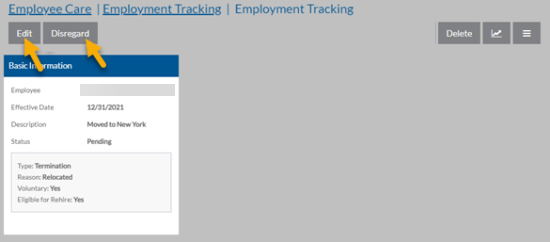
Open the entry to view the changes, make modifications to the changes or disregard it (disregarding it cancels the change) until it has been processed. In order to disregard the changes, the user must have workflow security up for employment tracking transactions. Employment Tracking transactions with an effective date of today or in the past process immediately. Those with an effective date in the future process between 6:00 AM and 10:00 AM ET on the effective date. The users that have security permissions to run the Employment Tracking wizard receive a message when items finish processing. If an error occurs, the system puts the Employment Tracking transaction On Hold. If this occurs, the processing message includes information about why the Employment Tracking transaction couldn't process. Once you correct the issue causing the error, you must then edit the Employment Tracking transaction to clear the On Hold checkbox. Once the On Hold checkbox is cleared the transaction then processes immediately (if the effective date is in the past or today).
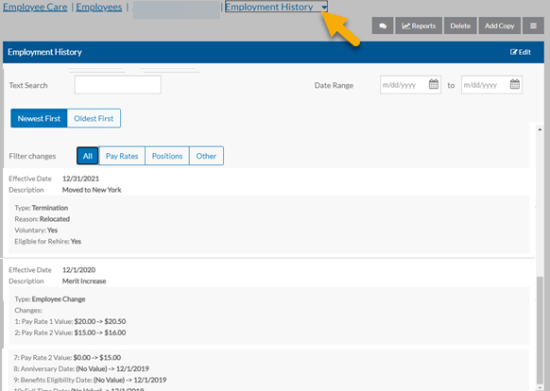
After it has processed, you can view the updates on the employee's Employment History tab and Employment Information tab.
The effective date appears in the first open term date. If all three term dates are filled, it removes term date 1, and then moves term date 2 to term date 1, moves term date 3 to term date 2 and enters the effective date in term date 3.