Employees Employment Groups
Employee Groups are a powerful tool that are used in both Employee Care and Client Care. Employee Groups are used here:
-
Employees
-
Client Placements
-
Positions
-
Global Locations
-
Global Location Groups
-
Security Groups
Assigning an employee to an employee group can determine:
-
Who an employee’s managers are for approving requirements in Employee Care, time off requests in Staff Scheduling and Time Tracking, and clocked/logged time in Time Tracking.
-
Where an employee can be scheduled to work in Staff Scheduling.
-
What clients the employee can view in Client Care and log time with in Time Tracking.
-
What requirements, self-service, and on-demand items the employee is required to complete for a particular location.
-
What employment information syncs back to the employee
An employee can be part of multiple employee groups; however, only one employee group can be the employee's primary employee group. If the employee group has a Manager Position tied to it that is marked Use with Managed Staff, a job title will be required for the employee for that employee group.
Only one Manager Position can be marked Use With Managed Staff for each employee group; however, multiple Manager Positions can be set as the Primary Employee Care Manager, Staff Manager and Approver.
Sandata recommends creating an employee group for each location where staff are working. Additional employee groups may also be needed for requirements that aren't job title or location based or for instances where staff aren't managed at the locations where they are serving clients.
To add a new or modify an employee group:
-
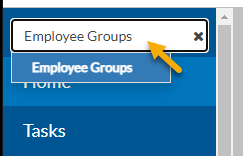
Enter Employee Groups in the Site Search.
-
Select the + icon to add a new employee group or the card of an existing employee group to open it.
-
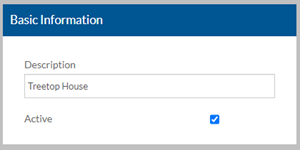
Enter a Description for the employee group and leave the Active check box selected.
-
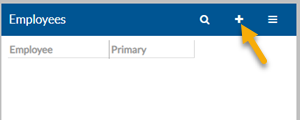
Select the + icon on the Employees card.
-
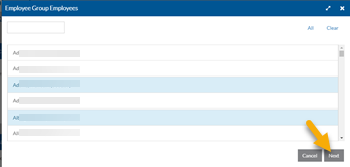
Select the employees that are part of this group and then select Next.
-
Complete the following information and then select Next. Repeat for each employee selected.
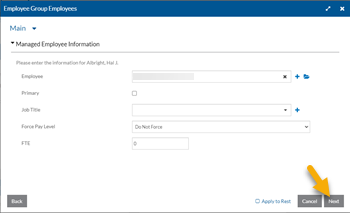
In this field: Enter Primary Select if this is the employee's primary employee group. An employee can only have one primary employee group. If you have licensed Employee Care and Sync to Primary Position Information to Employee is enabled in Position and Placement Options and a Manager Position with Use for Managed Staff is selected for this Employee Group, then the * items sync to the Position Information card on the Employment Information tab of the employee. Job Title The associated job title for this employee and employee group. If you have licensed, Employee Tracking is enabled in Position and Placement Options and a Manager Position with Use for Managed Staff is selected for this Employee Group, then this job title be required and will sync to the Job Titles card of the Employment Information tab of the employee. Force Pay Level This field only appears if you have also licensed Payroll. If so, this field is typically left set to Do Not Force unless this employee should be paid a different pay rate for the job title above. If you have licensed Employee Care and both Employment Tracking and Sync Primary Position Information to Employee are enabled in Position and Placement Options and this is the employee's primary managed position (employee group), then if this field is not set to Do Not Force, a Wage Replacement and Action will be created automatically.
FTE This is the FTE for this employee and employee group. If you have licensed Employee Care and both Employment Tracking and Sync Primary Position Information to Employee are enabled in Position and Placement Options and this is the employee's primary managed position (employee group), then the FTE syncs to the Job Title card and Position Information card on the Employment Information tab of the employee.
The Employment Tracking system sums the FTEs of all the employee's positions/managed positions (employee groups). If the employee is in multiple managed positions (employee groups) that are associated with the same job title, enter the correct FTE in the primary position and 0 in the others.
-
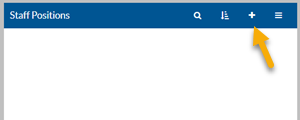
If your staff employees are in positions, select the + icon on the Staff Positions card.
-
Select the staff positions that should part of this employee group and then select Next.
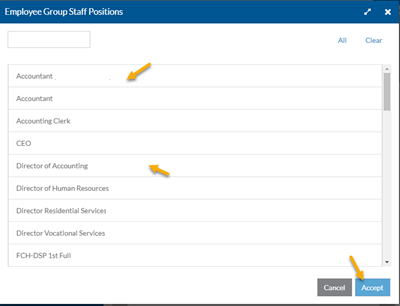
The employees filling these positions have access to the clients that are part of the departments, programs and placements selected on the corresponding cards below. In addition, the employees filling these positions are required to complete any requirements tied to a requirement plan for this employee group.
-
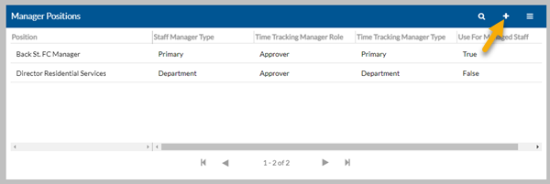
Select the + icon on the Manager Positions card.
-
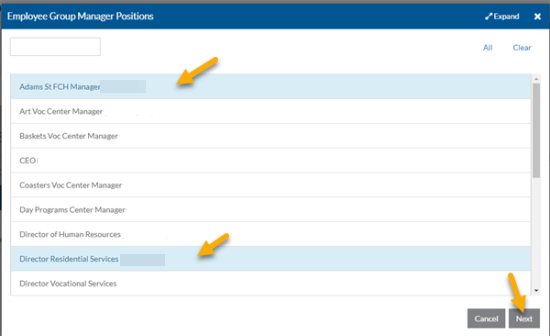
Select the appropriate Manager Positions and then select Next. A position only appears in this list if the position has an Employee Care Security Role set.
-
Complete the following information and then select Next. Repeat for each position selected.
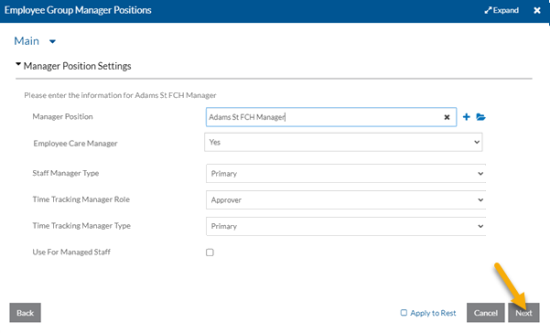
In this field: Enter Employee Care Primary Manager Leave this set to yes if the selected manager position should be designated as the primary manager for the employees who have this employee group set as Primary in regards to employee care for approving requirements, receiving workflow related notifications and filtering employee cards via the Managed By Me toggle. Staff Manager Type If the selected manager position has the Staff Scheduling/Time Tracking Staff Manager Type set to Selected, set this option to Primary or Department. Otherwise, this setting is ignored. Time Tracking Manager Role If the selected manager position has the Time Tracking Approver Type, Time Tracking Reviewer Type or Time Tracking Viewer Type is set to Selected, set this option to None, Approver, Reviewer or Viewer as appropriate. Otherwise, this setting is ignored. Time Tracking Manager Type If the selected manager position has the Time Tracking Approver Type, Time Tracking Reviewer Type or Time Tracking Viewer Type is set to Selected, set this option to Primary or Department. Otherwise, this setting is ignored. Use For Managed Staff If you have licensed Employee Care and Employment Tracking is enabled in Position and Placement Options, then if this position has the Use Managed Staff check box selected as well, select this check box so that this Employee Group appears as a choice in the Employment Tracking Wizard when assigning Managed Positions to employees that report to this manager. In addition if the Sync Primary Position Information to Employee and Sync Manager to Employee are enabled in Position and Placement Options, then the manager position's Managed Staff Settings copy to the Employment Information tab of the employee and the employee has then the employee filling this position syncs to the manager field on the Employment Information tab of the employee for those employees who have designated this employee group as primary. Only one manager position can be set to Use for Managed Staff for the employee group.
When you save the employee group, a SURAG- security group is generated for each employee filling the manager position (if they are set up as a Client Care/Employee Care user), giving them security access to the employees in this employee group.
-
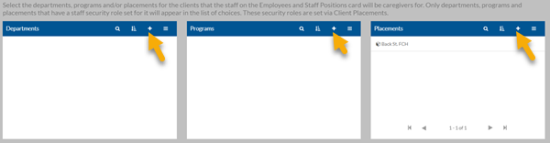
Select the + icon on the Departments, Programs and/or Placements card.
-
Select the Departments, Programs, or Placements of the client whom the employes and staff positions in this employee group should have security access and select Accept. Only Departments, Programs and Placements that have a Staff Security Group set appears as choices to select.
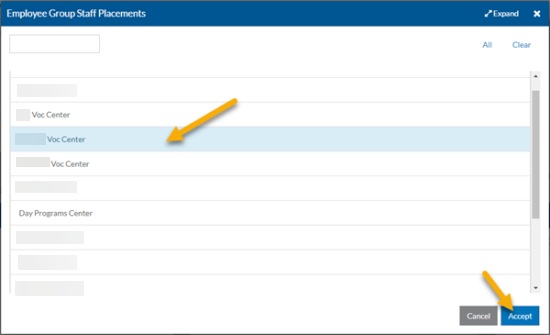
When you save the employee group, a SURAG- security group is generated for each employee and staff position (employee filling the position) giving them staff security access to the associated clients if they are set up as a Client Care/Employee Care user.
-
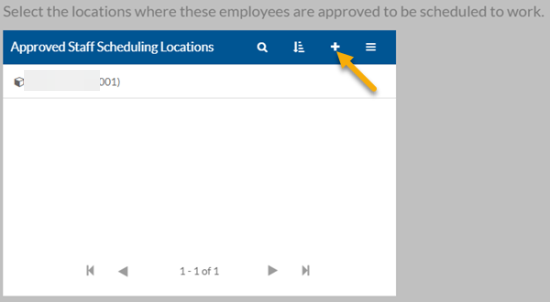
If you have licensed Staff Scheduling, select the + icon on the Approved Staff Scheduling Locations card.
-
Select the location groups and/or locations of where the employees in this employee groups are approved to be scheduled and select Accept.
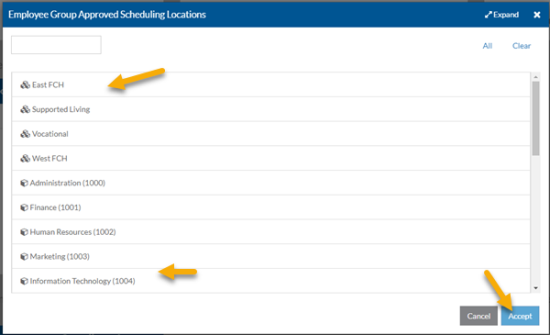
When you save this employee group, a staff schedule/time tracking sync automatically kick off. The employees in this employee group syncs over as Approved Staff to the selected Scheduling Locations and Scheduling Location Groups.
-
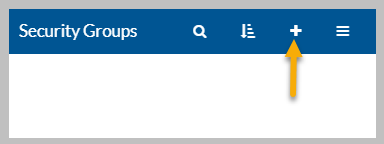
If there are additional security groups need for the employees in this employee group, select the + icon on the Security Groups card.
Additional security groups may be needed if staff are allowed to add their own work-related injuries or leave requests, for example.
-
Select the appropriate security groups and then select Accept.
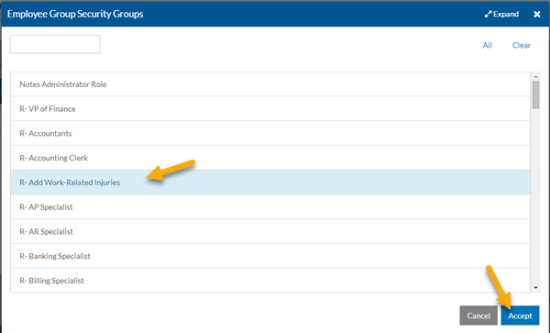
When you save this employee group, the security groups selected is added to the users account of the employees in this employee group, if they are set up as Employee Care/Client Care users.
-
Scroll back to the top of the screen and then select Save when finished.