Employees Create an Employee
You can add a new employee from the Employee index screen or from an Application detail screen when the Status is Offer Accepted. The Add employee wizard guides you through adding the basic and required information to add a new employee and ensures that you do not add the same employee more than once. In addition, you can schedule the new employee to be added at a future date.
You must have add security permissions to employee to add an employee. In addition, to add an employee from an Application, you also need security permissions to the Create Employee workflow wizard when the state (status) is set to Offer Accepted.
To create a new employee:
-
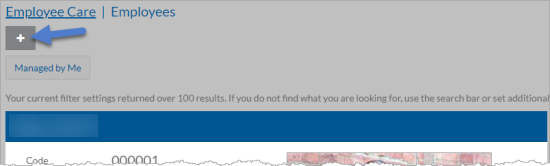
Select the + icon the Employees index screen.
-
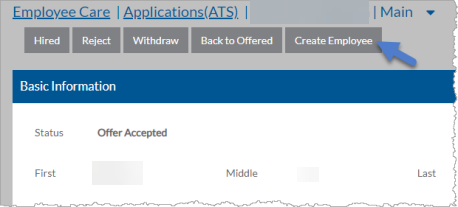
Select Create Employee from the detail screen of an Application that has a Status Offer Accepted.
Complete the information below as needed and click Search.
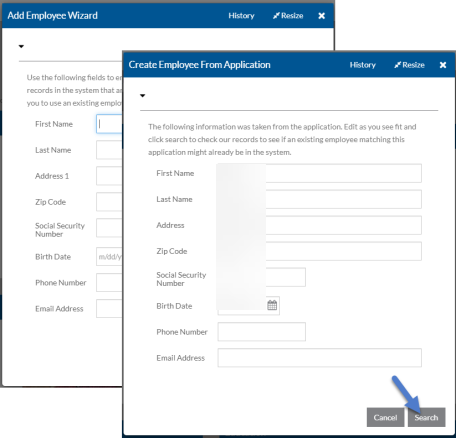
If you are creating an employee from an Application, any information already captured in the application is pre-populate the fields below and can be modified as needed.
-
First Name
-
Last Name
-
Address 1
-
Zip Code
-
Social Security Number
-
Birth Date
-
Phone Number
-
Email Address
The wizard searches for any employees that match the Name, Address, SSN, Phone Number or Email Address that you enter.
-
-
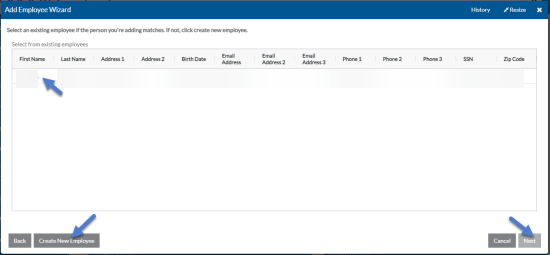
Select one of the existing employees from the grid and click Next if it is the same employee you are trying to add or select Create New Employee if you want to add the new employee that you just entered.
-
Complete the rest of the information about the employee as needed and click Next.
If you selected Create New Employee, any information you entered on the first screen automatically appears.
If you are creating an employee from an Application, any information already captured in the application automatically appears.
If you selected an employee that already existed instead of creating a new employee, any information that was already entered for that employee automatically appears.
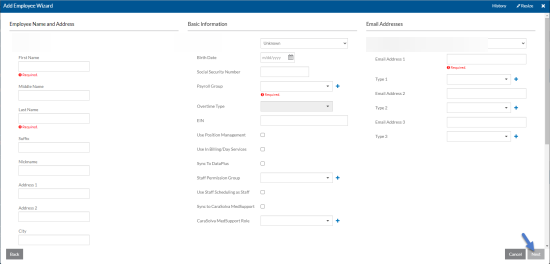
In this Field Enter or Select Code The unique alpha-numeric code for the new employee. (up to 12 number or letters). This field is required. If this field is auto-generated it not appear on the screen. First Name The employee’s first name. This field is required. (up to 20 characters) Middle Name The employee’s middle name or initial. (up to 20 characters) Last Name The employee’s last name. (up to 20 characters) Suffix The employee’s suffix such as Jr., III, etc. Nickname The employee’s preferred first name. (up to 20 characters) Address 1 and Address 2 he employee’s street address. (up to 40 characters each) City, State and Zip Code The employee’s city, (up to 20 characters), state, and zip code.
If you license Payroll, the state entered here is used to calculate state taxes and when processing W-2 information (unless you select the State Tax Based On Cost Center check box on the Taxes tab after adding the employee).
Sex The employee’s sex: Not Provided, Male, Female, Non-Binary, Transgender or Unknown Birth Date The employee’s date of birth Social Security Number The employee’s 9 digit Social Security Number Payroll Group If you a license Payroll, this is the payroll group that this employee’s payroll is processed with and is required. Overtime Type If you license Payroll and the Payroll Group selected has a Wage Entry Type of Detail - Calculate Overtime, this is the overtime type to use when calculating overtime for this employee. It is required.
If Use Position Management is selected and both Employment Tracking and Sync Primary Position Information to Employee are enabled in Position and Placement Options, this information is read only and sync from the employee’s primary position after you assign it.
Use Position Management If you have licensed Billing or Day Services and you want this employee to be available in Billing and Day Services. Sync To DataPlus If this employee is logging in to Client Care. Employee Care. Staff Scheduling or Time Tracking Sync to CaraSolva MedSupport If you have licensed Sandata eMar integration for Client Care, select this option to sync this employee’s information to Sandata eMar (CaraSolva MedSupport) CaraSolva MedSupport Role If you selected Sync to CaraSolva MedSupport, select the security for role this employee in Sandata eMar (CaraSolva MedSupport) when the employee syncs. Which Email Address is the DataPlus Login Email? If you selected Sync to DataPlus, select the email address (Address 1, 2 or 3) that the employee uses as their user name to log in to DataPlus. Phone 1-3 Up to three phone numbers for this employee. Type 1-3 Up to three types to describe the corresponding phone numbers for this employee. Email 1-3 Up to three email addresses for this employee. The email address that is set as the DataPlus Login Email is be required when Sync to DataPlus is True. Type 1-3 Up to three types to describe the corresponding email addresses for this employee. Required Information If your agency has set up any additional fields to require a value, they appear here.
-
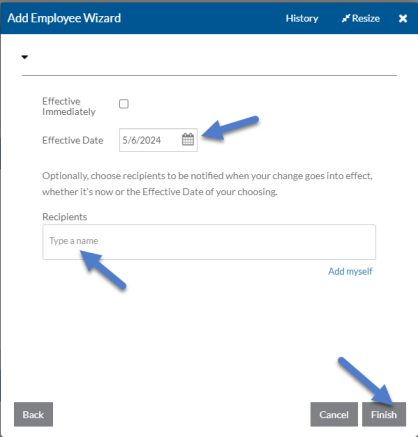
Leave the Effective Immediately check box selected if you want create the new employee right away otherwise clear the check box and select the Effective Date you want to add it.
-
Add any recipients that you would like to receive a Message in the Message Center when the new employee is added and then click Finish.
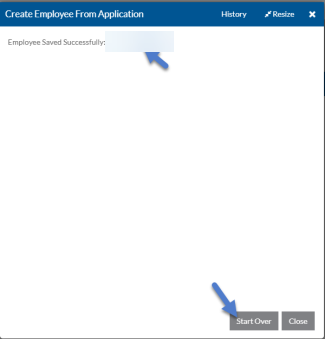
If you left Effective Immediately selected, select the link to the new employee to open the new employee or Start Over to add another employee.
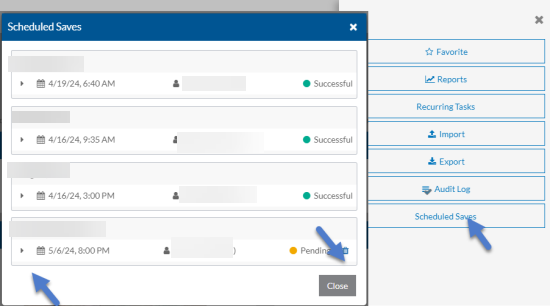
If you scheduled the employee to be added on a future date, you can select Scheduled Saves from the Options menu on the employee index screen to review the upcoming employees to be added and cancel it if needed.
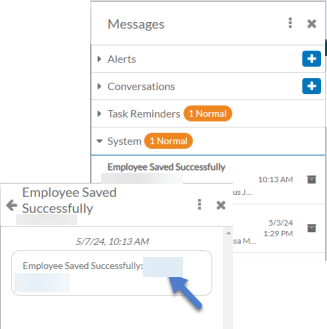
Finally, a message is sent to the selected recipients when the employee is added whether immediately or in the future. Employee Add messages are sent to the System category. You can click on the link to open the new employee and continue entering additional information on the other tabs.
If you created a employee from an application the employee’s race, ethnicity, gender, preferred pronouns, disability status, veteran status, protected veteran status (on the Demographics tab) and education (on the Education tab) is also saved to the new employee. If you are not using Employment Tracking, the employee’s job title hired for is also saved as the employee’s primary job title on the Employment Information tab.
Once the automatic sync finishes running, the employee is available in Time Tracking, Staff Scheduling, Client Care and Employee Care based on your licenses. The next step to complete is to assign the new employee to the appropriate Position(s)/Managed Position via the Employment Tracking Wizard or Basic Positions (Client Care only) and/or add them to the appropriate Employee Groups.